> ## Documentation Index
> Fetch the complete documentation index at: https://knowledge.uportal360.com/llms.txt
> Use this file to discover all available pages before exploring further.
# How do I process a Down payment with UPortal360?
\**Please note this will only apply to our clients who are utilizing Apply Interface for a Direct to Consumer application process*
## \*\*Approval Confirmation \*\*
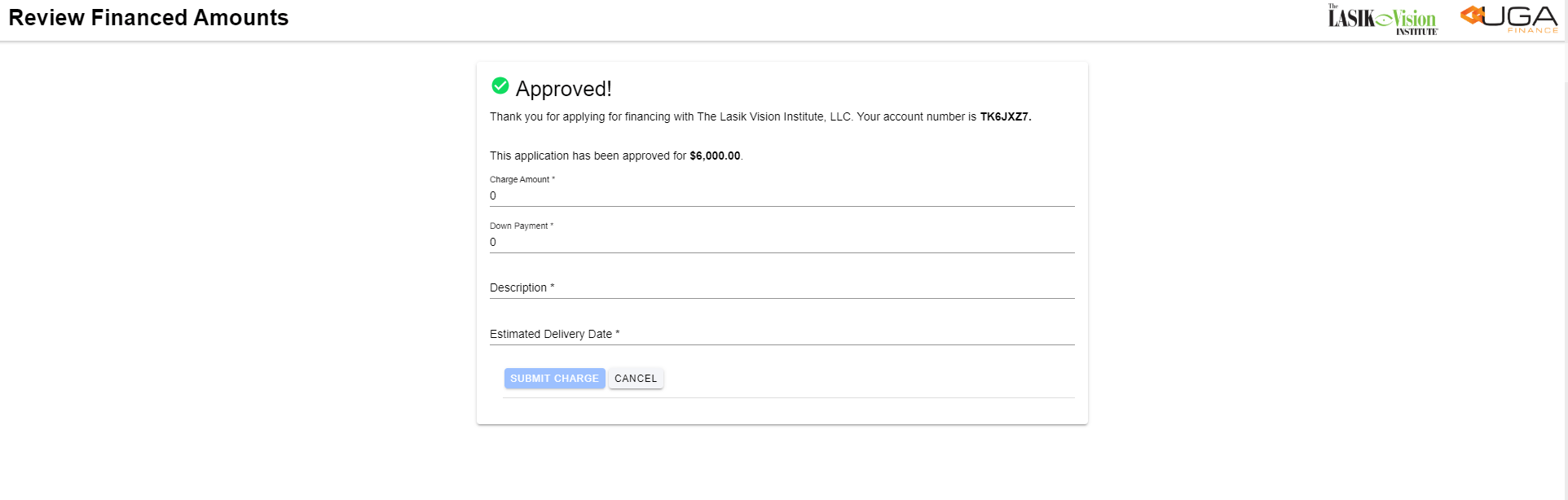
Account number will appear along with the Aproval amount, enter the requested details:
* Charge Amount
* Down Payment
* Description
* Estimated Delivery Date
* Select Submit Charge
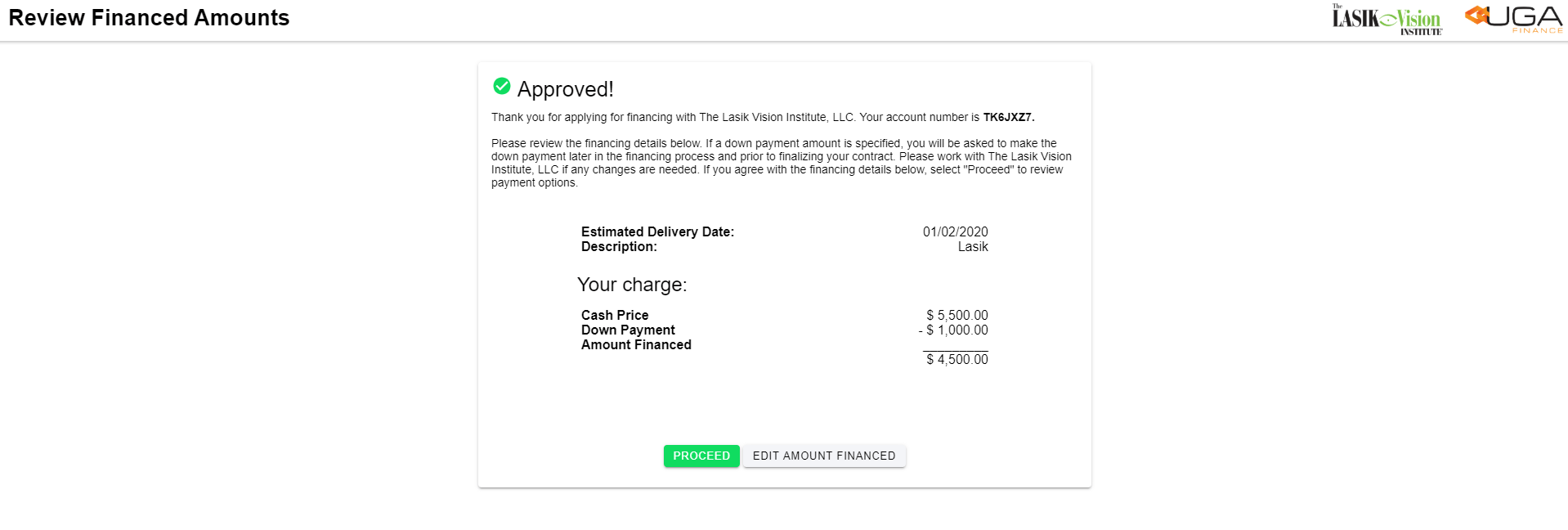
 \*\*Verify the amounts are correct , select Proceed.
*If the amount is incorrect, click on the Edit amount financed button and enter the corrected amounts.*\*
\*\*Verify the amounts are correct , select Proceed.
*If the amount is incorrect, click on the Edit amount financed button and enter the corrected amounts.*\*
 ## Payment Options
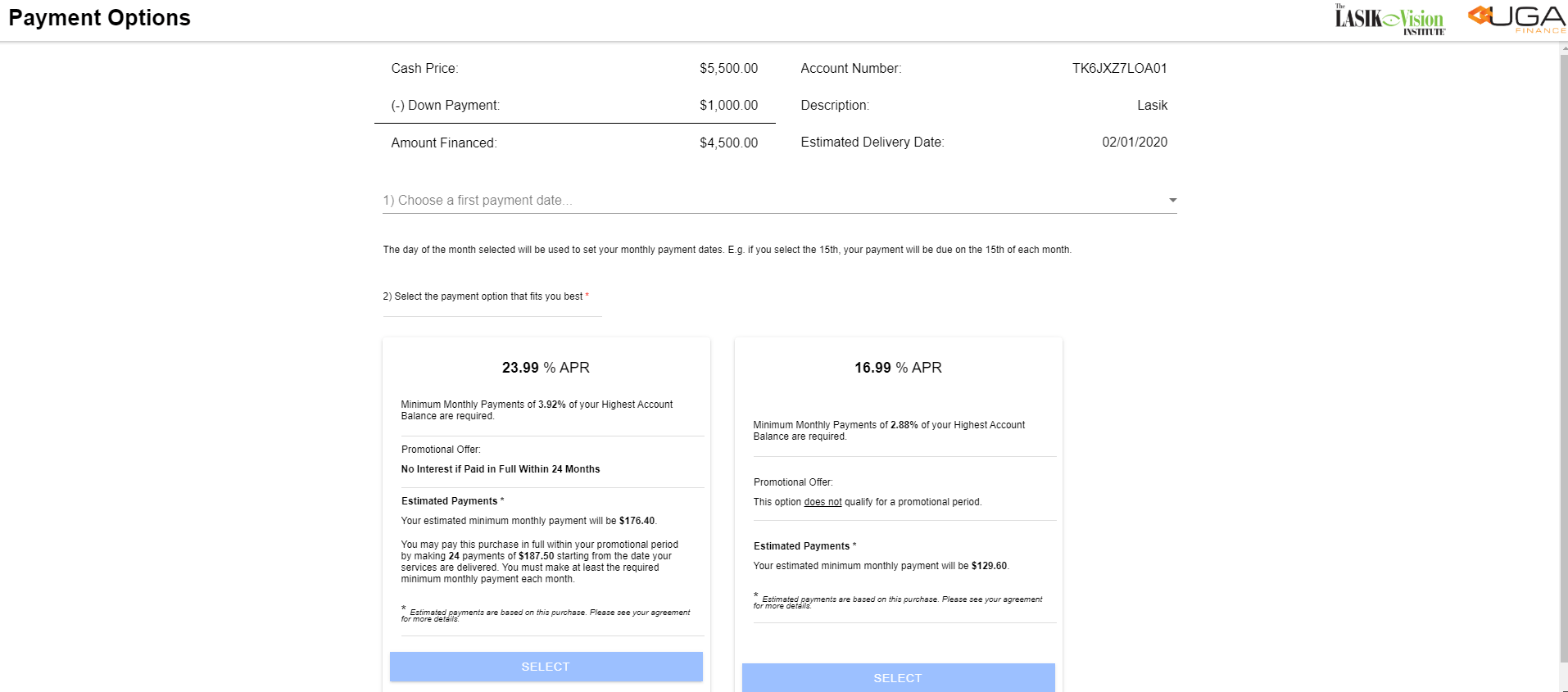
Select the first payment date from the drop down box, then select the financing option for the consumer.
*Take note the only terms options displayed are the options the consumer qualifies for due to credit eligibility*
## Payment Options
Select the first payment date from the drop down box, then select the financing option for the consumer.
*Take note the only terms options displayed are the options the consumer qualifies for due to credit eligibility*
 ### Down Payment
**This screen will advise if a down payment is required and the amount. The option to add payment method on this screen to process the down payment.**
### Down Payment
**This screen will advise if a down payment is required and the amount. The option to add payment method on this screen to process the down payment.**
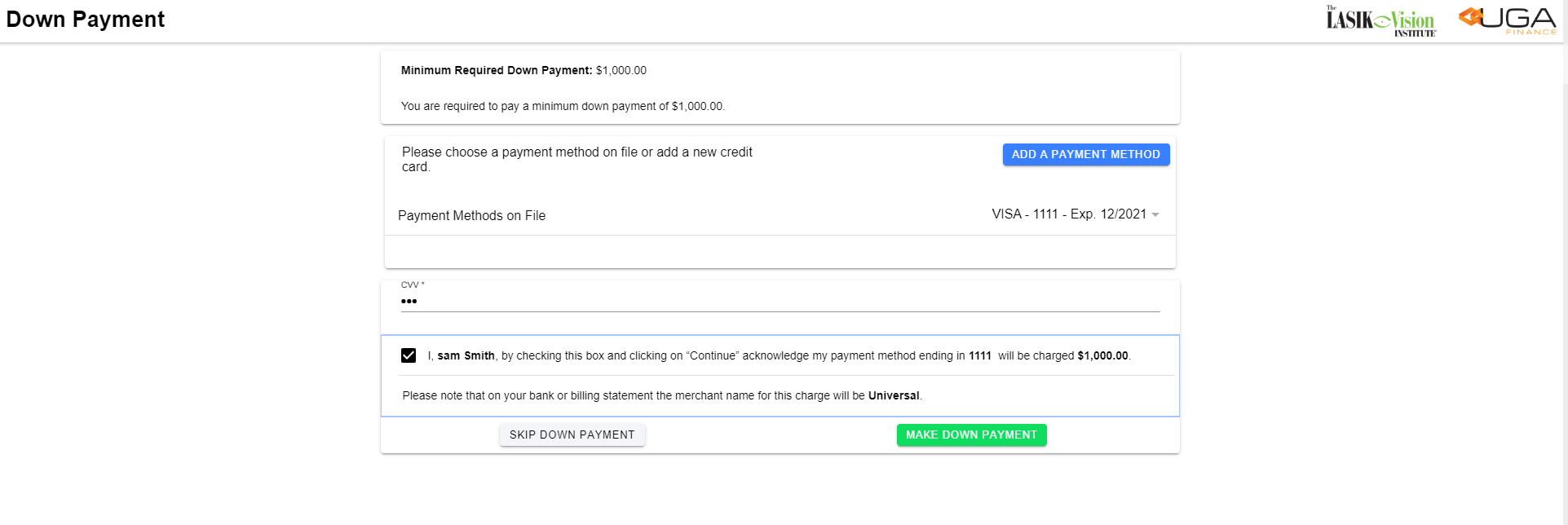
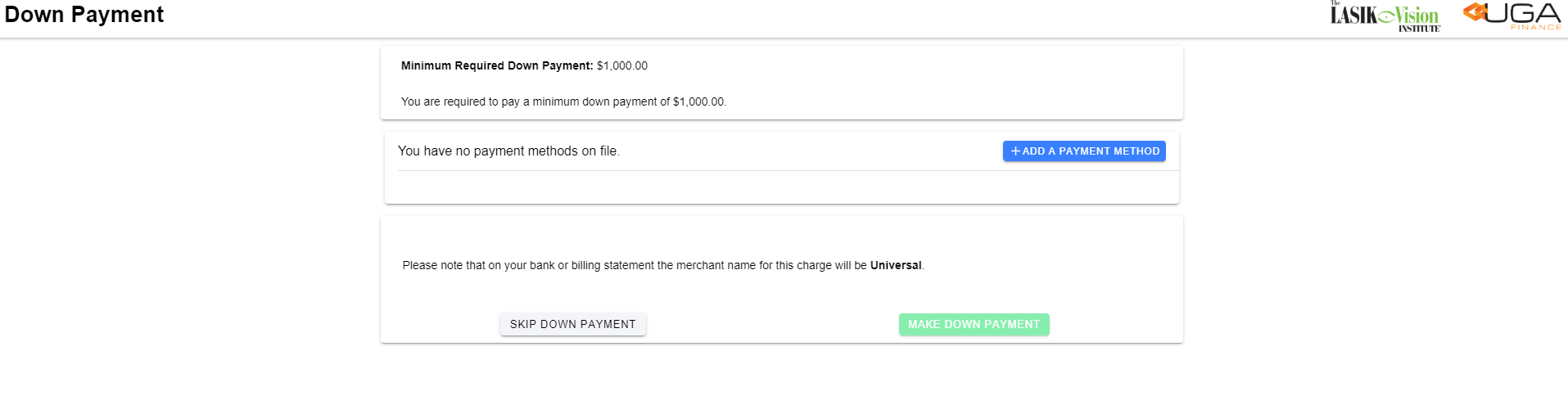 \*\*Once the payment method has been added, enter the CVV code, select Acknowledge payment Select Make Down Payment \*\*
 ## \*\*Payment Confirmation \*\*
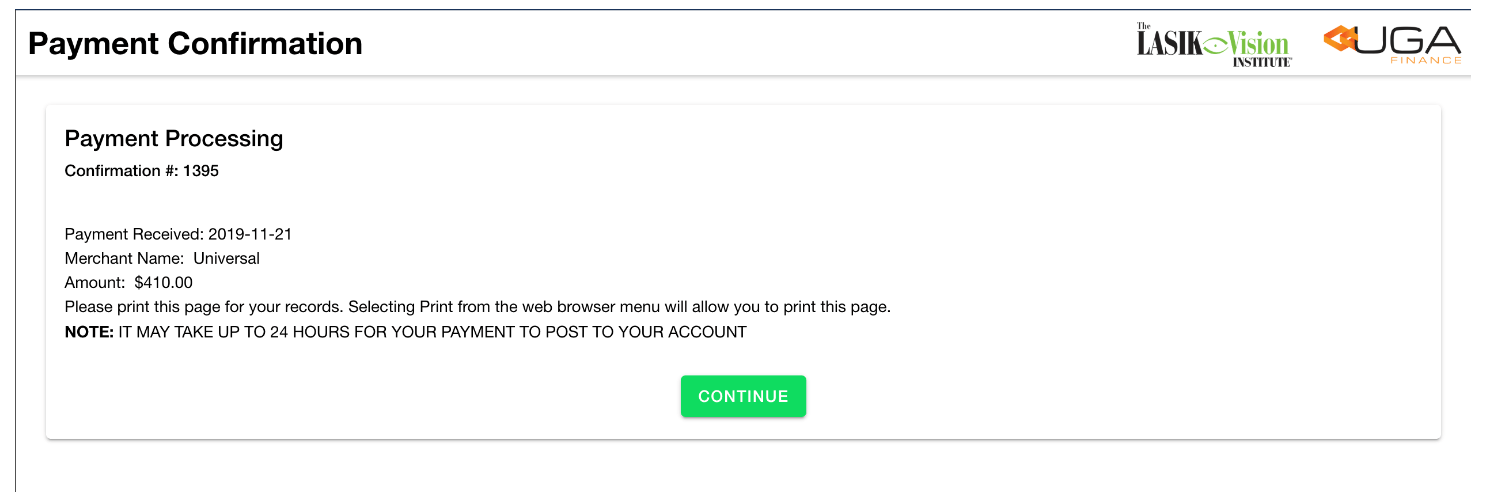
Indication the payment was sucessful. Displays the specific information such as the Payment Received date, Merchant Name, and Payment amount collected.
Select Continue
## \*\*Payment Confirmation \*\*
Indication the payment was sucessful. Displays the specific information such as the Payment Received date, Merchant Name, and Payment amount collected.
Select Continue