> ## Documentation Index
> Fetch the complete documentation index at: https://knowledge.uportal360.com/llms.txt
> Use this file to discover all available pages before exploring further.

# Adding A Charge

## uPortal360 Add Charge Guide

This article is meant to serve as a guide in navigating through uPortal360 and submitting an Add Charge. Instructions and examples will be provided for both consumers and merchants. Please note you can only add charges on open ended contracts.

## When can an Add Charge be submitted?

In order to submit a change for an Add Charge, the consumer’s account must meet the following criteria:

1. Account is Active
2. Closed Accounts or Accounts with a Pending application status cannot request an Add Charge
3. Account is Current
4. If the account is delinquent, the request cannot be submitted until the consumer has brought it current
5. Account has Credit Available
6. If the max amount of credit is used, an Add Charge cannot be submitted.

## Merchant Adds Charge for Consumer

To Add additional charges to a Consumer’s account, the merchant must access the account via uPortal360. Once the Merchant is in the account, they will navigate the process through the portal using the Add Charge feature located within the Client Actions tab of the sidebar.
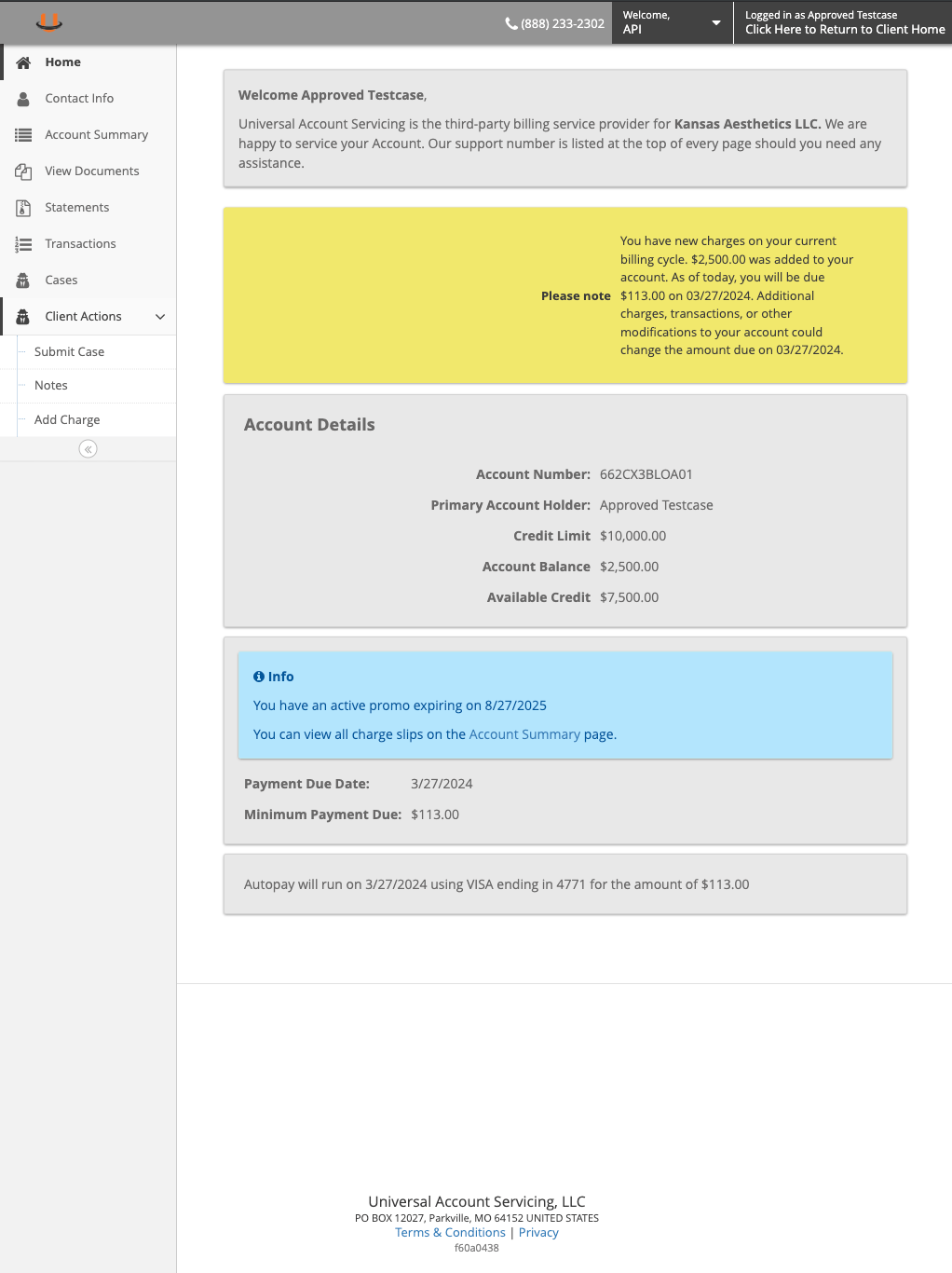
<Steps>
  <Step title="Click Client Actions > Add Charge">
    <Frame>
      <img src="https://mintcdn.com/uas-knowledge/hnKzvOp4tLdJXQgi/images/addcharge-merchant-consumer-expand-clientactions-1.png?fit=max&auto=format&n=hnKzvOp4tLdJXQgi&q=85&s=7f56f632761246b64d9fb2f4438acac1" alt="Click Client Actions > Add Charge" data-og-width="1022" width="1022" data-og-height="1366" height="1366" data-path="images/addcharge-merchant-consumer-expand-clientactions-1.png" data-optimize="true" data-opv="3" srcset="https://mintcdn.com/uas-knowledge/hnKzvOp4tLdJXQgi/images/addcharge-merchant-consumer-expand-clientactions-1.png?w=280&fit=max&auto=format&n=hnKzvOp4tLdJXQgi&q=85&s=99ad9a18f4428e440e9c62891a1b6a64 280w, https://mintcdn.com/uas-knowledge/hnKzvOp4tLdJXQgi/images/addcharge-merchant-consumer-expand-clientactions-1.png?w=560&fit=max&auto=format&n=hnKzvOp4tLdJXQgi&q=85&s=5a3647e019121862724d0c22226946b8 560w, https://mintcdn.com/uas-knowledge/hnKzvOp4tLdJXQgi/images/addcharge-merchant-consumer-expand-clientactions-1.png?w=840&fit=max&auto=format&n=hnKzvOp4tLdJXQgi&q=85&s=2087bcbeb5ae90d2c75a01dead0b3410 840w, https://mintcdn.com/uas-knowledge/hnKzvOp4tLdJXQgi/images/addcharge-merchant-consumer-expand-clientactions-1.png?w=1100&fit=max&auto=format&n=hnKzvOp4tLdJXQgi&q=85&s=ef7c7cadef1c1045e4b11d5f4fd59269 1100w, https://mintcdn.com/uas-knowledge/hnKzvOp4tLdJXQgi/images/addcharge-merchant-consumer-expand-clientactions-1.png?w=1650&fit=max&auto=format&n=hnKzvOp4tLdJXQgi&q=85&s=c7a2c70b3e1447e2a3f8cae99913557c 1650w, https://mintcdn.com/uas-knowledge/hnKzvOp4tLdJXQgi/images/addcharge-merchant-consumer-expand-clientactions-1.png?w=2500&fit=max&auto=format&n=hnKzvOp4tLdJXQgi&q=85&s=5d43abf8695c4cd65c2e46216e8c1d3d 2500w" />
    </Frame>
  </Step>

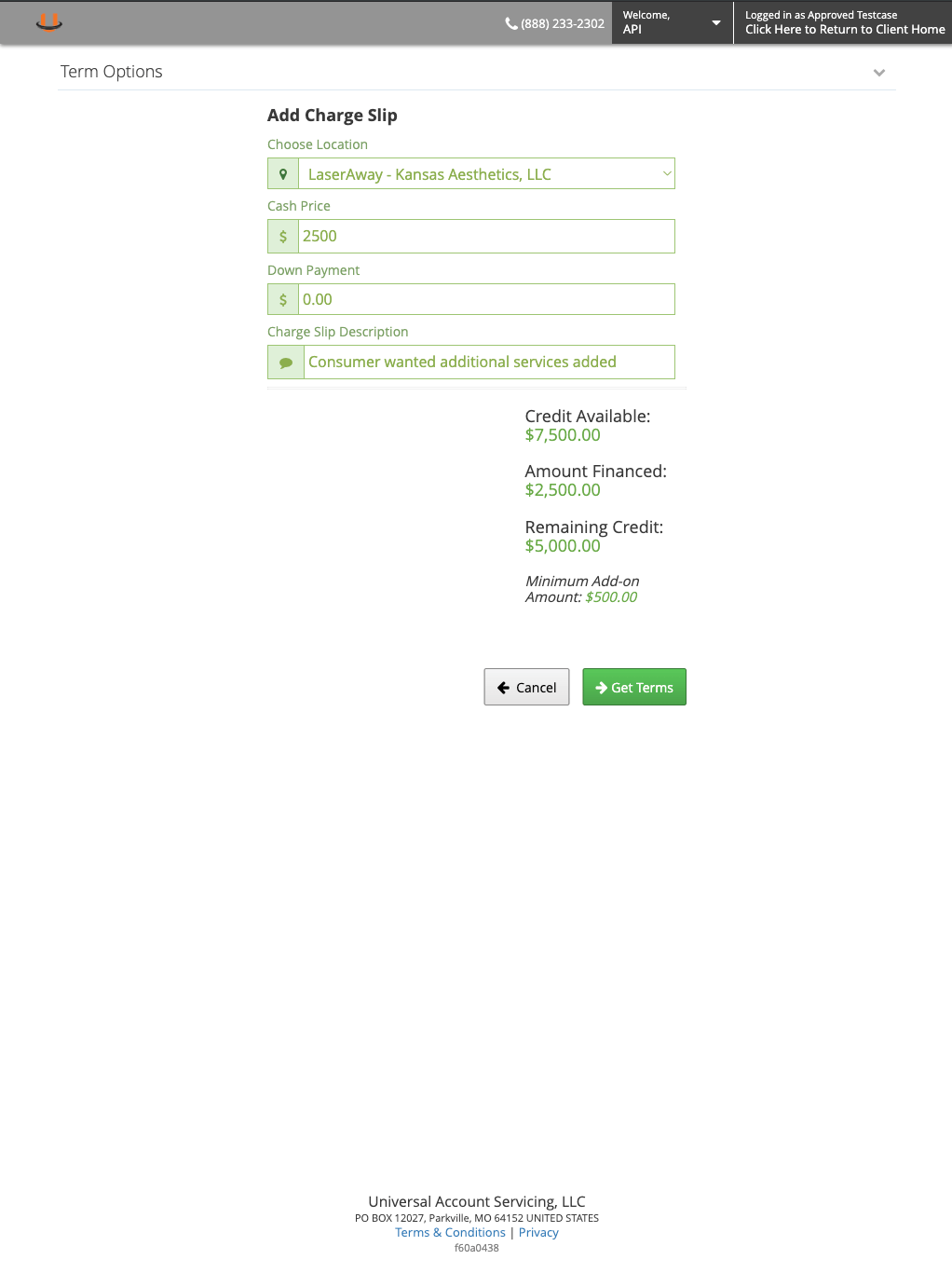
  <Step title="Enter in Charge Slip Details">
    <Frame>
      <img src="https://mintcdn.com/uas-knowledge/hnKzvOp4tLdJXQgi/images/addcharge-merchant-addcharge-description.png?fit=max&auto=format&n=hnKzvOp4tLdJXQgi&q=85&s=c915fde26187878fbab7a6b0f2c87676" alt="Enter in Charge Slip Details" width="1022" height="1366" data-path="images/addcharge-merchant-addcharge-description.png" />
    </Frame>
  </Step>

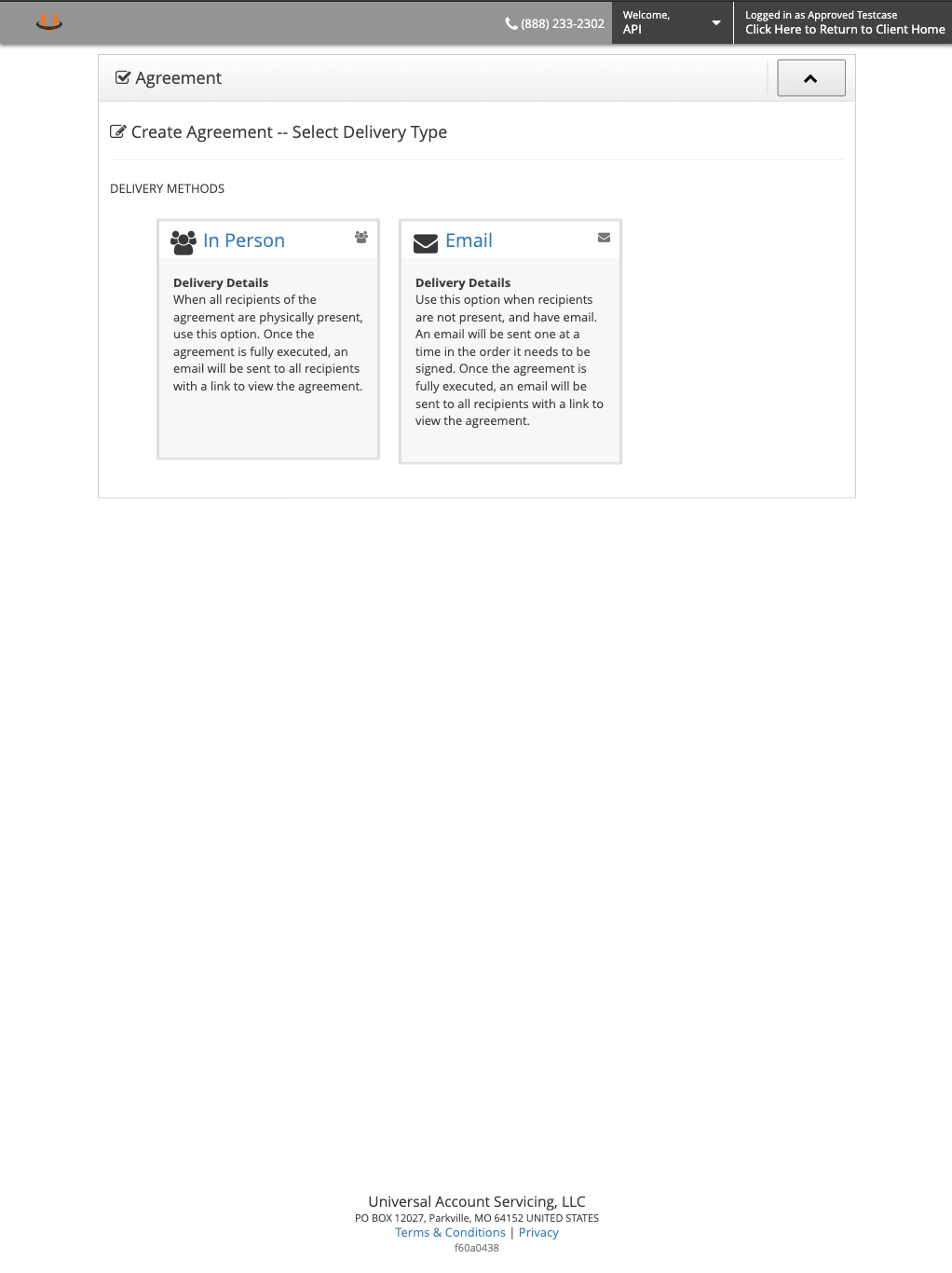
  <Step title="Select Create Agreement Type">
    <Frame>
      <img src="https://mintcdn.com/uas-knowledge/hnKzvOp4tLdJXQgi/images/addcharge-merchant-agreement.png?fit=max&auto=format&n=hnKzvOp4tLdJXQgi&q=85&s=6bd59f626053b58a9a455d1ab1bfcebc" alt="Select Create Agreement Type" width="1022" height="1366" data-path="images/addcharge-merchant-agreement.png" />
    </Frame>
  </Step>

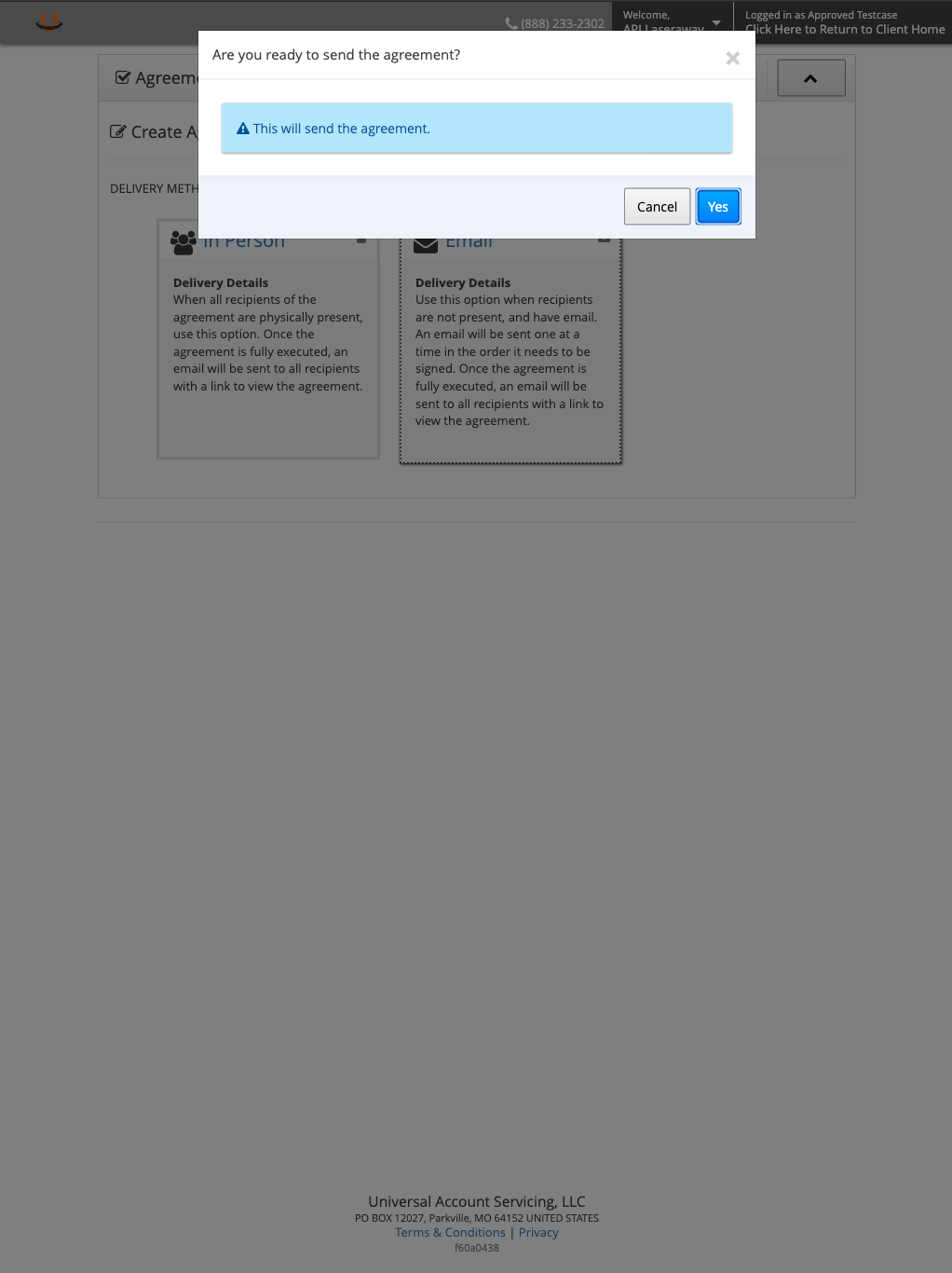
  <Step title="Send Agreement Confirmation">
    <Frame>
      <img src="https://mintcdn.com/uas-knowledge/hnKzvOp4tLdJXQgi/images/addcharge-merchant-agreement2.png?fit=max&auto=format&n=hnKzvOp4tLdJXQgi&q=85&s=a0794646d0b8c120a7f26ed3ef88f0f6" alt="Send Agreement Confirmation" width="1022" height="1366" data-path="images/addcharge-merchant-agreement2.png" />
    </Frame>
  </Step>

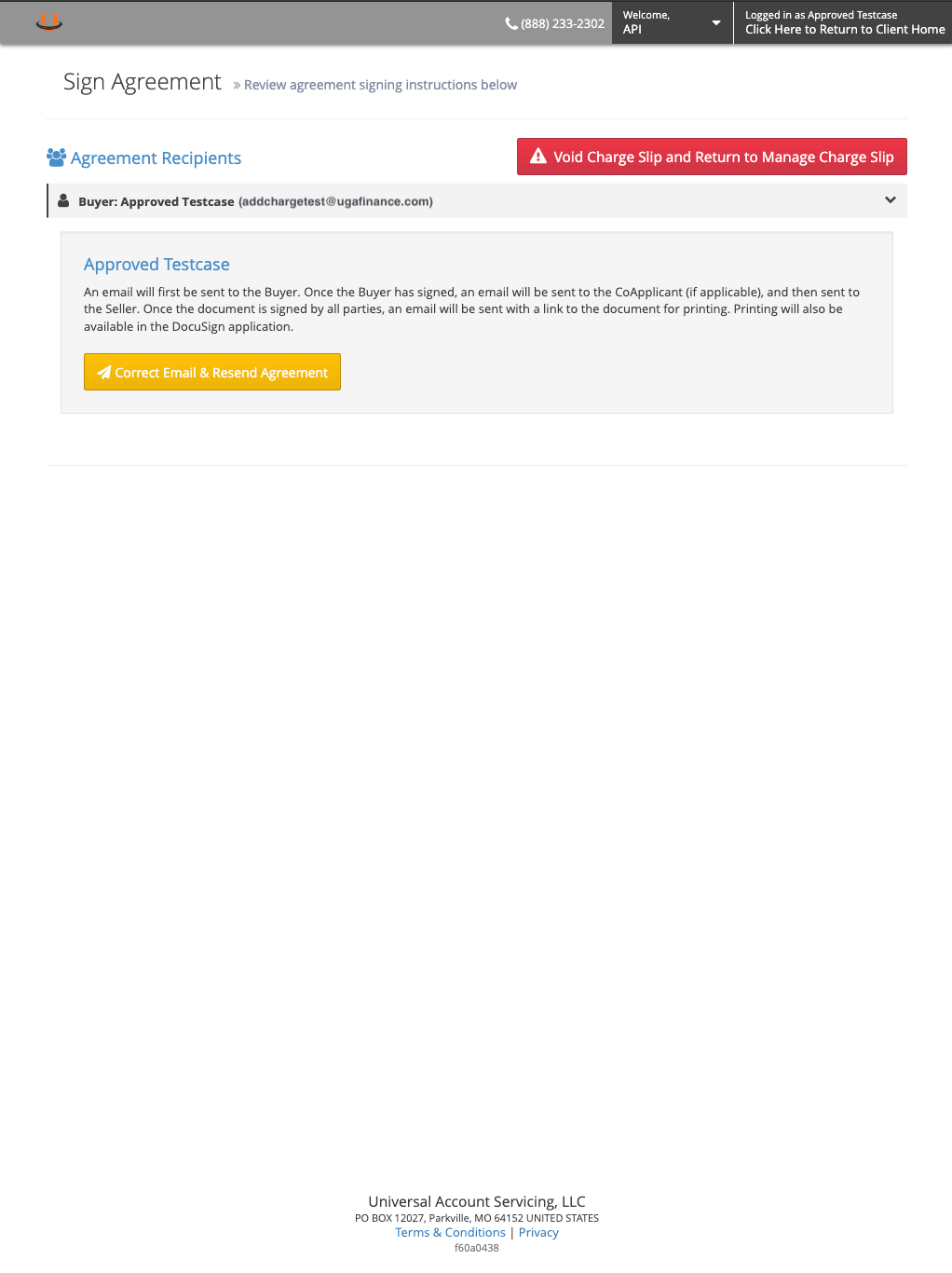
  <Step title="Agreement Confirmation">
    <Frame>
      <img src="https://mintcdn.com/uas-knowledge/hnKzvOp4tLdJXQgi/images/addcharge-merchant-signagreement.png?fit=max&auto=format&n=hnKzvOp4tLdJXQgi&q=85&s=ec4548a48254a7d14c0f31920041310d" alt="Agreement Confirmation" width="1022" height="1366" data-path="images/addcharge-merchant-signagreement.png" />
    </Frame>
  </Step>
</Steps>

## Consumer Reviews and Confirms New Charge

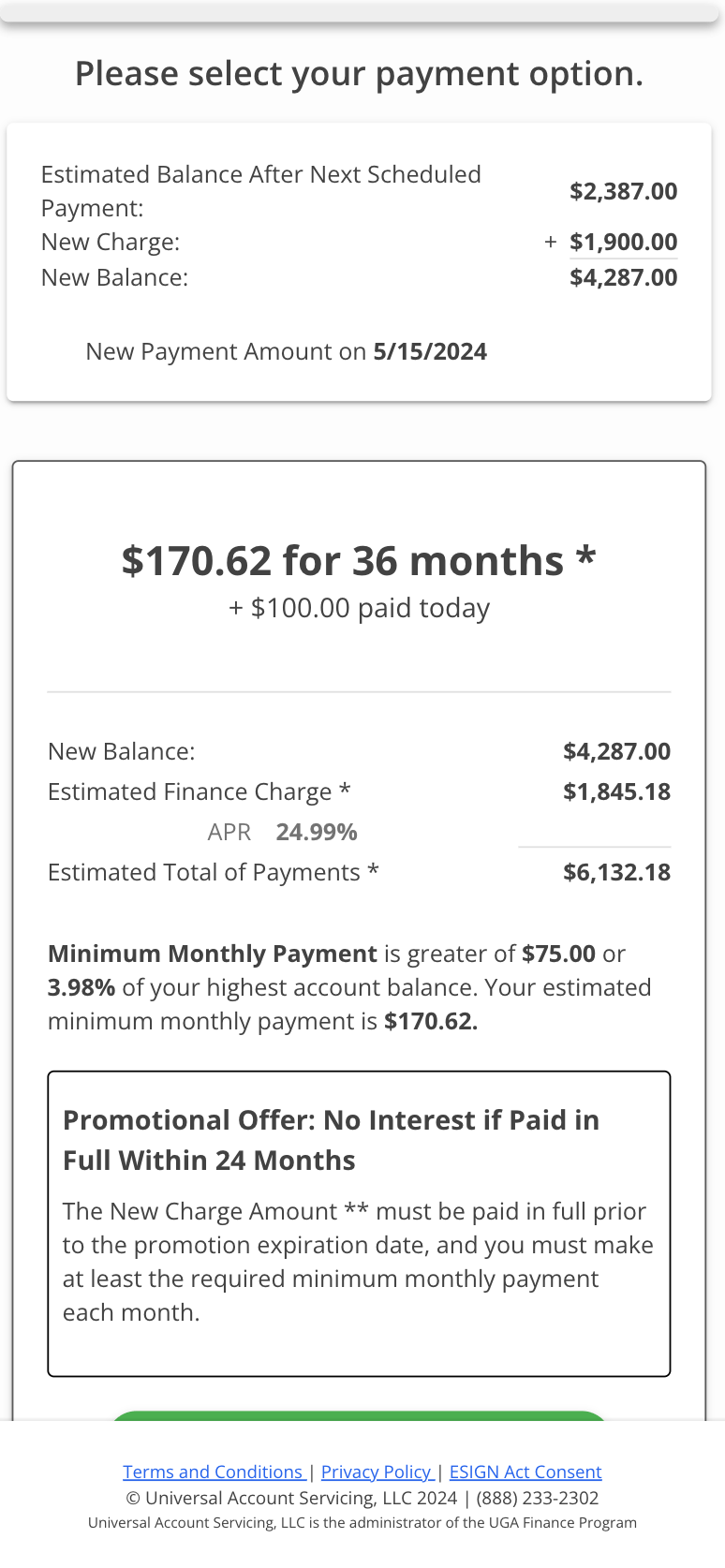
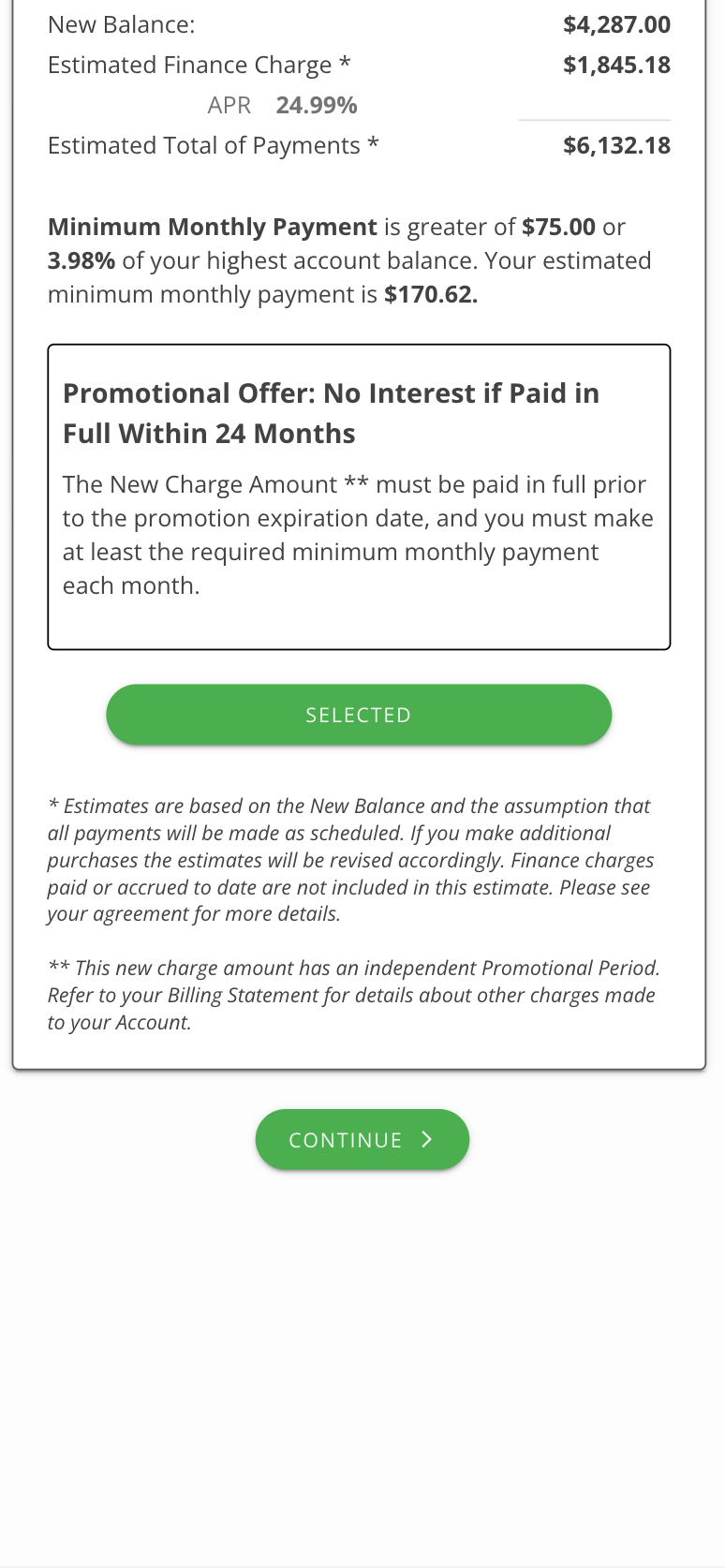
When a Merchant adds a charge to a Consumer’s account, the Consumer is responsible for reviewing and confirming these changes.
<Steps>
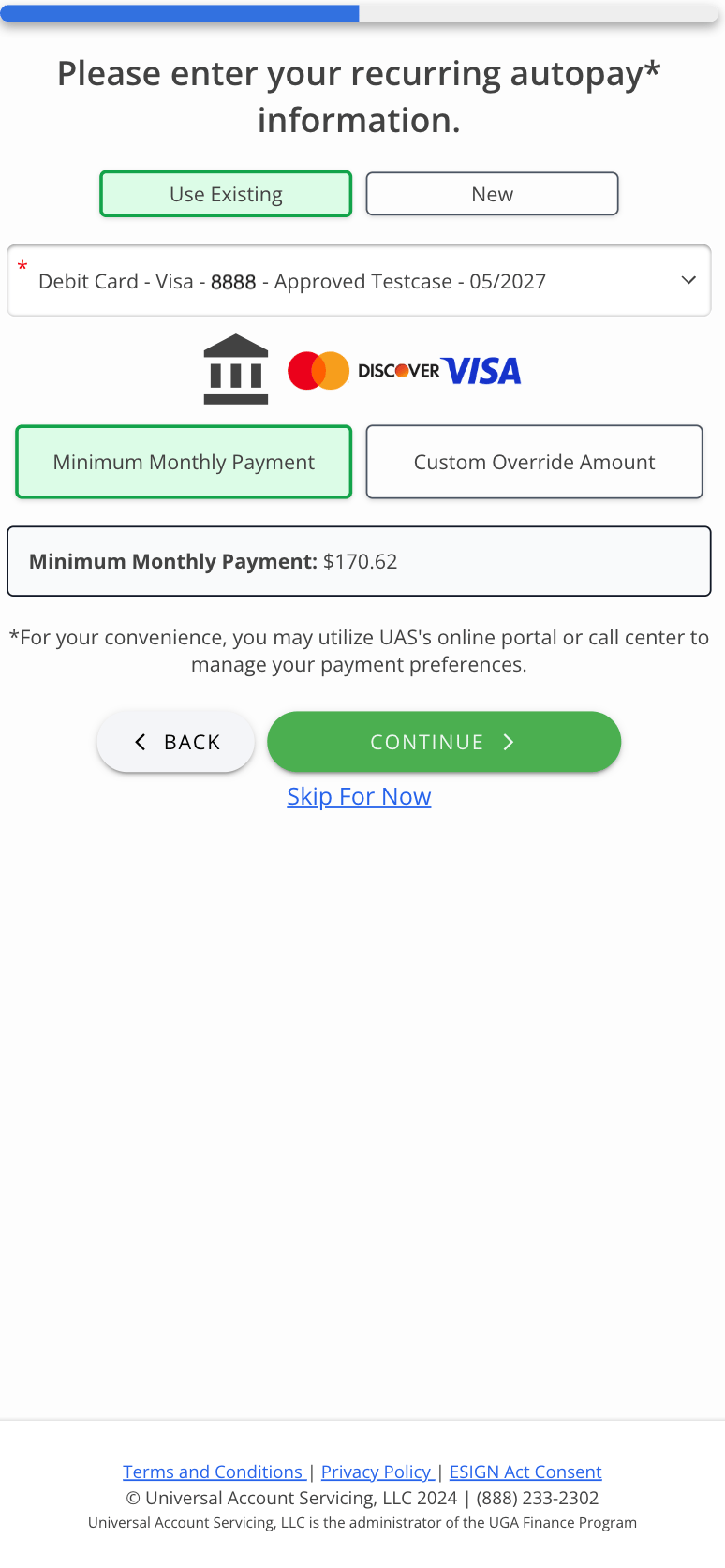
  <Step title="Select Payment Option">
    <Frame>
      <img src="https://mintcdn.com/uas-knowledge/hnKzvOp4tLdJXQgi/images/addcharge-consumer-step-001.png?fit=max&auto=format&n=hnKzvOp4tLdJXQgi&q=85&s=9320a4b0b5fdc8b847b6617357c7d0ec" alt="AddCharge_Consumer_Step_001" width="774" height="1674" data-path="images/addcharge-consumer-step-001.png" />
    </Frame>
  </Step>

  <Step title="Confirm & Continue">
    <Frame>
      <img src="https://mintcdn.com/uas-knowledge/hnKzvOp4tLdJXQgi/images/addcharge-consumer-step-002.png?fit=max&auto=format&n=hnKzvOp4tLdJXQgi&q=85&s=16637eae916c3df02cc87c5622e02278" alt="AddCharge_Consumer_Step_002" width="774" height="1674" data-path="images/addcharge-consumer-step-002.png" />
    </Frame>
  </Step>

  <Step title="Confirm Autopay">
    <Frame>
      <img src="https://mintcdn.com/uas-knowledge/hnKzvOp4tLdJXQgi/images/addcharge-consumer-step-003.png?fit=max&auto=format&n=hnKzvOp4tLdJXQgi&q=85&s=178cd3c6b90d911f5c34d32e500b316f" alt="AddCharge_Consumer_Step_003" width="774" height="1674" data-path="images/addcharge-consumer-step-003.png" />
    </Frame>
  </Step>

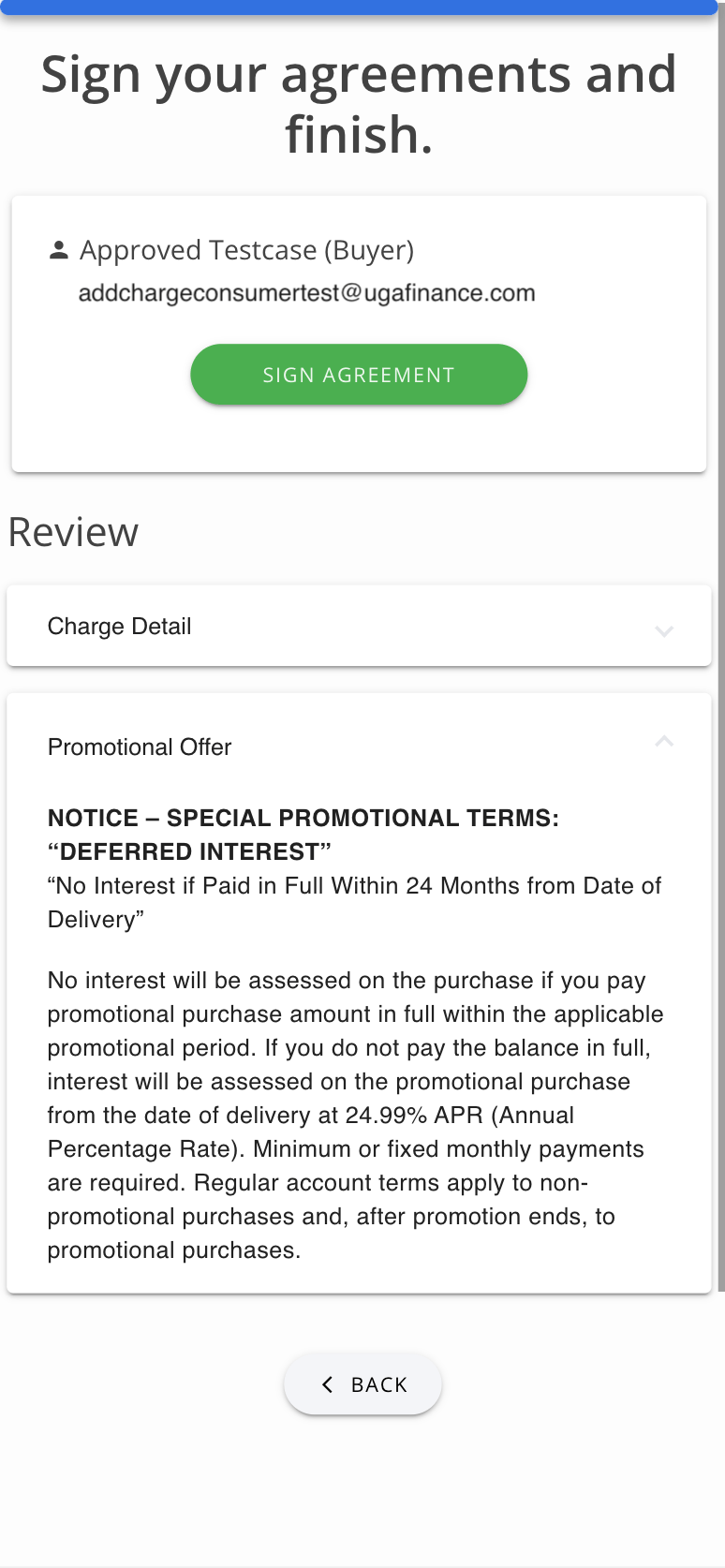
  <Step title="Review & Sign">
    <Frame>
      <img src="https://mintcdn.com/uas-knowledge/hnKzvOp4tLdJXQgi/images/addcharge-consumer-step-004.png?fit=max&auto=format&n=hnKzvOp4tLdJXQgi&q=85&s=7cecef5799832a2941a7cef602b6c806" alt="AddCharge_Consumer_Step_004" width="774" height="1674" data-path="images/addcharge-consumer-step-004.png" />
    </Frame>
  </Step>

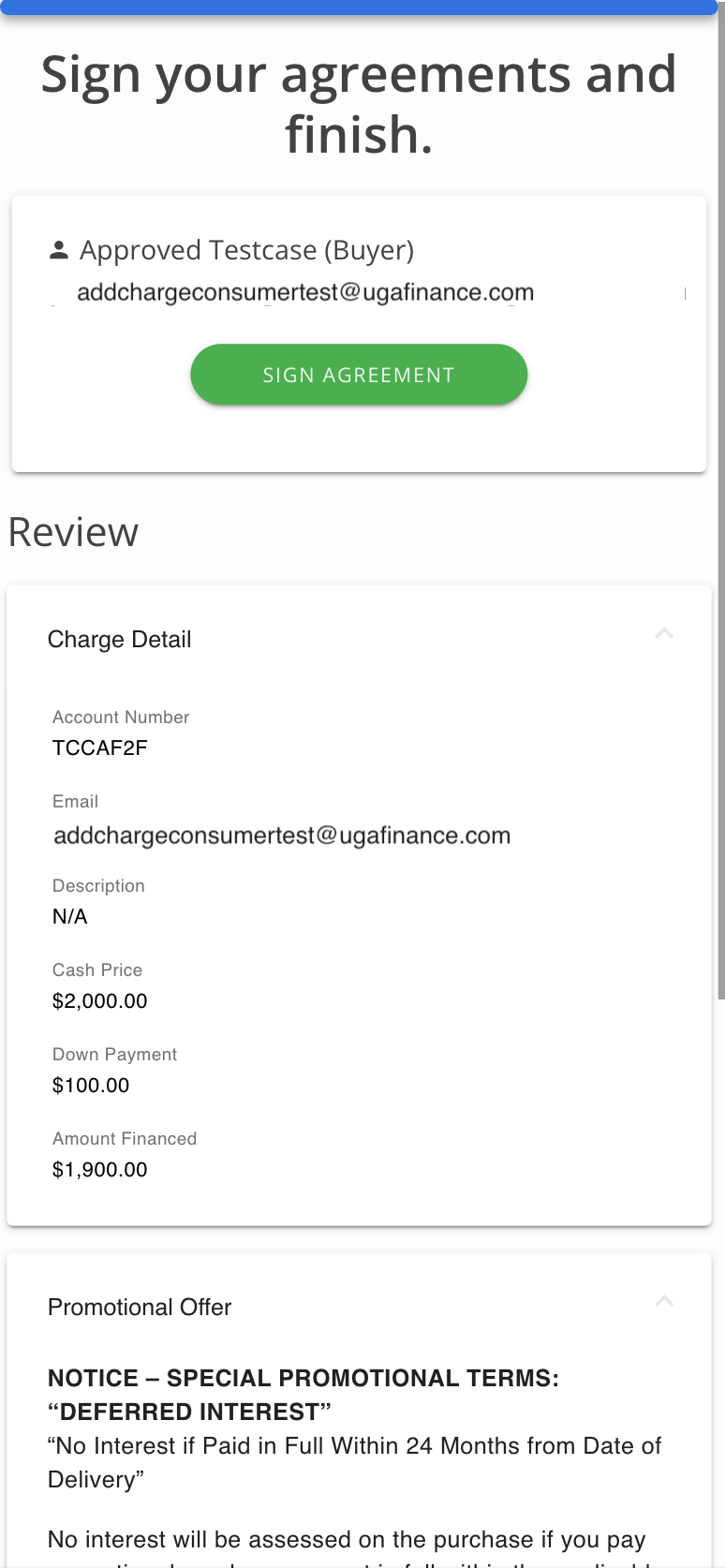
  <Step title="Review & Sign - Click “Review” to Expand Charge Details">
    <Frame>
      <img src="https://mintcdn.com/uas-knowledge/hnKzvOp4tLdJXQgi/images/addcharge-consumer-step-005.png?fit=max&auto=format&n=hnKzvOp4tLdJXQgi&q=85&s=f5f408510f26e13274ff8d2071310086" alt="AddCharge_Consumer_Step_005" width="774" height="1674" data-path="images/addcharge-consumer-step-005.png" />
    </Frame>
  </Step>

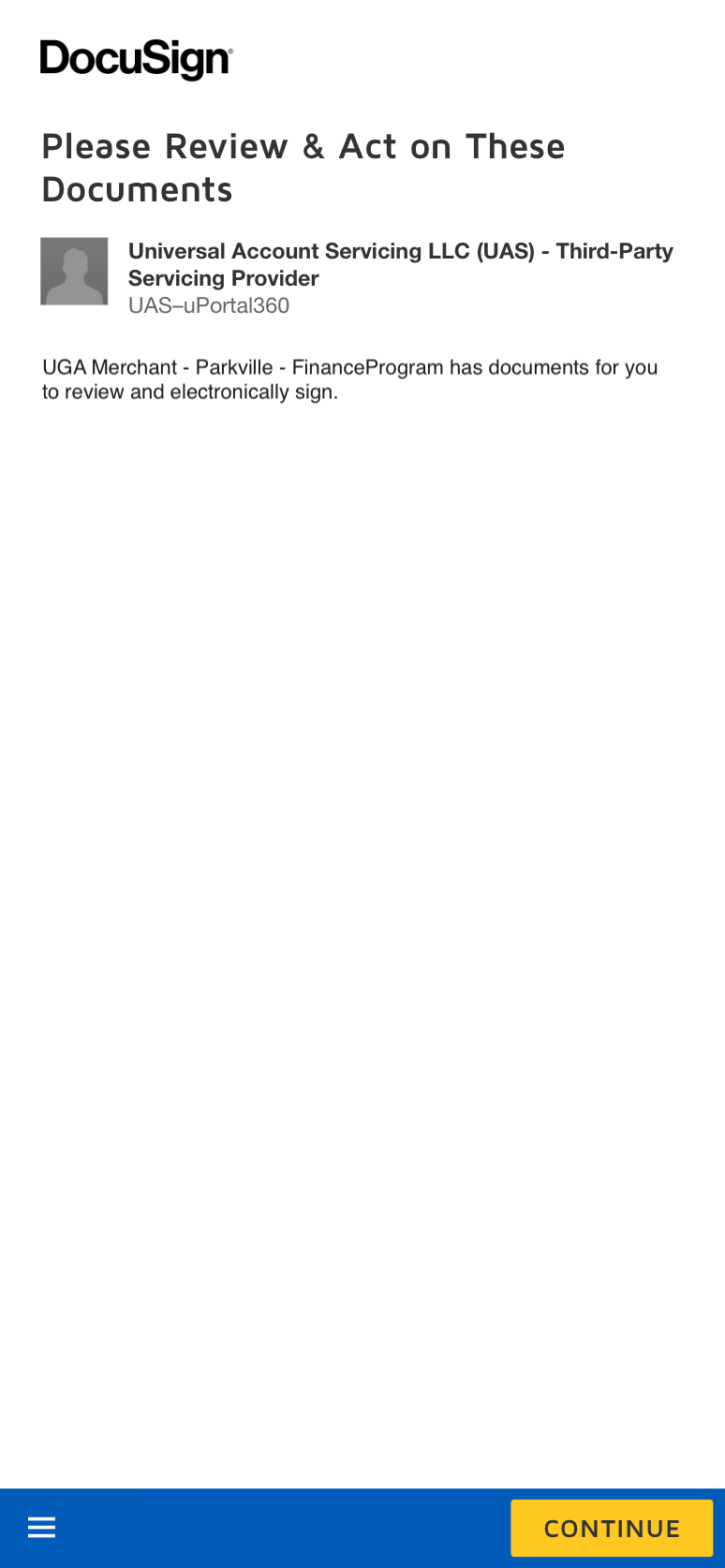
  <Step title="Sign Using DocuSign">
    <Frame>
      <img src="https://mintcdn.com/uas-knowledge/hnKzvOp4tLdJXQgi/images/addcharge-consumer-step-007.png?fit=max&auto=format&n=hnKzvOp4tLdJXQgi&q=85&s=eed725a605aeebda77cc713d1bc32e04" alt="AddCharge_Consumer_Step_007" width="774" height="1674" data-path="images/addcharge-consumer-step-007.png" />
    </Frame>
  </Step>

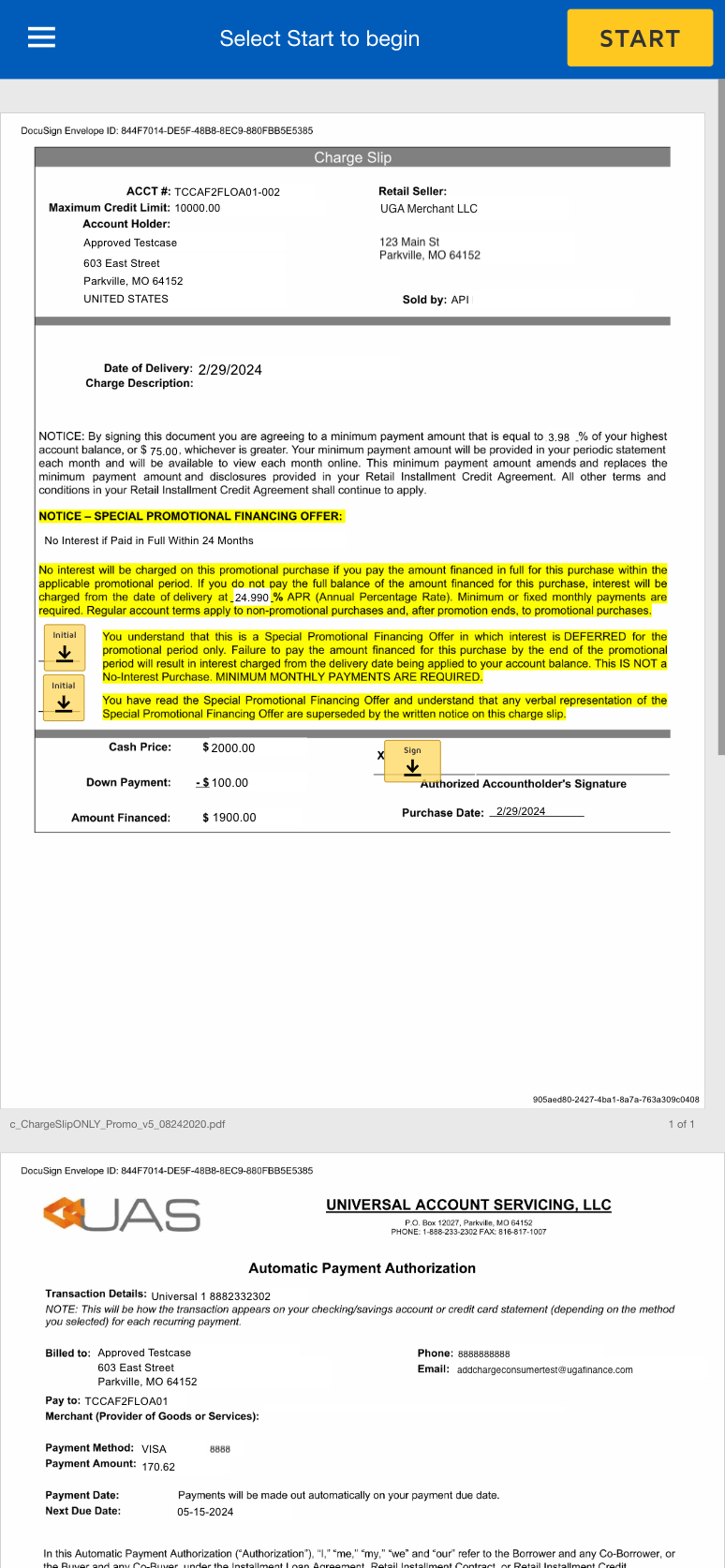
  <Step title="Review Agreement & Sign">
    <Frame>
      <img src="https://mintcdn.com/uas-knowledge/hnKzvOp4tLdJXQgi/images/addcharge-consumer-step-006.png?fit=max&auto=format&n=hnKzvOp4tLdJXQgi&q=85&s=29421693803928a2d15e07647e645d7f" alt="AddCharge_Consumer_Step_006" width="774" height="1674" data-path="images/addcharge-consumer-step-006.png" />
    </Frame>
  </Step>

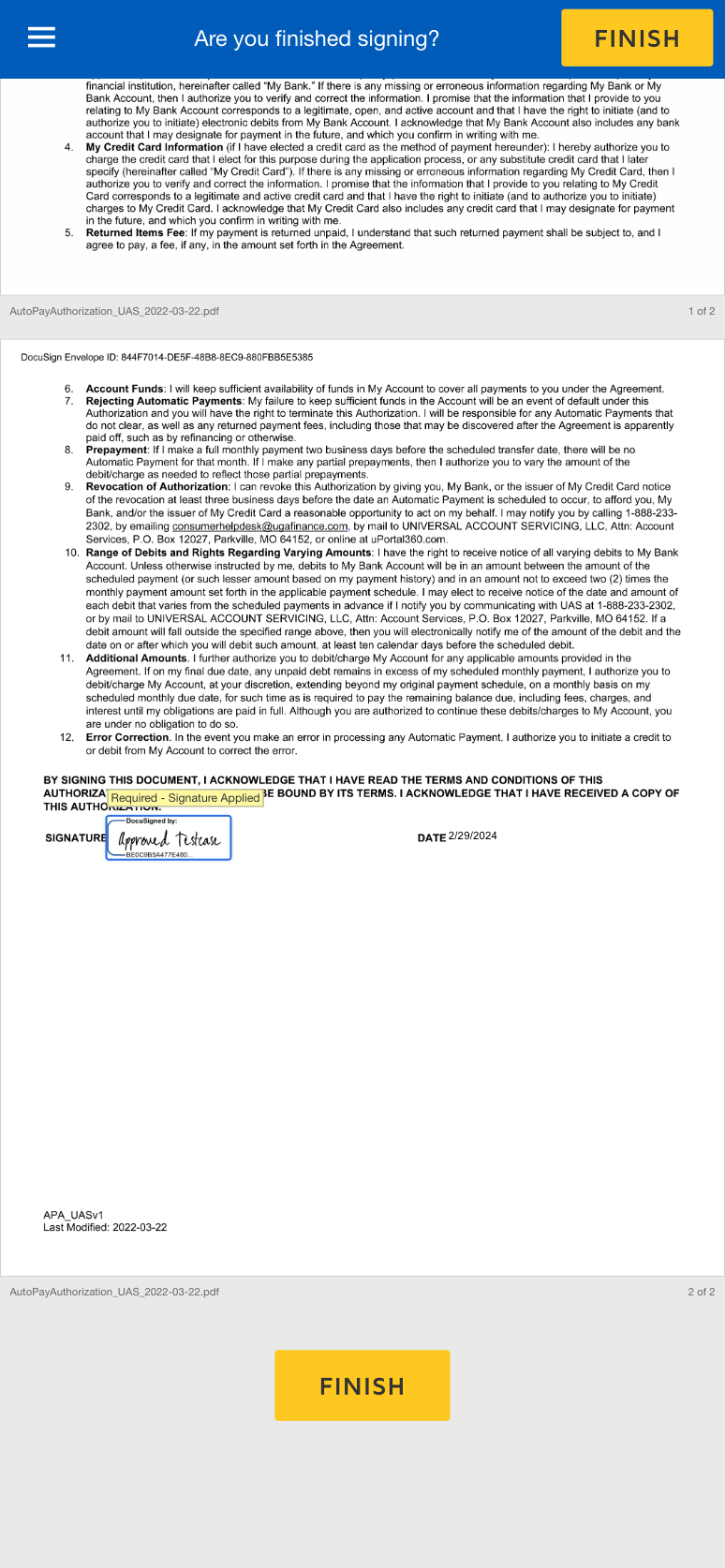
  <Step title="Finish Signing">
    <Frame>
      <img src="https://mintcdn.com/uas-knowledge/hnKzvOp4tLdJXQgi/images/addcharge-consumer-step-008.png?fit=max&auto=format&n=hnKzvOp4tLdJXQgi&q=85&s=7b998913005714519aaf42fac426f5a4" alt="AddCharge_Consumer_Step_008" width="774" height="1674" data-path="images/addcharge-consumer-step-008.png" />
    </Frame>
  </Step>

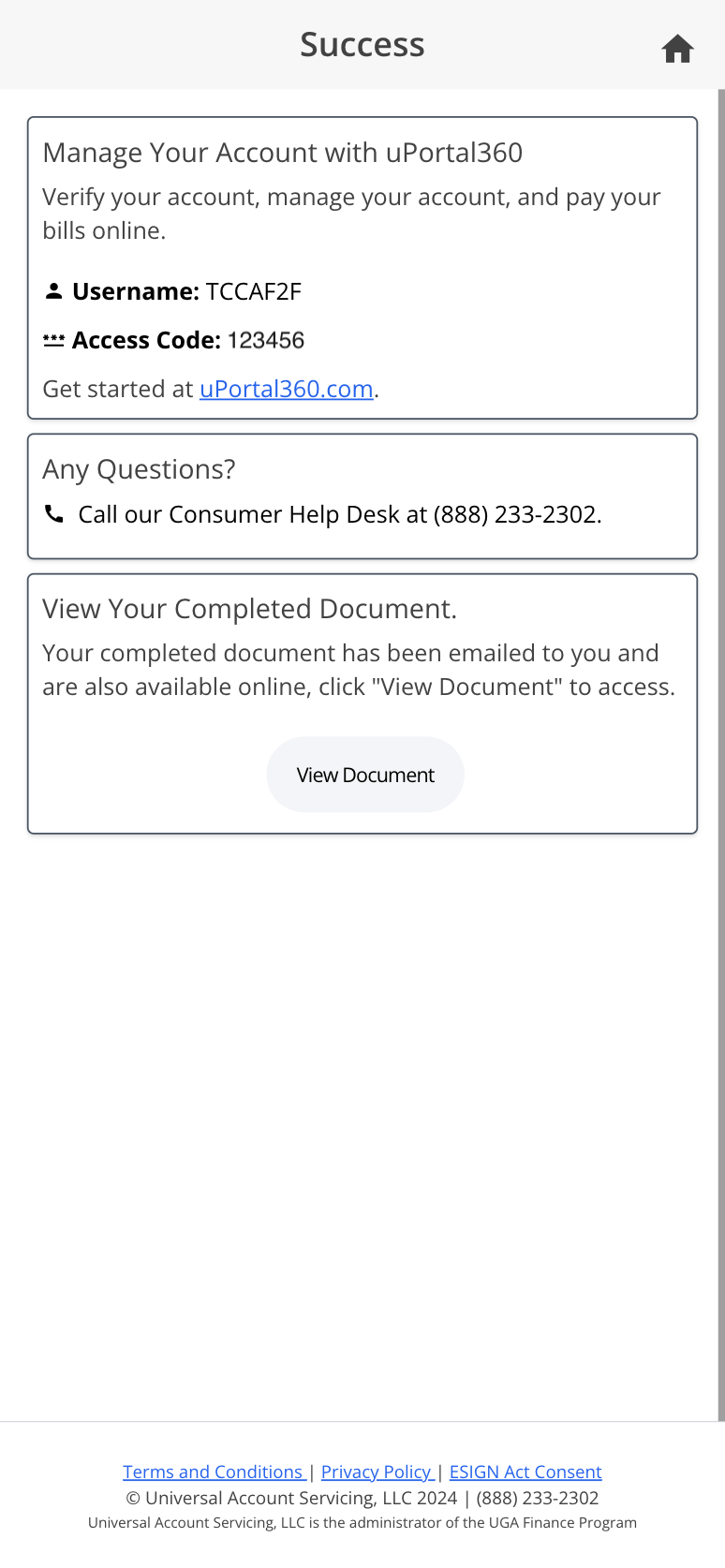
  <Step title="Confirmation Screen">
    <Frame>
      <img src="https://mintcdn.com/uas-knowledge/hnKzvOp4tLdJXQgi/images/addcharge-consumer-step-009.png?fit=max&auto=format&n=hnKzvOp4tLdJXQgi&q=85&s=9e31b65f0787dbb6a0177482221efb43" alt="AddCharge_Consumer_Step_009" width="774" height="1674" data-path="images/addcharge-consumer-step-009.png" />
    </Frame>
  </Step>
</Steps>