> ## Documentation Index
> Fetch the complete documentation index at: https://knowledge.uportal360.com/llms.txt
> Use this file to discover all available pages before exploring further.
# How to resolve support tickets
We have a queue to monitor and update support tickets in Uportal 360. To access the queue, click on “My Queues” and then, “Support Tickets”.
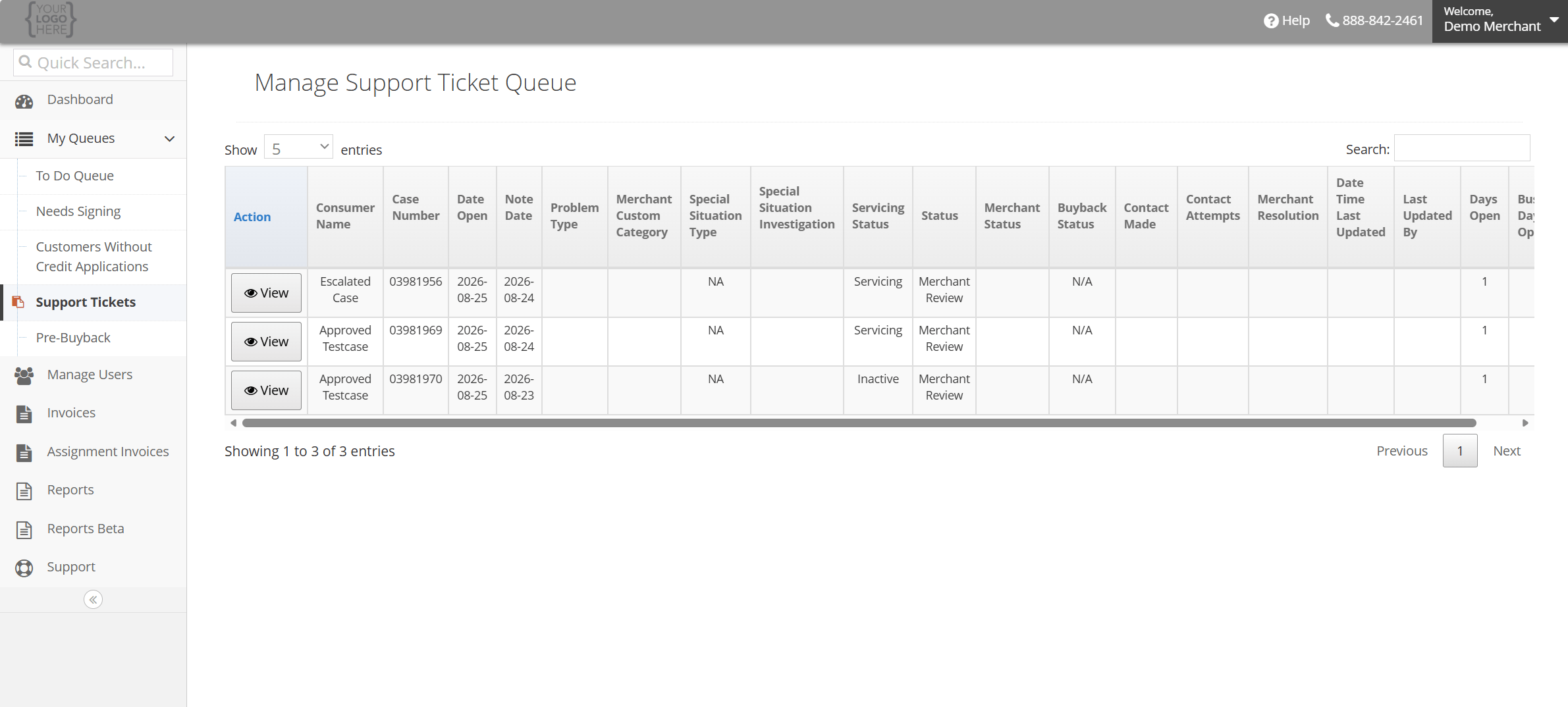 * The support ticket queue has a list of all open support tickets. To update a support ticket, click “View”.
* In the description field, you can view consumer requests, questions and concerns.
* Support tickets can be updated with public and private Remarks. Public remarks are visible to all parties while private remarks are shared only between UGA and the Merchant.
* The support ticket queue has a list of all open support tickets. To update a support ticket, click “View”.
* In the description field, you can view consumer requests, questions and concerns.
* Support tickets can be updated with public and private Remarks. Public remarks are visible to all parties while private remarks are shared only between UGA and the Merchant.
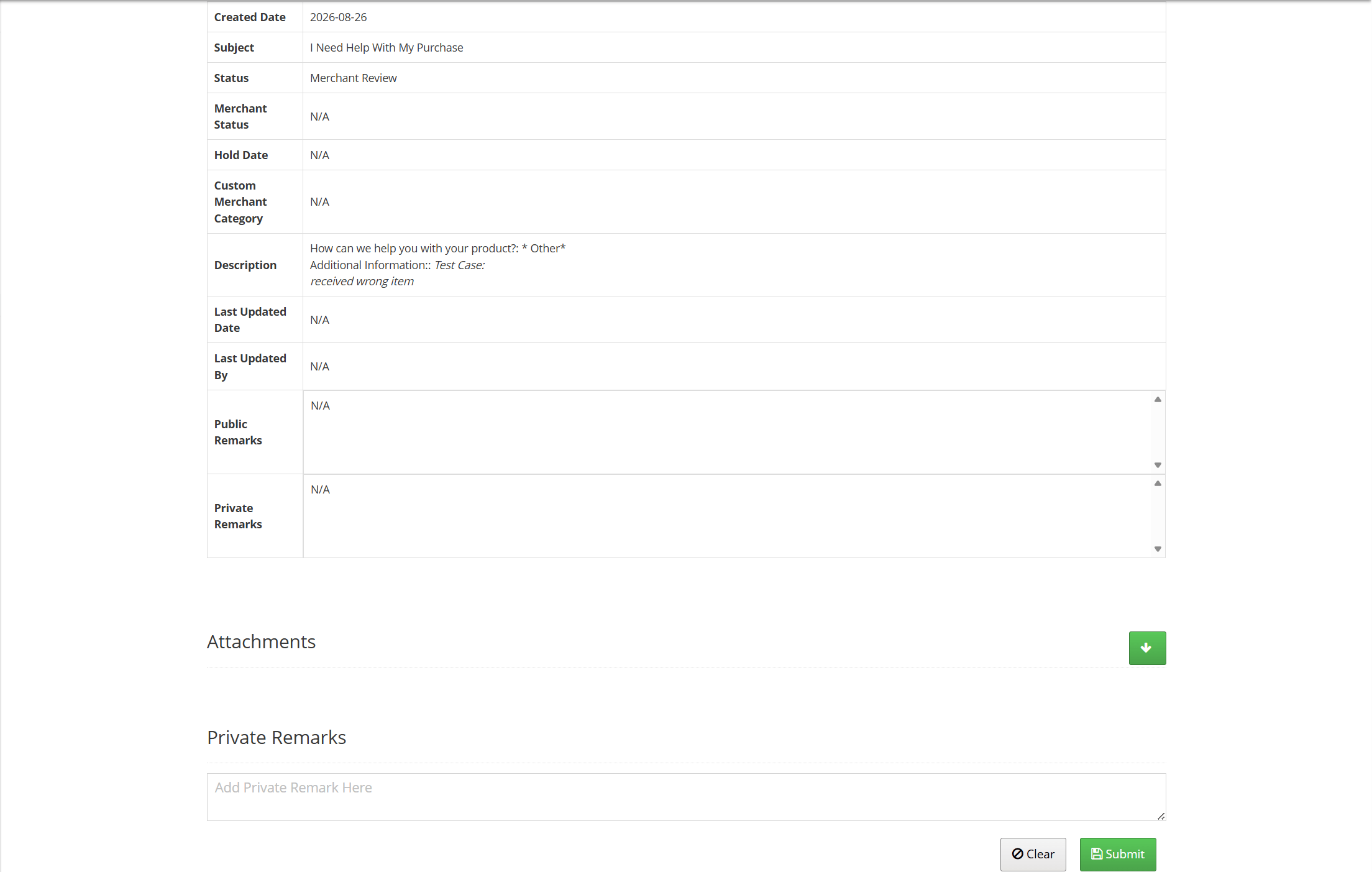 * If necessary, documents can be attached to support tickets. Please click “Attachments” as shown below to upload or review uploaded documents.
* Private remarks can be added and submitted here for UGA and Merchant communication.
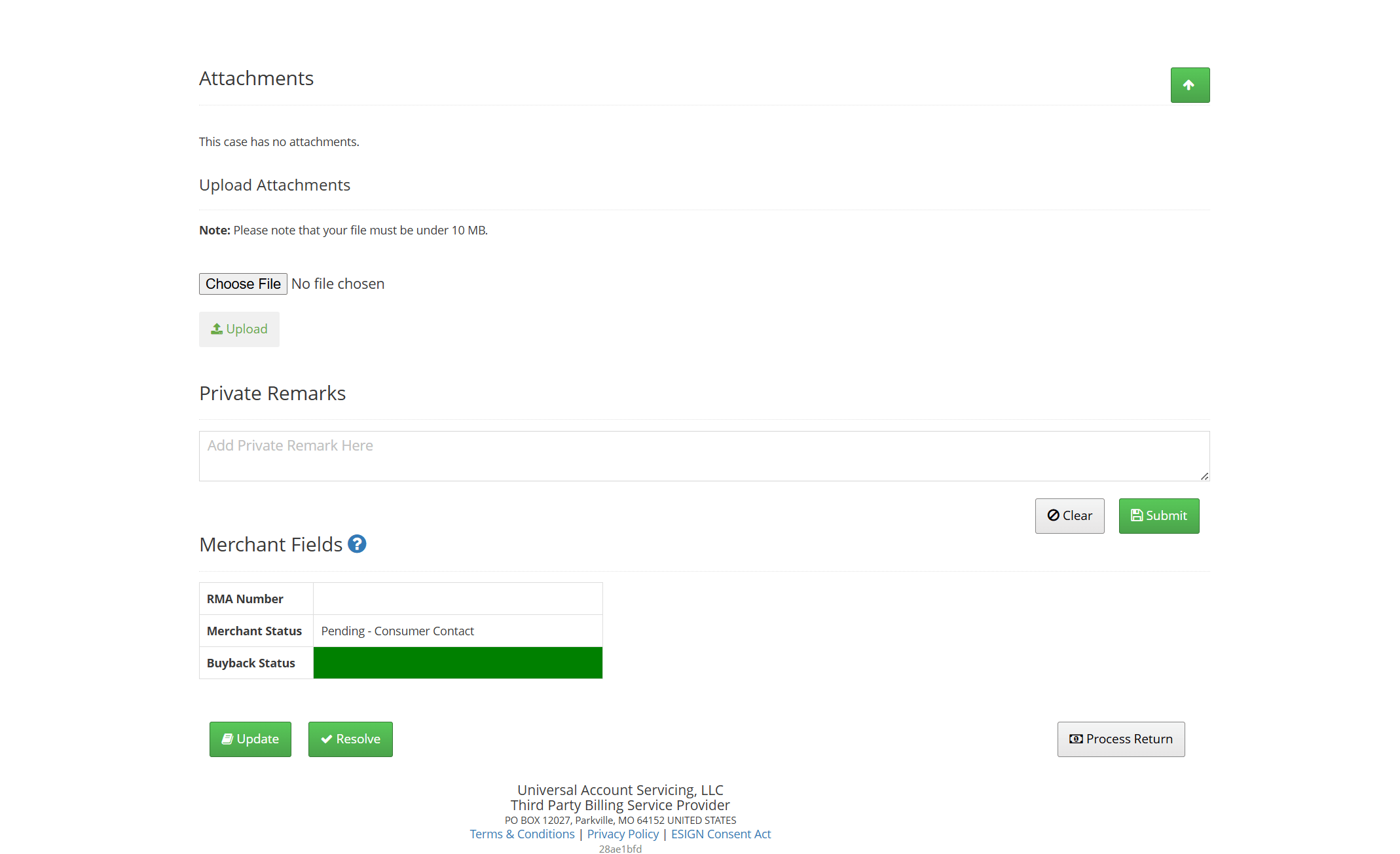
* If there are updates, please click the Update button.
* If necessary, documents can be attached to support tickets. Please click “Attachments” as shown below to upload or review uploaded documents.
* Private remarks can be added and submitted here for UGA and Merchant communication.
* If there are updates, please click the Update button.
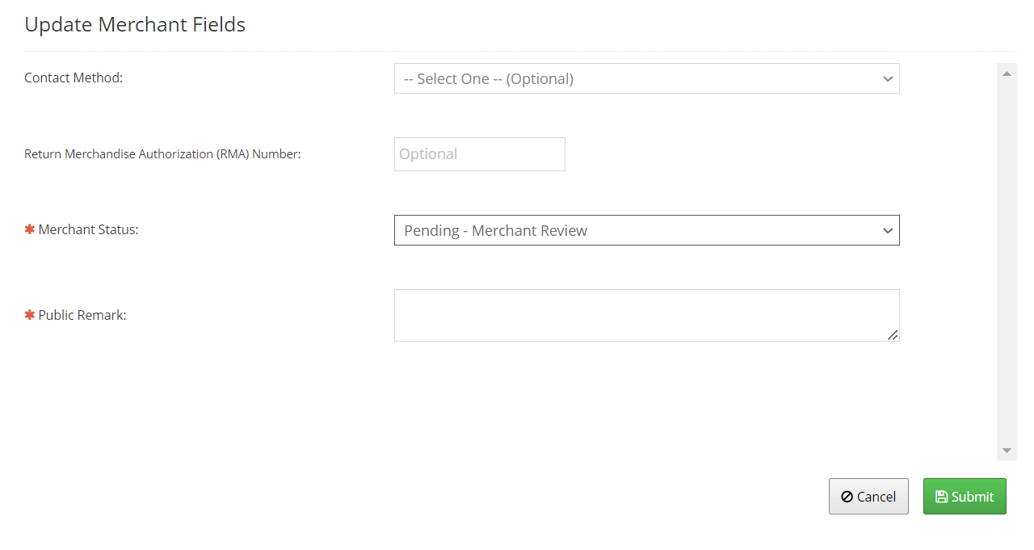
 * If attempts were made to contact the consumer, please document this by selecting a contact method. This could be a phone call, email or text message.
* There is an optional field for tracking numbers on returned merchandise.
* Select a Merchant Status for the ticket; Merchant Review: Merchant is actively reviewing the case. Consumer Contact: Merchant is reaching out to consumer. Consumer Return: Merchant is waiting for merchandise return. Merchant Resolution: Merchant is in process of delivering a resolution.
* Notate the ticket with comments or remarks you would like to share publicly with the consumer. Select submit once completed.
* If attempts were made to contact the consumer, please document this by selecting a contact method. This could be a phone call, email or text message.
* There is an optional field for tracking numbers on returned merchandise.
* Select a Merchant Status for the ticket; Merchant Review: Merchant is actively reviewing the case. Consumer Contact: Merchant is reaching out to consumer. Consumer Return: Merchant is waiting for merchandise return. Merchant Resolution: Merchant is in process of delivering a resolution.
* Notate the ticket with comments or remarks you would like to share publicly with the consumer. Select submit once completed.
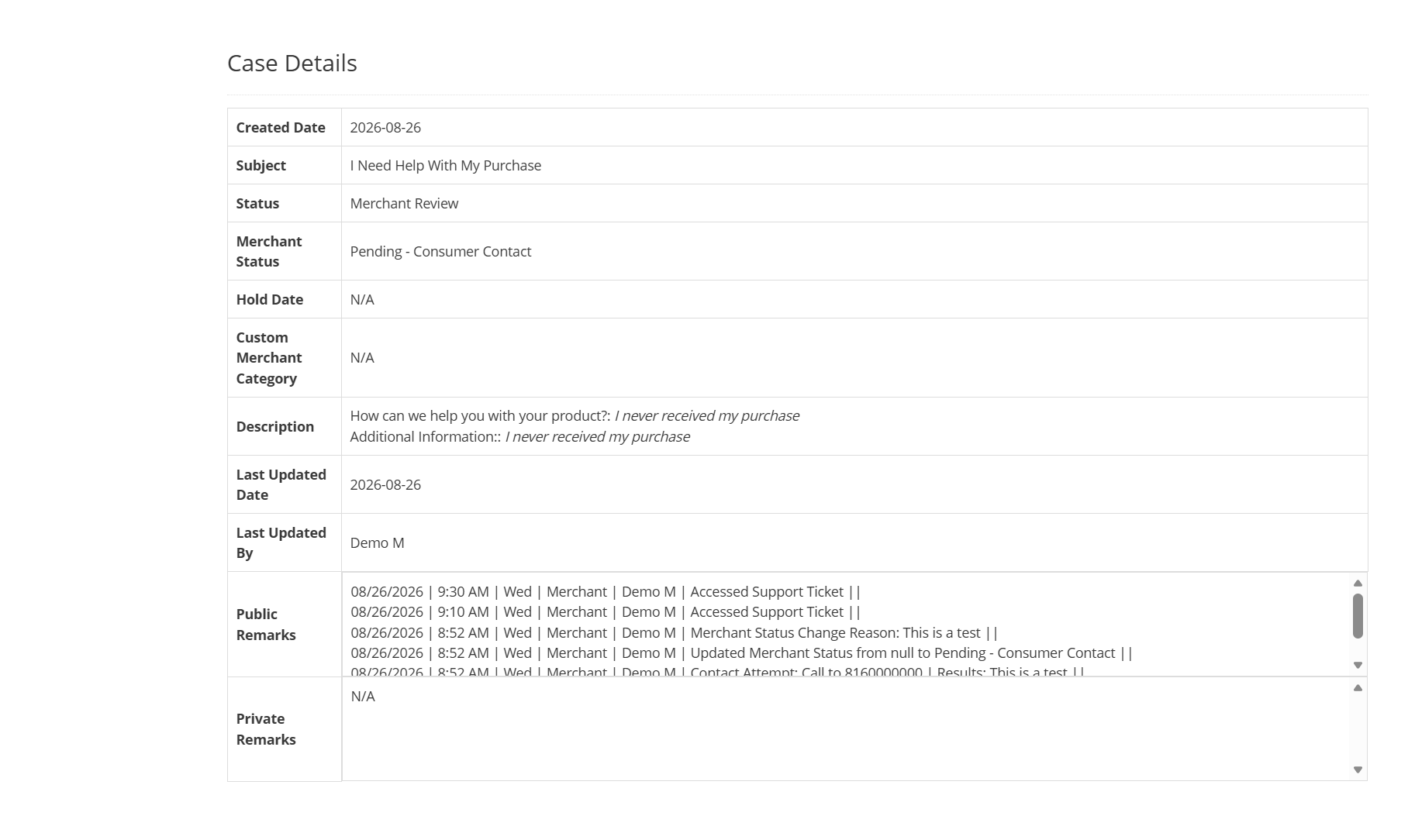
 * The merchant status will be updated to the selected status and changes made will reflect accordingly.
* Public and Private remarks will be visible in the designated section.
* The merchant status will be updated to the selected status and changes made will reflect accordingly.
* Public and Private remarks will be visible in the designated section.
 * After updating the Merchant Status and adding public remarks, the ticket can be resolved.
* To resolve the ticket, click on the "Resolve" button and then choose the appropriate resolution from the options available; Resolved- Continue Servicing, Close Account-Default or Close Account- Return or Cancel.
* Once completed, the status changes to CHD Review status and switched to our Help Desk queue to close the ticket.
* After updating the Merchant Status and adding public remarks, the ticket can be resolved.
* To resolve the ticket, click on the "Resolve" button and then choose the appropriate resolution from the options available; Resolved- Continue Servicing, Close Account-Default or Close Account- Return or Cancel.
* Once completed, the status changes to CHD Review status and switched to our Help Desk queue to close the ticket.