> ## Documentation Index
> Fetch the complete documentation index at: https://knowledge.uportal360.com/llms.txt
> Use this file to discover all available pages before exploring further.
# Submit Return Transactions by Term or Amount
## Return Transactions
If an Account is need of a Full or Partial adjustment of the principal balance, Merchants may submit a transaction to adjust the balance in [uPortal360](https://uportal360.com/) using the *Returns* button. Returns can be used if the Account needs to be cancelled or closed or if a simple adjustment is needed to reduce the consumer’s balance.
### When to use Returns
**Support Tickets** - If the determined outcome to resolve a consumer’s Support Ticket request is to adjust the principal balance or close the contract, the Returns function should be utilized to complete the desired outcome.
**Client Request** - If a request is being made to adjust the principal balance or close the Account and no Cases or Support Tickets are outstanding, simply use the Returns button to submit the requested adjustment and a Support Ticket will automatically be created. There is no need to submit separate request in conjunction of the Return request submitted.
To Know Before You Start:
* **The contact must have “Returns” permission enabled to see the page**
* **The new monthly payment cannot exceed the current monthly payment.**
* **Interest rate will not change.**
* **Any applicable repurchases are automatically calculated by the system.**
* **No signature required**
## Step 1: Login to uPortal
 > Returns Permission 🚦
> If Returns does not appear as an available feature, please reach out to a member of your organizations management team or [clientsuccess@ugafinance.com](mailto:clientsuccess@ugafinance.com)
>
> **User Management**
> Users with the User Management Permission may assign the permission within uPortal360 by utilizing the Manage Users function.
> `Manage Users > View (user name) > Permissions > Returns`
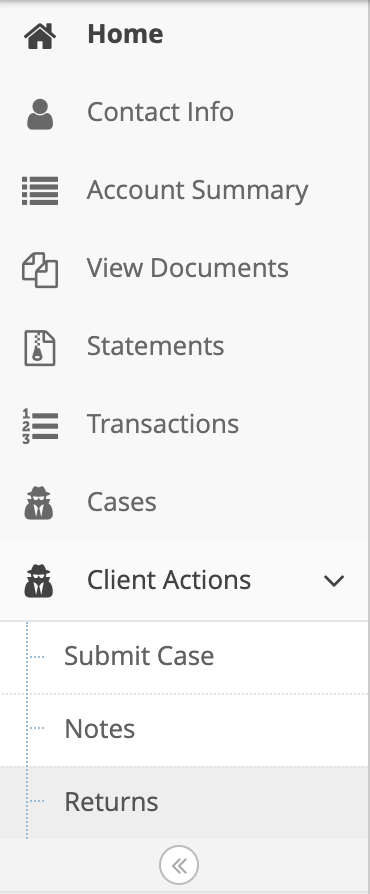
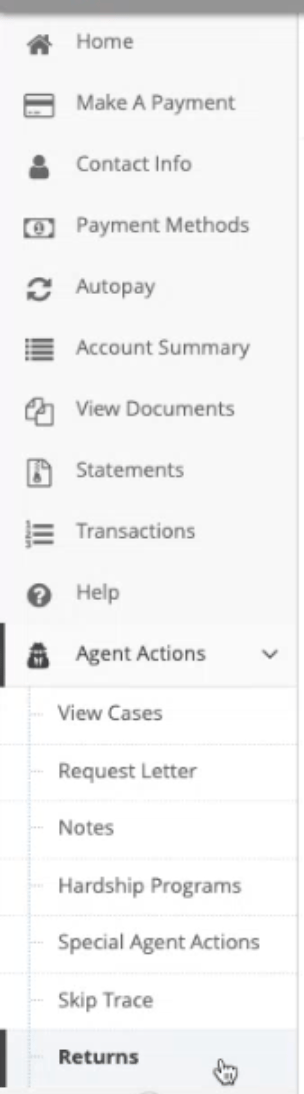
On the Sidebar, Navigate to Returns under Agent Actions
> Returns Permission 🚦
> If Returns does not appear as an available feature, please reach out to a member of your organizations management team or [clientsuccess@ugafinance.com](mailto:clientsuccess@ugafinance.com)
>
> **User Management**
> Users with the User Management Permission may assign the permission within uPortal360 by utilizing the Manage Users function.
> `Manage Users > View (user name) > Permissions > Returns`
On the Sidebar, Navigate to Returns under Agent Actions
 ## Step 2: Select Charge Slip
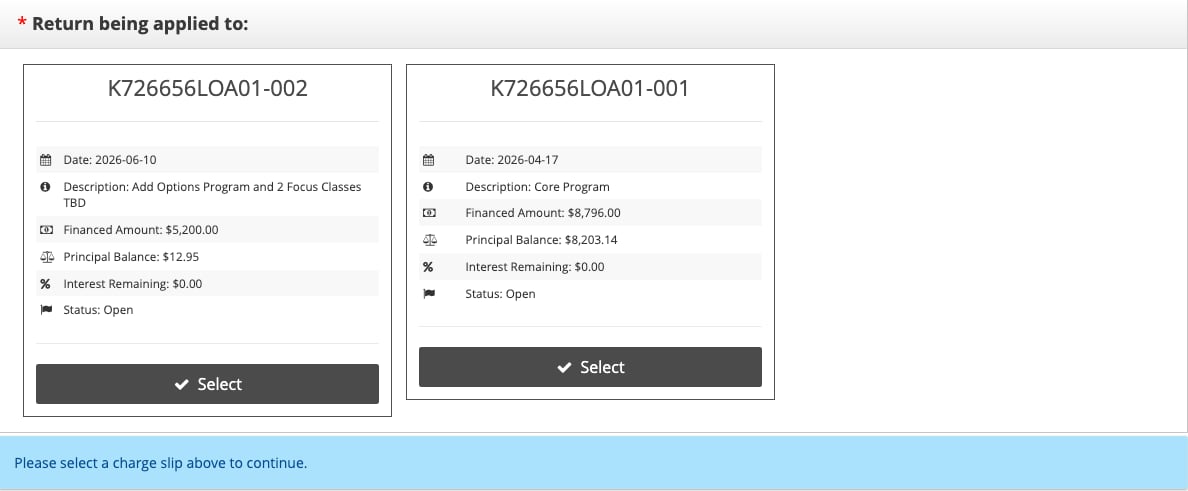
1. Select a Charge before proceeding to the other questions. You will see the account number, financed amount and now the principal Balance.
## Step 2: Select Charge Slip
1. Select a Charge before proceeding to the other questions. You will see the account number, financed amount and now the principal Balance.
 ## Step 3: Will consumer have a balance remaining
## Select whether the Customer will have a remaining balance.
## Step 3: Will consumer have a balance remaining
## Select whether the Customer will have a remaining balance.

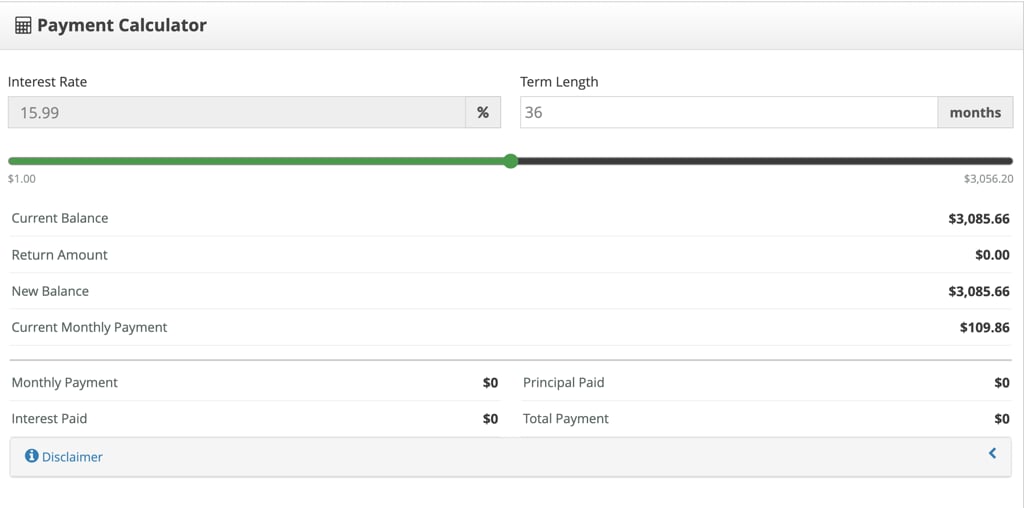 ## Alternative: Decrease by Term Length
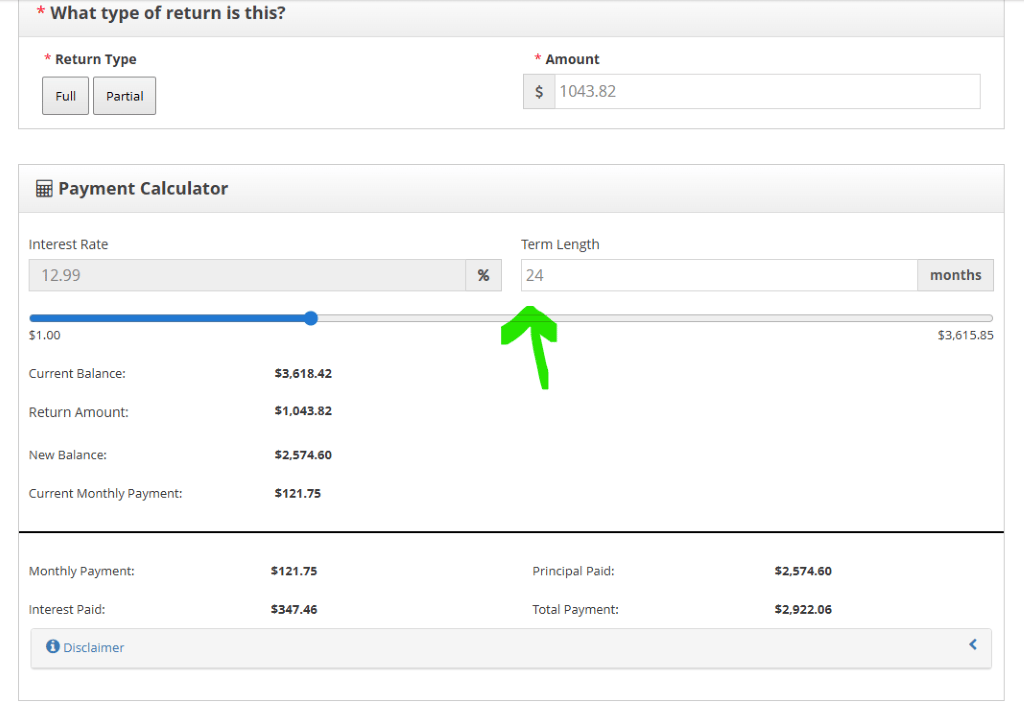
On the Payment Calculator, modify the **Term Length** of the contract.
## Alternative: Decrease by Term Length
On the Payment Calculator, modify the **Term Length** of the contract.
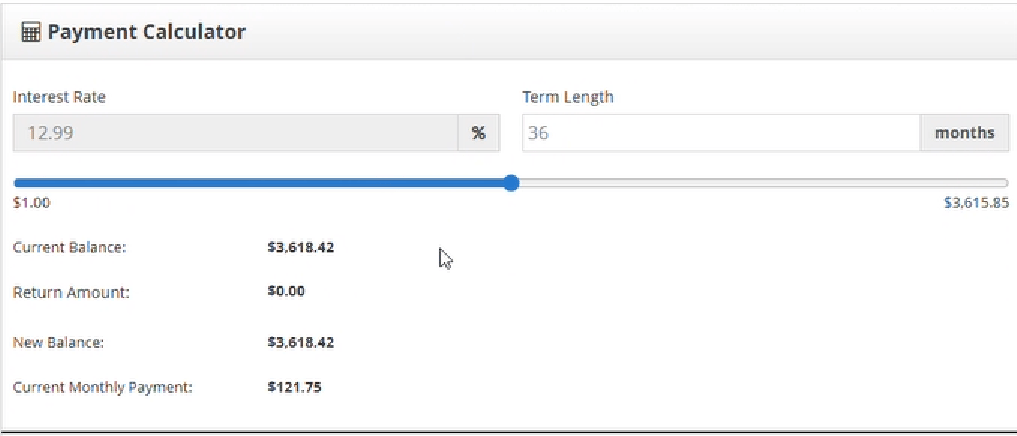 The amount will automatically be adjusted and will reflect in the Payment calculator
 Option B: No
If you select No remaining balance, you will be asked Will the Consumer will Receive a cash refund.
Option B: No
If you select No remaining balance, you will be asked Will the Consumer will Receive a cash refund.
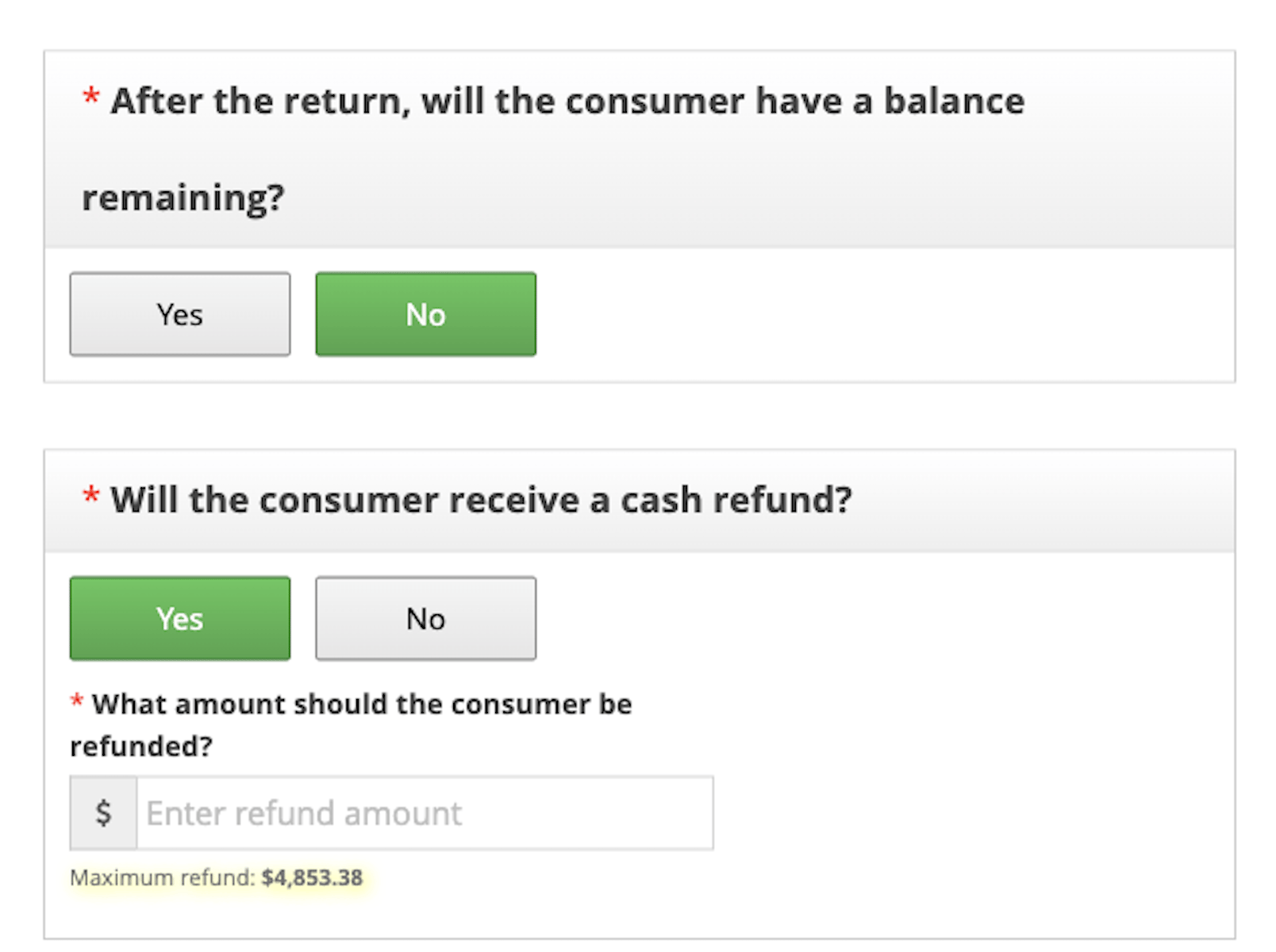 ## Step 4: Will consumer receive cash refund
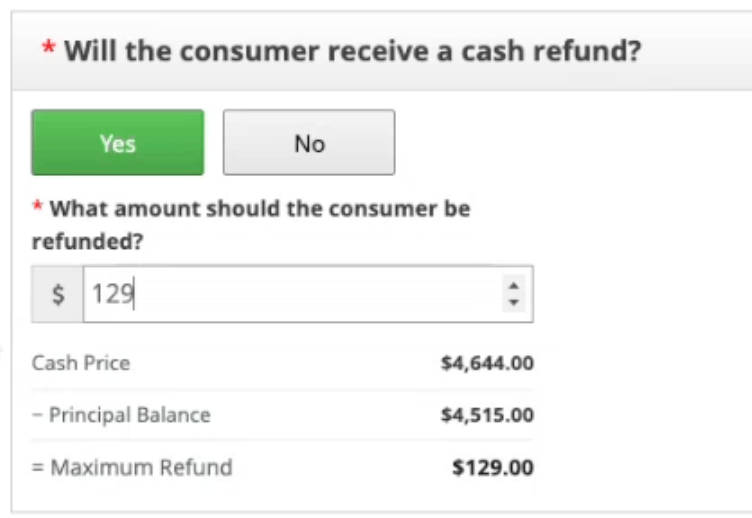
Option A: Yes
You will be prompted to enter the amount. Screen will show Cash Price, Principal balance and Maximum Refund.
## Step 4: Will consumer receive cash refund
Option A: Yes
You will be prompted to enter the amount. Screen will show Cash Price, Principal balance and Maximum Refund.
 Option B: No
You will navigate to reason for return
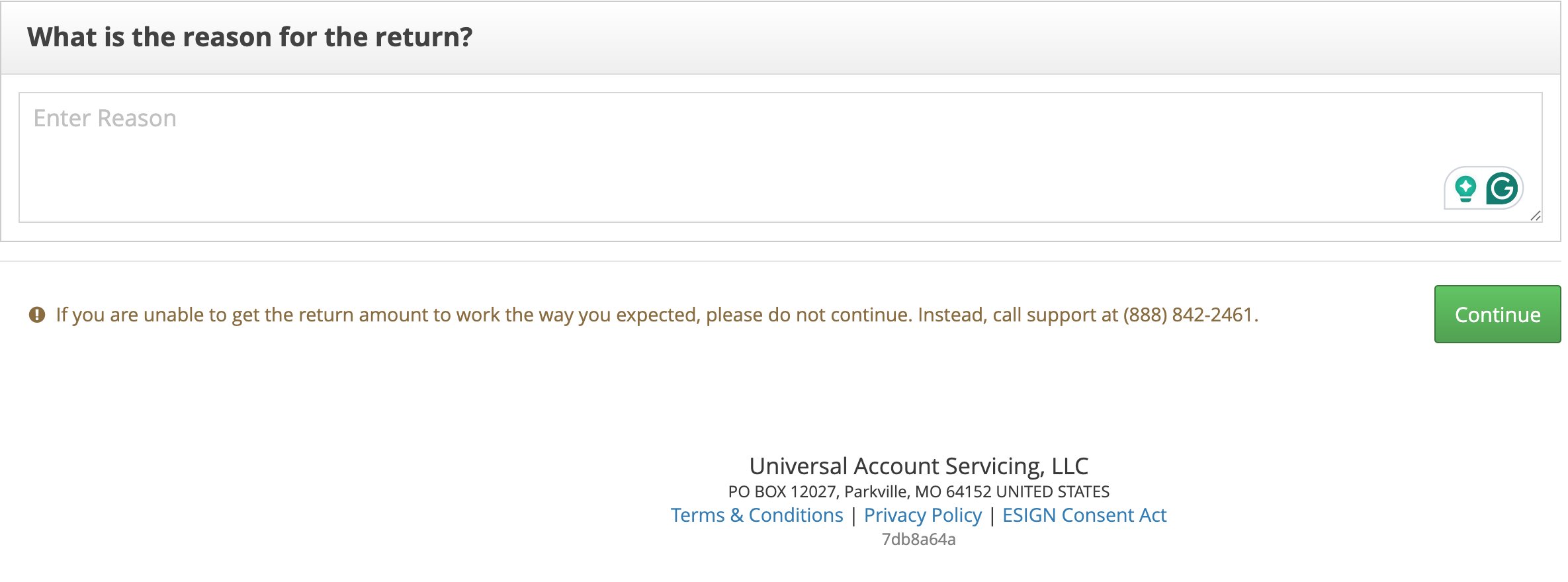
## Step 5: Reason for Return
There is a text field to enter reason for return. Note there is a new footer giving direction to call if unable to get the return amount to work.
Option B: No
You will navigate to reason for return
## Step 5: Reason for Return
There is a text field to enter reason for return. Note there is a new footer giving direction to call if unable to get the return amount to work.
 Select Continue to Submit the adjustment.
## Step 6: Select Support Ticket
Select Continue to Submit the adjustment.
## Step 6: Select Support Ticket
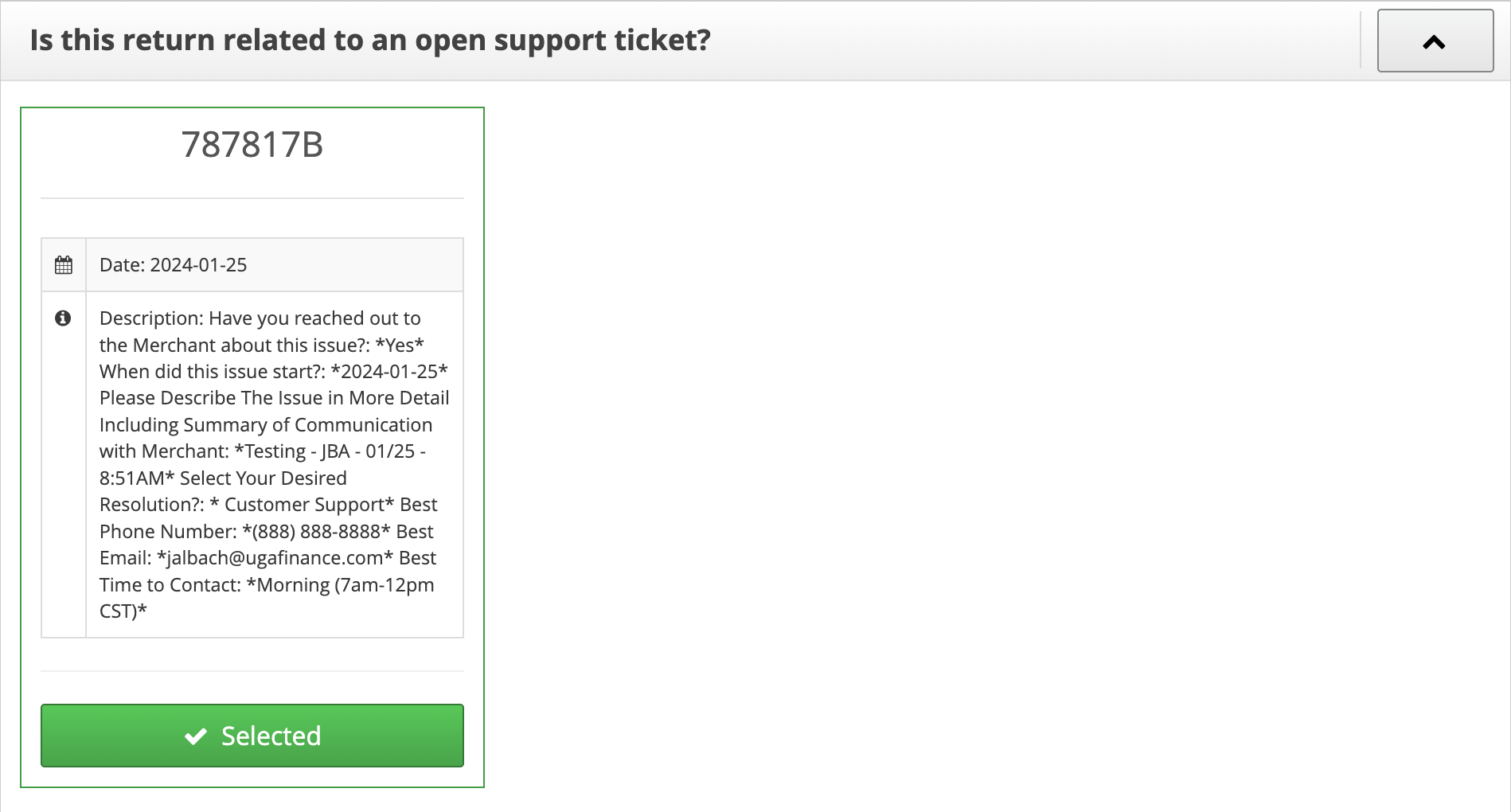
 > Unrelated or No Support Ticket 🛟
> If the Open Support Ticket is unrelated or there is not a current Open Support Ticket, one will be created upon submission.
> Unrelated or No Support Ticket 🛟
> If the Open Support Ticket is unrelated or there is not a current Open Support Ticket, one will be created upon submission.
 > Return Audit Review 🔍
> In certain circumstances, the return may need to be reviewed and moved to completion by a member of our Business Administration Team. Once the return has been moved to complete, the related support ticket will be closed accordingly.
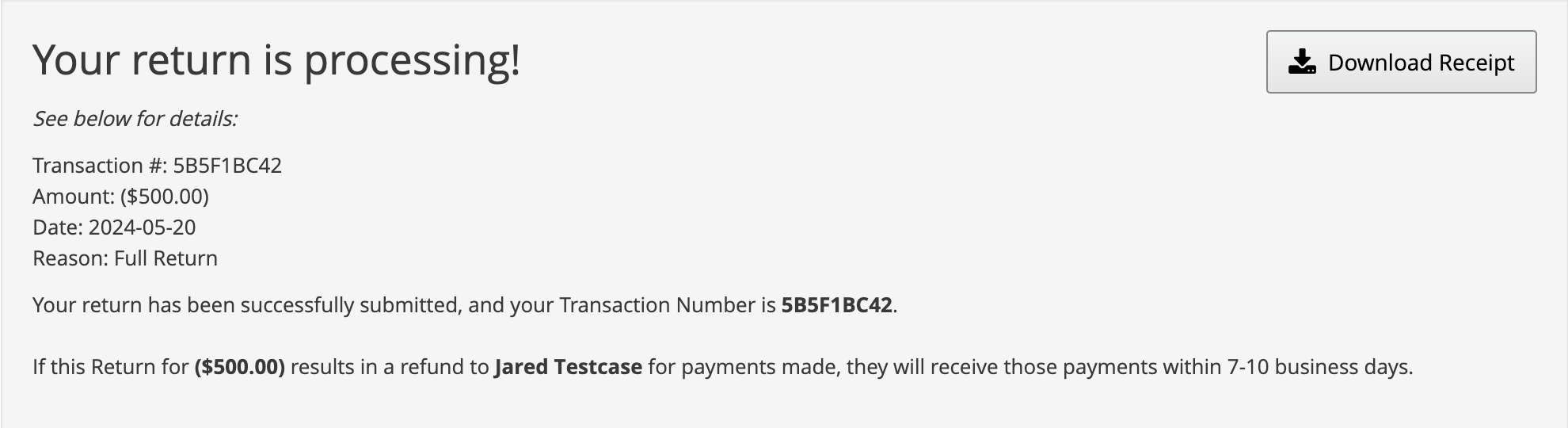
The balance will update for the consumer instantly, confirming that the return has been processed. The change will appear on their Account Summary and in their Transactions tab.
***
*If additional assistance is needed, please contact the Client Success Team:*
📧 [clientsuccess@ugafinance.com](mailto:clientsuccess@ugafinance.com)
☎️ \[(888) 842-2461 (Option 2)]\(tel:8888422461 , ,2)
> Return Audit Review 🔍
> In certain circumstances, the return may need to be reviewed and moved to completion by a member of our Business Administration Team. Once the return has been moved to complete, the related support ticket will be closed accordingly.
The balance will update for the consumer instantly, confirming that the return has been processed. The change will appear on their Account Summary and in their Transactions tab.
***
*If additional assistance is needed, please contact the Client Success Team:*
📧 [clientsuccess@ugafinance.com](mailto:clientsuccess@ugafinance.com)
☎️ \[(888) 842-2461 (Option 2)]\(tel:8888422461 , ,2)