> ## Documentation Index
> Fetch the complete documentation index at: https://knowledge.uportal360.com/llms.txt
> Use this file to discover all available pages before exploring further.
# Support Cases
Support cases are our mechanism for tracking merchant requests from request to resolution. The ability to submit a case is controlled by role-level permissions. Speak to your company's User Manager (uPortal360 Admin) if you need access to this feature.
## How to Submit Support Cases
1. Login to [uPortal360](/integrations-and-api/api-v2/testing)
2. Search for the customer in the 'Search Field'
3. Locate Customer, and click on the contract link
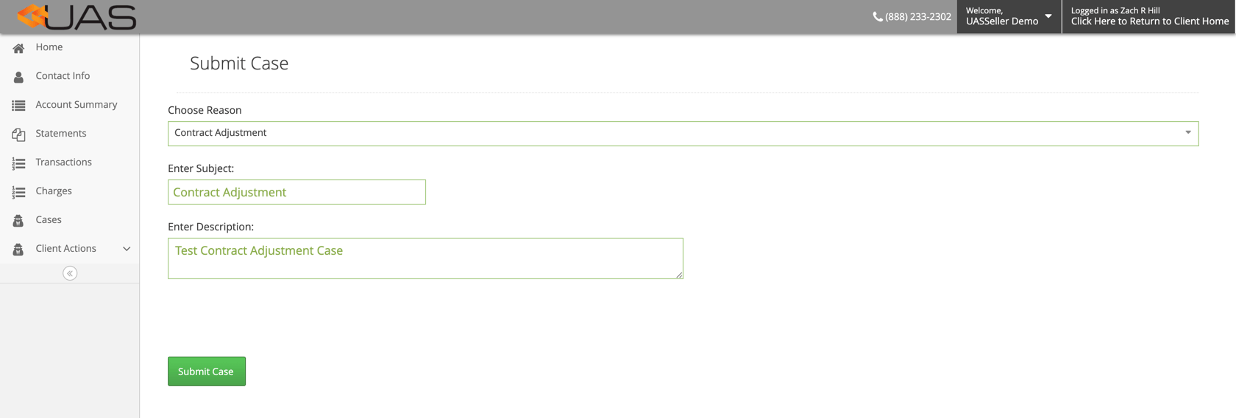
4. In the navigation bar (left side or Menu Icon), click `Merchant Actions` , then `Submit Case`
5. Choose a Reason
6. Enter Subject
7. Enter Description
8. Click 'Submit Case'
 ## How to Respond to Cases
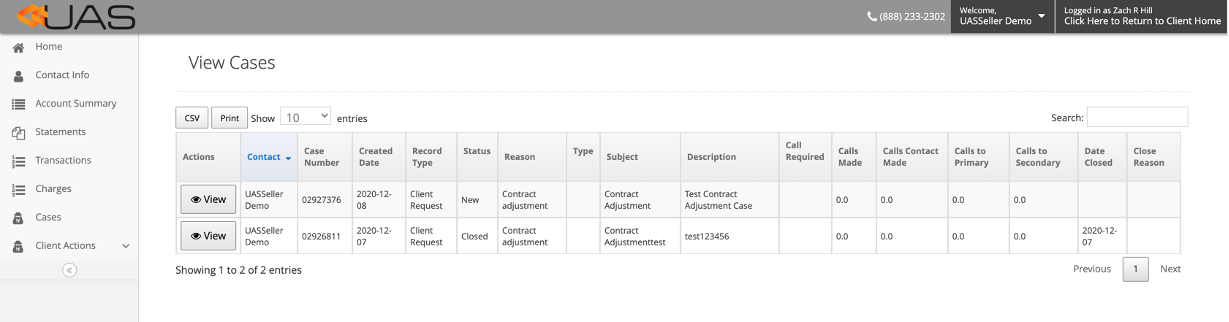
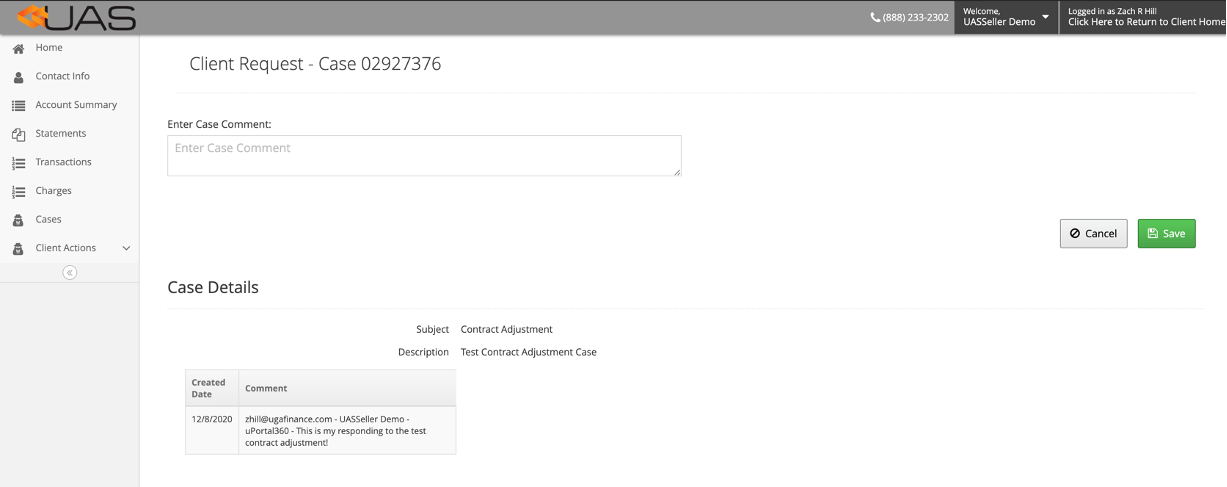
Users can see case status and add comments on the View Cases page. Below are the instructions on how to locate cases and add comments:
1. Login to [uPortal360](/integrations-and-api/api-v2/testing)
2. Search for the customer and open their contract
3. In the navigation menu, click `Cases`
4. This will direct you to the `View Cases` page. Under Actions in this table, click `View` to see more details.
5. Note the report will be blank if cases have not been submitted for the customer
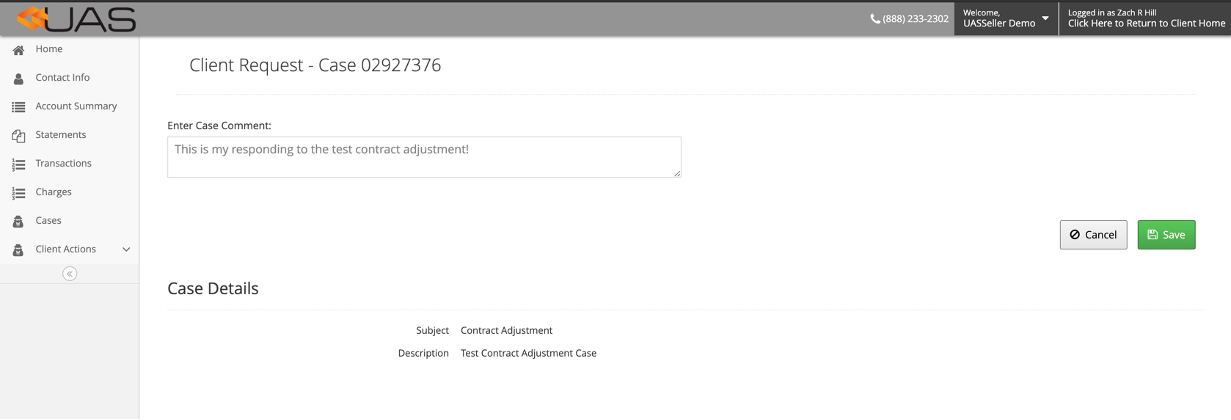
6. To add a comment to the individual case, type in `Enter Case Comment` section and click `Save`
## How to Respond to Cases
Users can see case status and add comments on the View Cases page. Below are the instructions on how to locate cases and add comments:
1. Login to [uPortal360](/integrations-and-api/api-v2/testing)
2. Search for the customer and open their contract
3. In the navigation menu, click `Cases`
4. This will direct you to the `View Cases` page. Under Actions in this table, click `View` to see more details.
5. Note the report will be blank if cases have not been submitted for the customer
6. To add a comment to the individual case, type in `Enter Case Comment` section and click `Save`
 ## Notification Emails
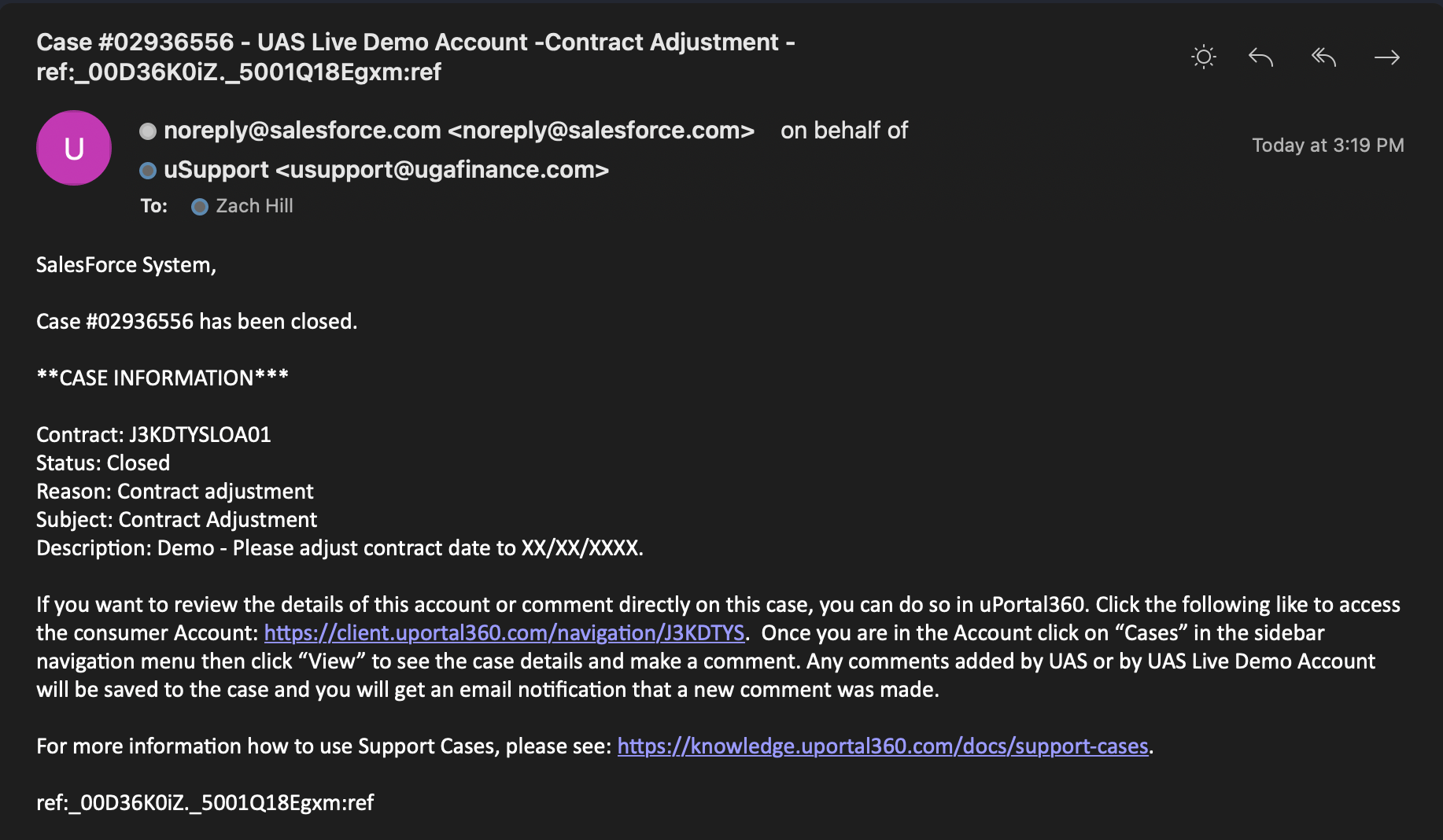
Support Case notification emails will be sent from Salesforce on behalf of the Merchant Performance Department. These will be:
1. Addressed to you by name
2. Include a Case Number
3. Include a summary of Case Information:
4. Loan/Contract Number
5. Case Status
6. Case Reason
7. Case Subject
8. Case Description
## Notification Email Events
The events that will result in an email alert to you as the merchant are as follows:
1. New Support Case Created
## Notification Emails
Support Case notification emails will be sent from Salesforce on behalf of the Merchant Performance Department. These will be:
1. Addressed to you by name
2. Include a Case Number
3. Include a summary of Case Information:
4. Loan/Contract Number
5. Case Status
6. Case Reason
7. Case Subject
8. Case Description
## Notification Email Events
The events that will result in an email alert to you as the merchant are as follows:
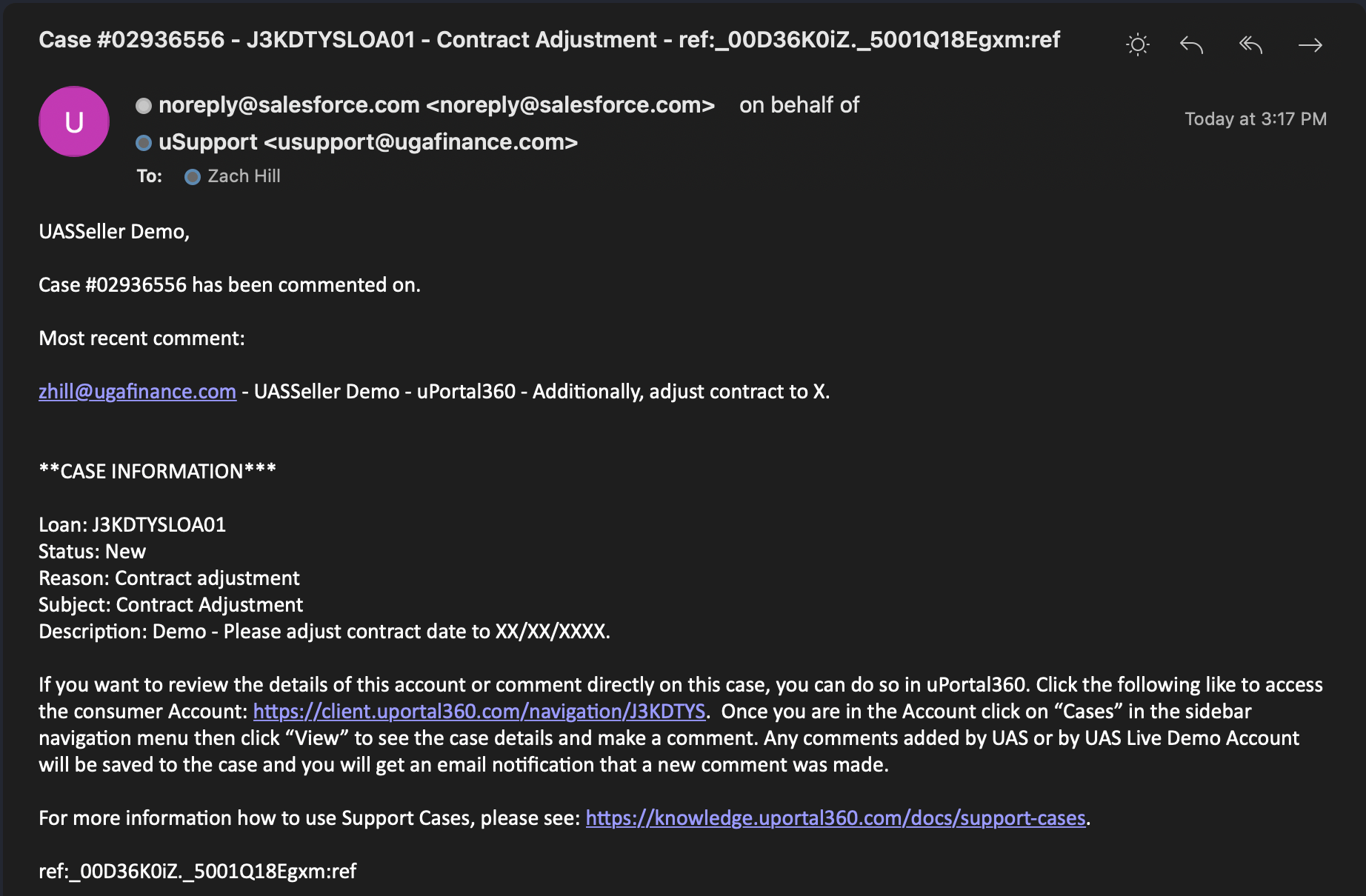
1. New Support Case Created 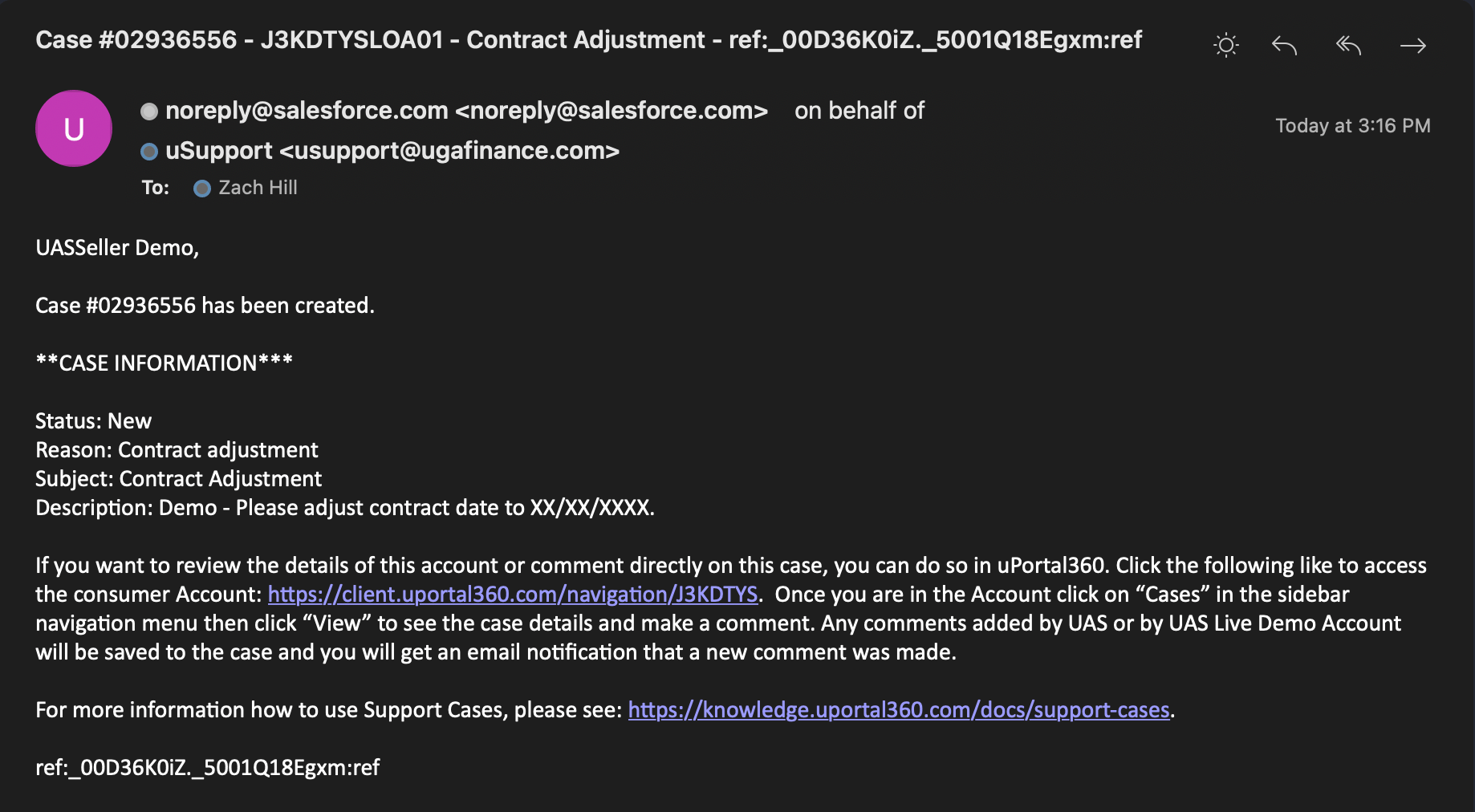 2. Existing Support Case Commented On
  3. Support Case Closed