

Overview
Some merchants may be allowed to increase or decrease amounts of closed-end contracts. Eligibility is dependent on your specific finance program configuration and may be limited to a subset of users at your organization.Contract Increase
The Contract Increase process provides the ability to up sell your customers up to an approved credit amount with a new contract.Eligibility
- Contract must be Active and Current (up-to-date on payments without missed payments)
- Active for a minimum of 1 day
- Must be a Closed-Ended Contract
- Contracts with open lines of credit may do an “increase” by adding an additional charge via the “Add Charge” button.
How To Process an Increase
- First, navigate to the account that you wish to increase by using the search bar or by clicking a link via a report.
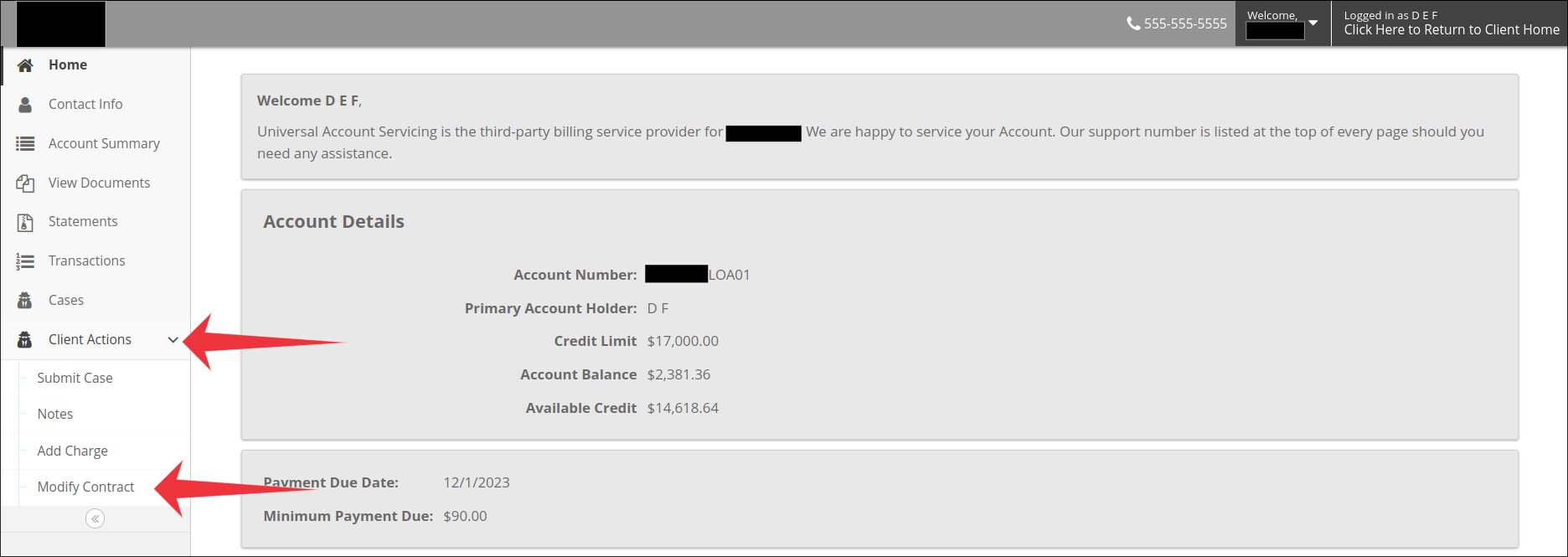
- Once logged into the account, navigate to the “Modify Contract” screen using the left-hand side navigation menu.
- You can do this by selecting “Client Actions” to expand a sub-menu, then “Modify Contract”.
- The screenshot for this step (see the screenshots below) highlights these tabs via large, red arrows.
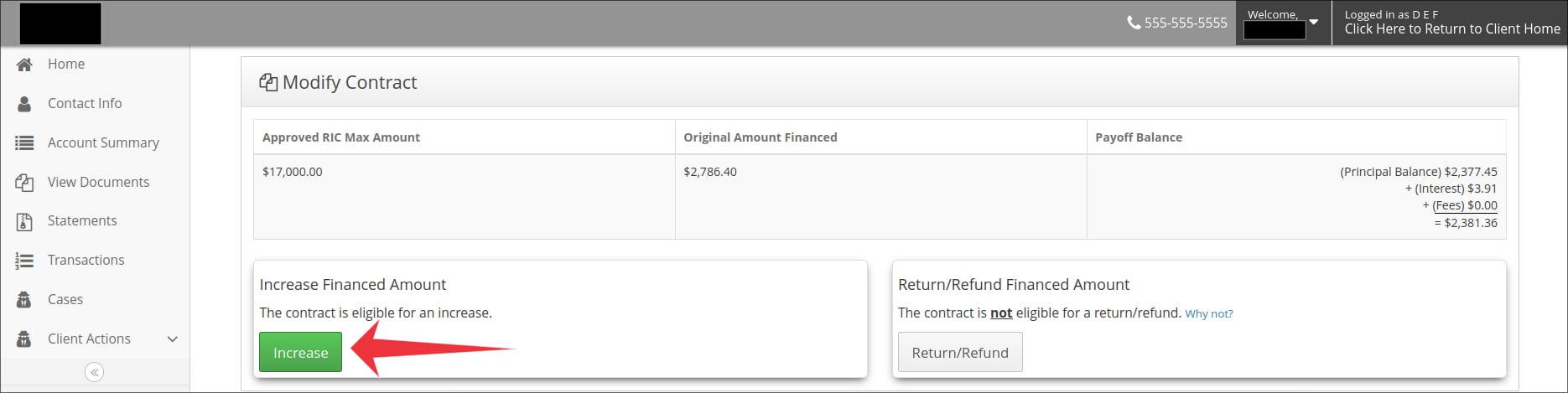
- Once you have navigated to the “Modify Contract” screen, select the green “Increase” button.
- The screenshot for this step (see the screenshots below) highlights the “Increase” button with a large, red arrow.
- NOTE: The contract may be ineligible for an increase. Click on the blue “Why not?” text to understand why.
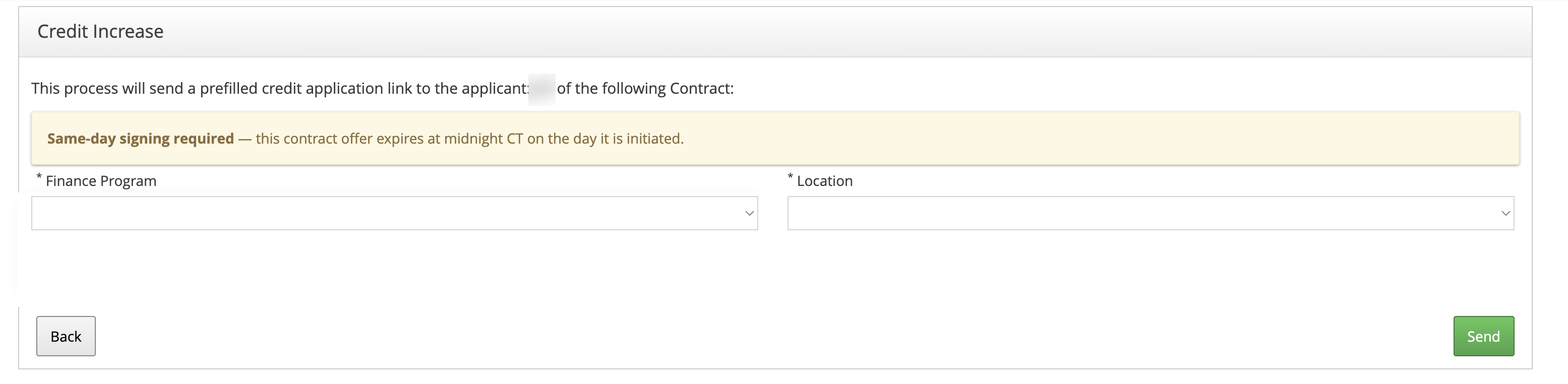
- The Credit Increase screen opens. From here, uPortal360 sends the consumer a prefilled credit application link.
- Select a Finance Program and a Location. Both fields are required.
- Select Send.
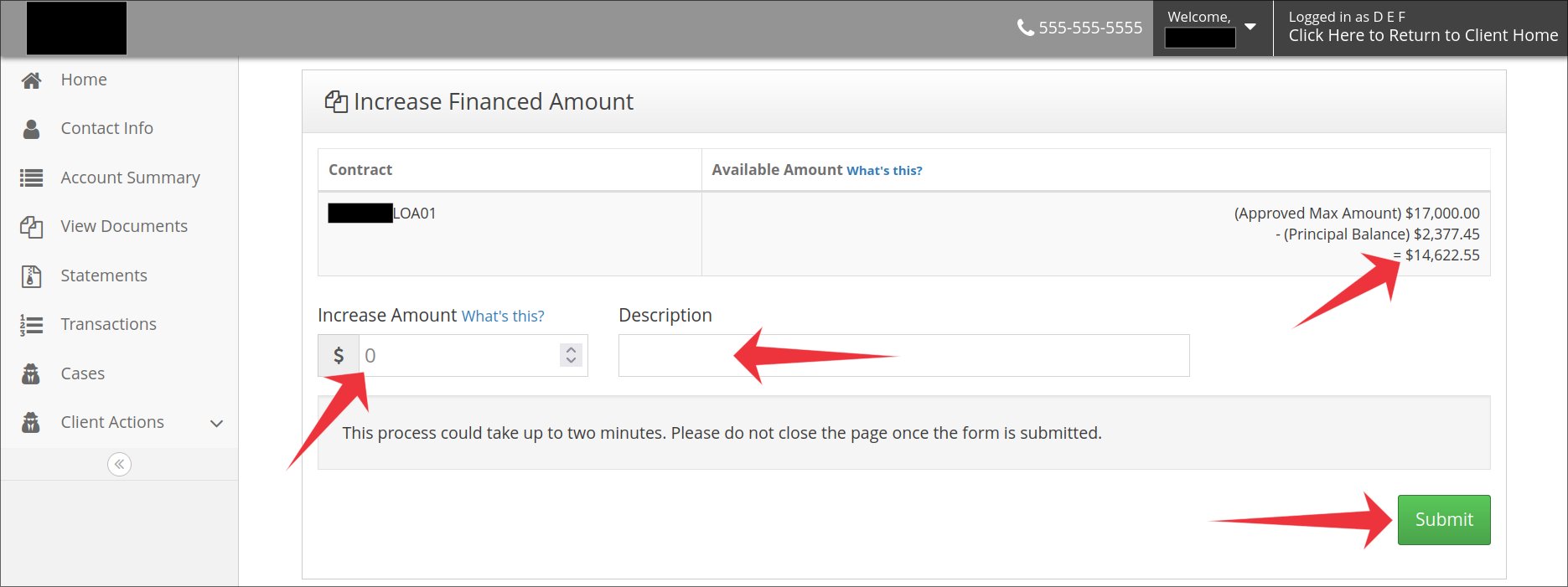
- On the following page, enter the amount you want to increase the contract by and a brief description of the charge.
- Take note of the amount at the top-right of your screen. It is the maximum amount you may increase the contract by.
- The screenshot for this step (see the screenshots below) highlights the notable information and required fields and buttons to complete the increase with large, red arrows.
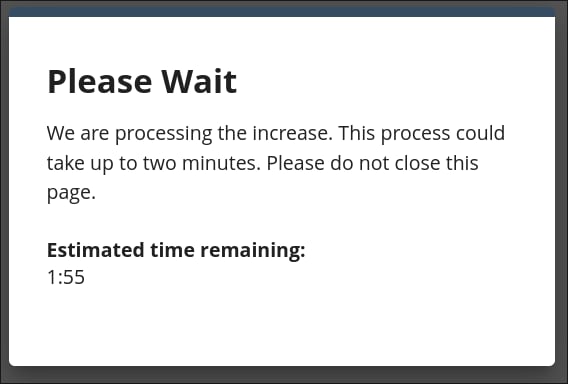
- You will see a loading screen after submitting the increase:
- Once the increase is completed, you will be navigated to the new contract. You are done!
Increase screenshots
| 2. Navigate to Modify Contract | 3. Select Increase | 4. Credit Increase screen |
|---|---|---|
 |  |  |
| 5. Enter amount and description | 6. Loading screen | |
|---|---|---|
 |  |
Contract Decrease/Term Decrease
The Contract Decrease process allows you to reduce or refund a portion of the original product price.Eligibility
For your customer to be eligible for a decrease, they must:- Be Active and Current
- Type of Contract = MetaBank
- Must be Serviced by UAS
- Unpaid Fees = 0
- Principal Adj = 0
- Email must be valid
- No Processing Transactions
How To Process a Decrease
- First, navigate to the account that you wish to increase by using the search bar or by clicking a link via a report.
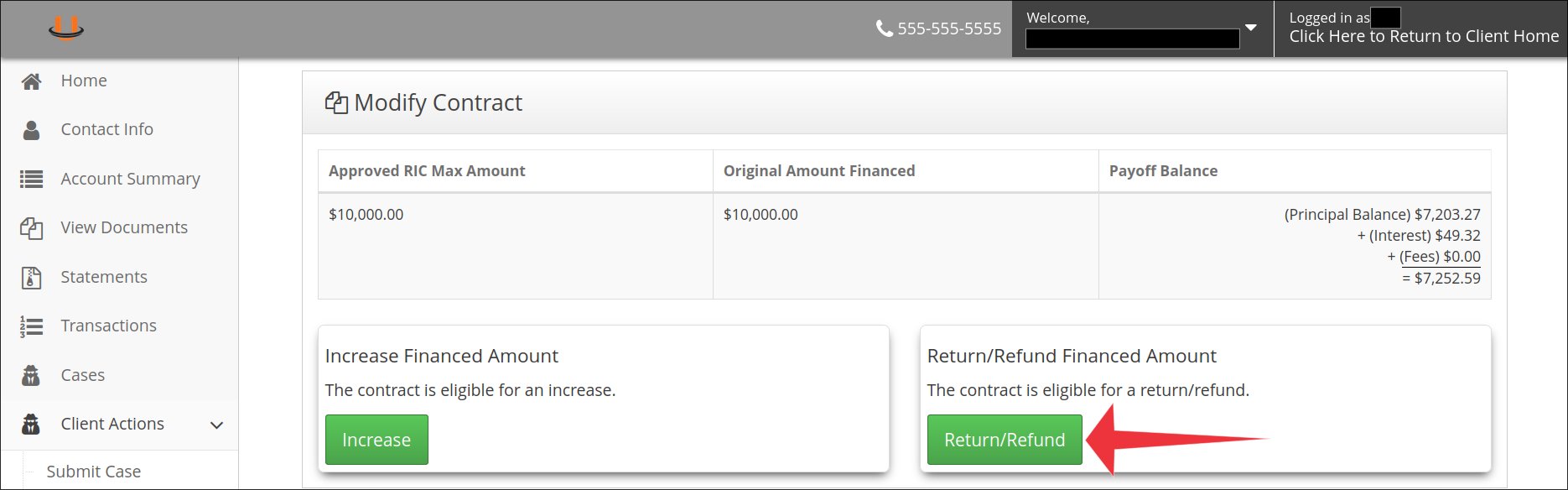
- Once logged into the account, navigate to the “Modify Contract” screen using the left-hand side navigation menu.
- You can do this by selecting “Client Actions” to expand a sub-menu, then “Modify Contract”.
- The screenshot for this step (see the screenshots below) highlights these tabs via large, red arrows.
- Once you have navigated to the “Modify Contract” screen, select the green “Increase” button.
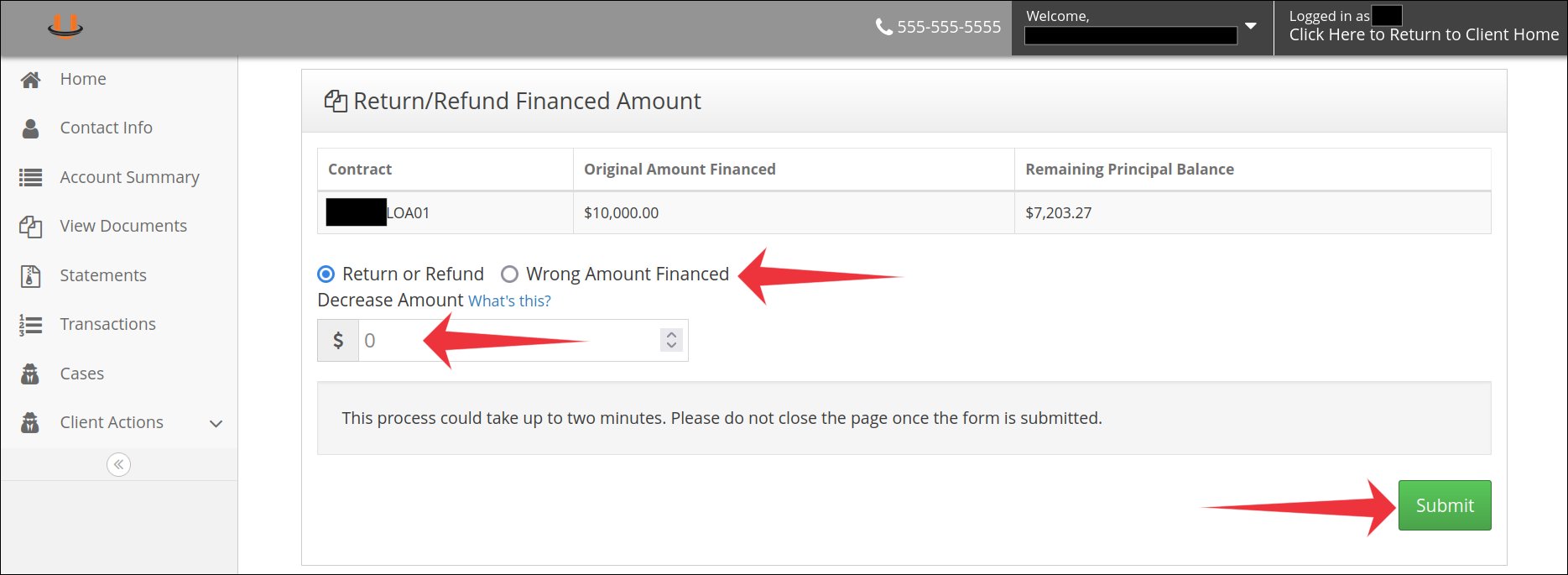
- On the following page, enter the amount you want to decreases the contract by and the reason why.
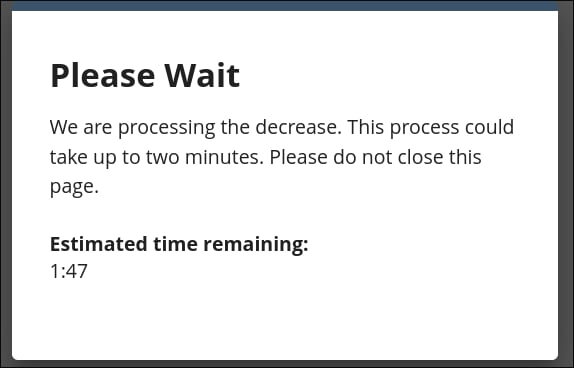
- After hitting the “Submit” button, you will see a loading screen message with the estimated time remaining:
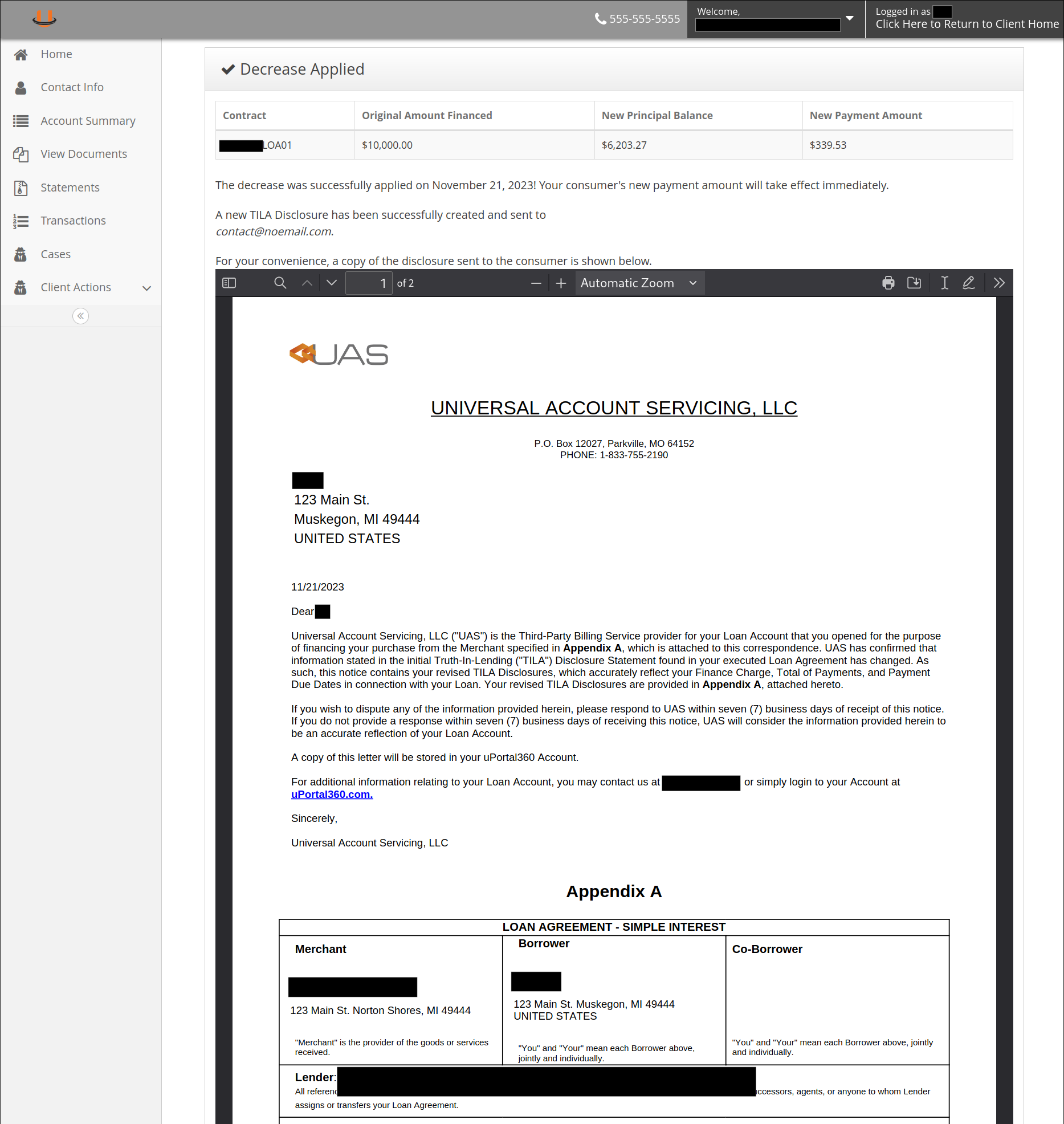
- After the loading is complete, you are done! You will be redirected to a screen with a summary and the agreement that was sent to the consumer. You may click away from this at any time.
Decrease screenshots
| 2. Navigate to Modify Contract | 3. Modify Contract screen | 4. Enter amount and reason |
|---|---|---|
|  |  |
| 5. Loading screen | 6. Summary and agreement | |
|---|---|---|
 |  |