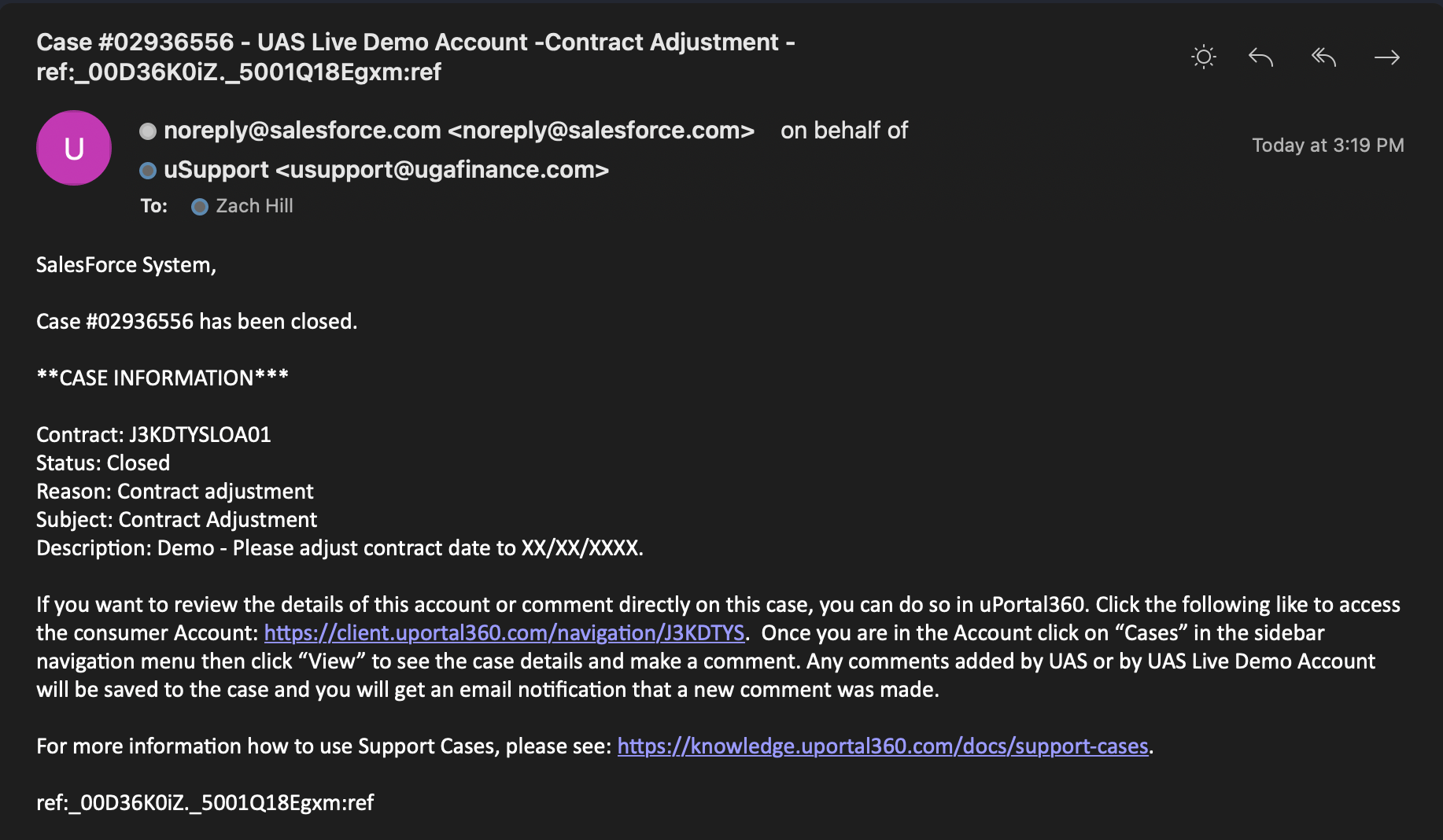
How to Submit Support Cases
- Login to uPortal360
- Search for the customer in the ‘Search Field’
- Locate Customer, and click on the contract link
- In the navigation bar (left side or Menu Icon), click
Merchant Actions, thenSubmit Case - Choose a Reason
- Enter Subject
- Enter Description
- Click ‘Submit Case’
How to Respond to Cases
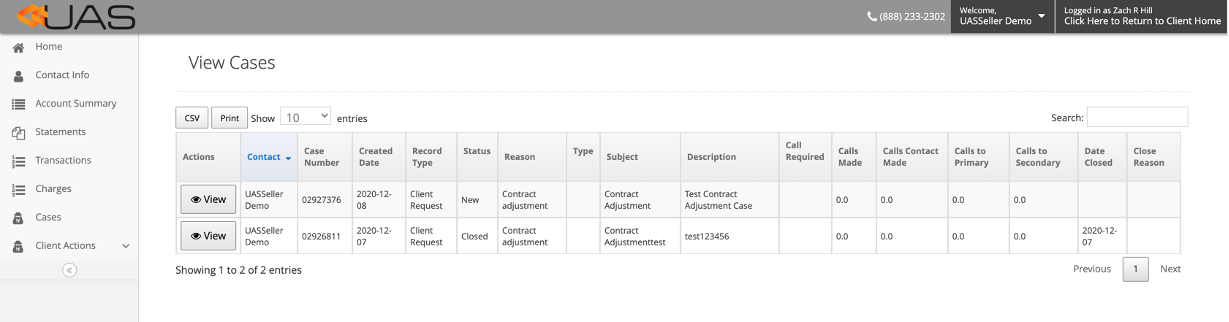
Users can see case status and add comments on the View Cases page. Below are the instructions on how to locate cases and add comments:- Login to uPortal360
- Search for the customer and open their contract
- In the navigation menu, click
Cases - This will direct you to the
View Casespage. Under Actions in this table, clickViewto see more details. - Note the report will be blank if cases have not been submitted for the customer
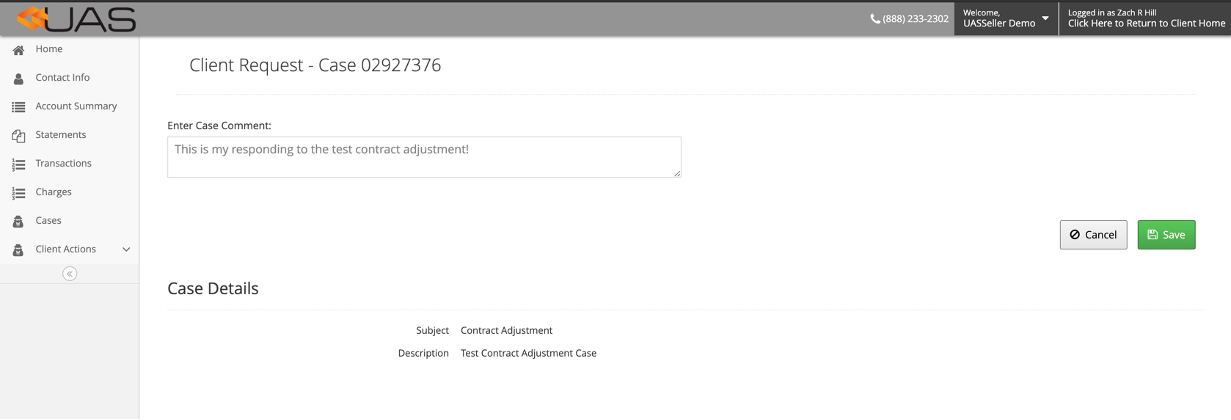
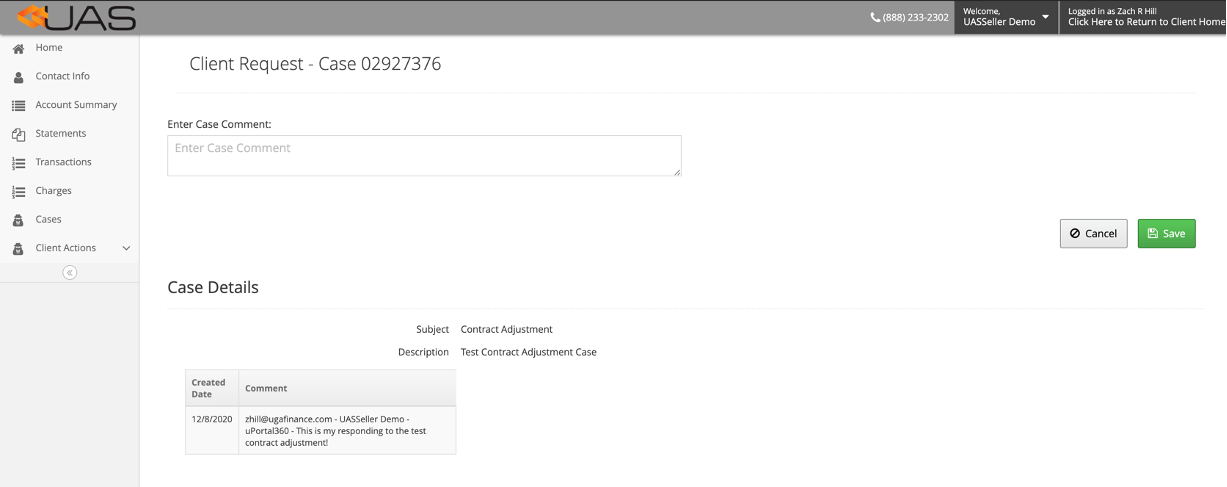
- To add a comment to the individual case, type in
Enter Case Commentsection and clickSave
| 1. View Cases page | 2. Enter a case comment | 3. Comment added |
|---|---|---|
 |  |  |
Notification Emails
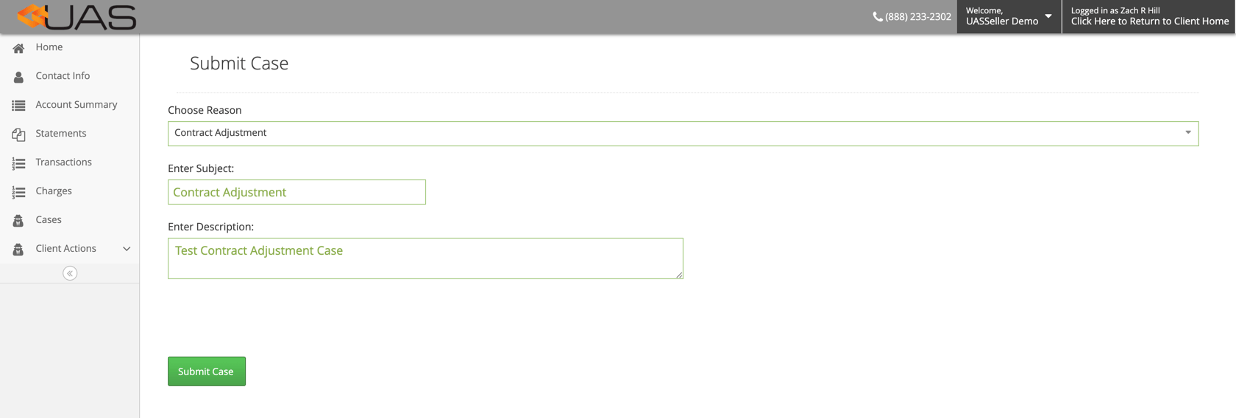
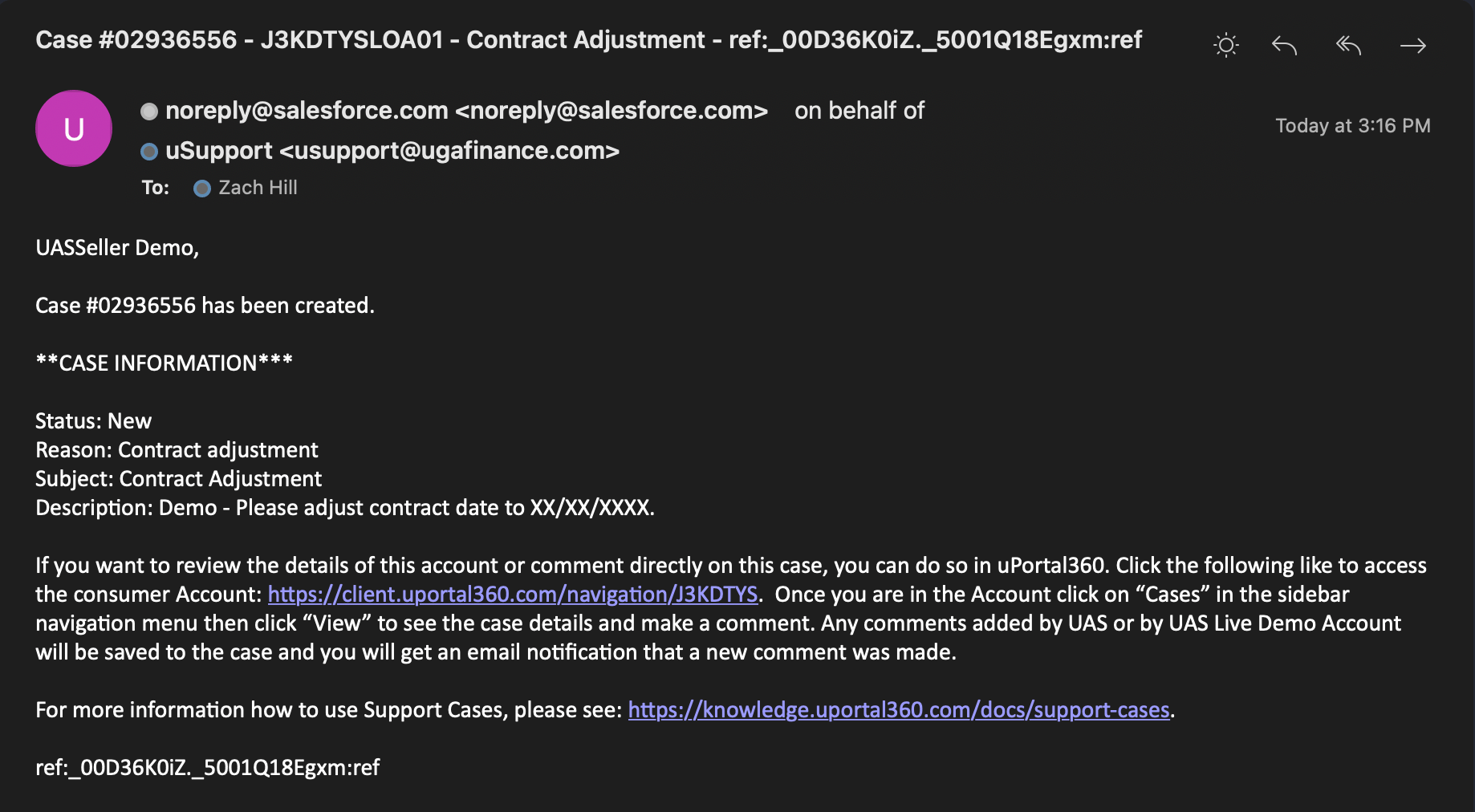
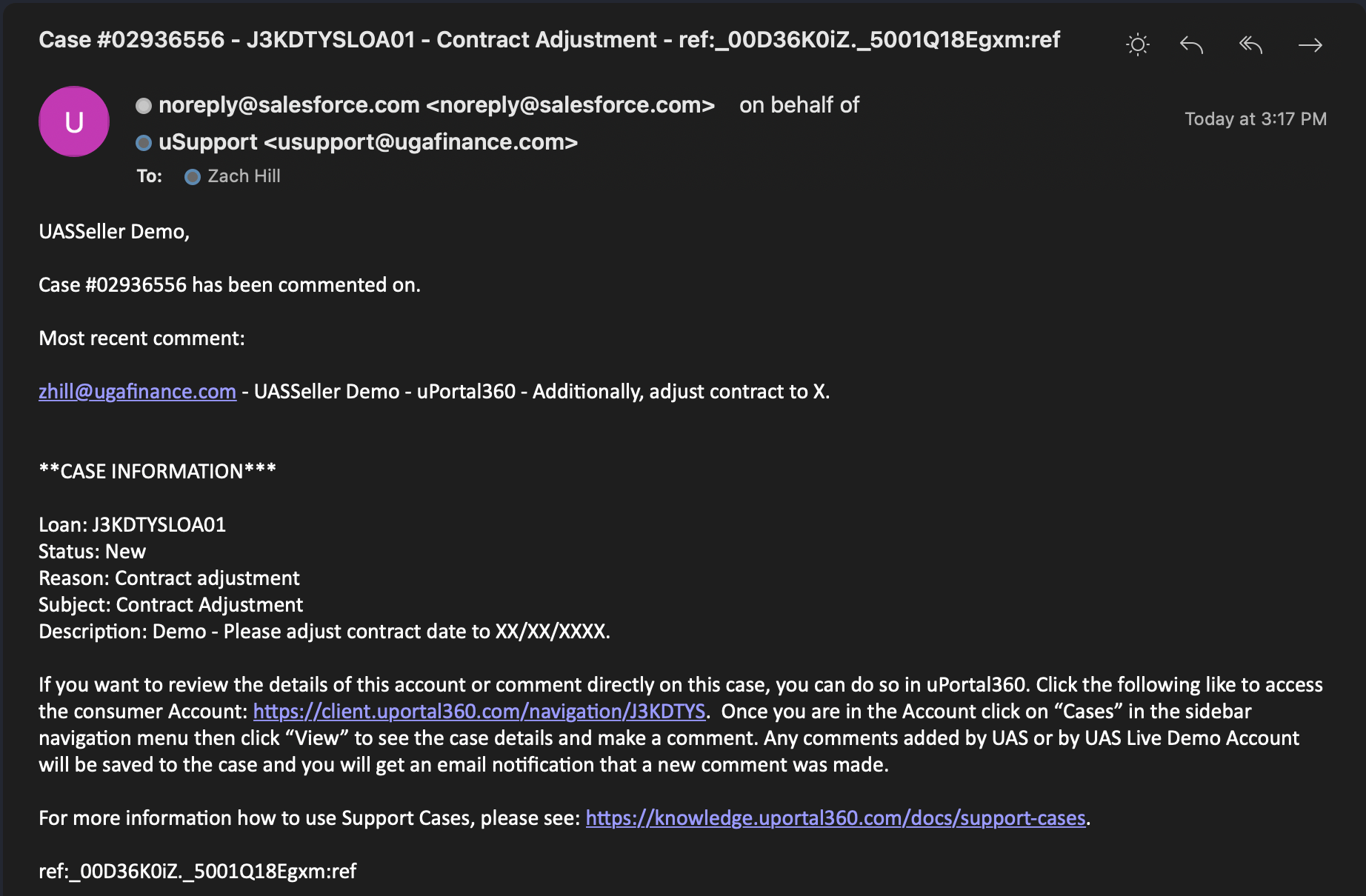
Support Case notification emails will be sent from Salesforce on behalf of the Merchant Performance Department. These will be:- Addressed to you by name
- Include a Case Number
- Include a summary of Case Information:
- Loan/Contract Number
- Case Status
- Case Reason
- Case Subject
- Case Description
Notification Email Events
The events that will result in an email alert to you as the merchant are as follows:- New Support Case Created
- Existing Support Case Commented On
- Support Case Closed