

Home Screen
Upon successfully logging into uPortal, you will be directed to the Dashboard, which serves as the home screen. From here, you can initiate new credit applications (details here). If you ever need help, our support number is in the screen’s upper-right of the browser window. Also, you will see your name in the upper right with some options to manage your user account. Admins to the portal can manage users, information about User Management can be found here.Merchant Navigation Menu
The menu bar on the left side of the Dashboard is your primary tool for navigating through the portal and provides quick access to key actions.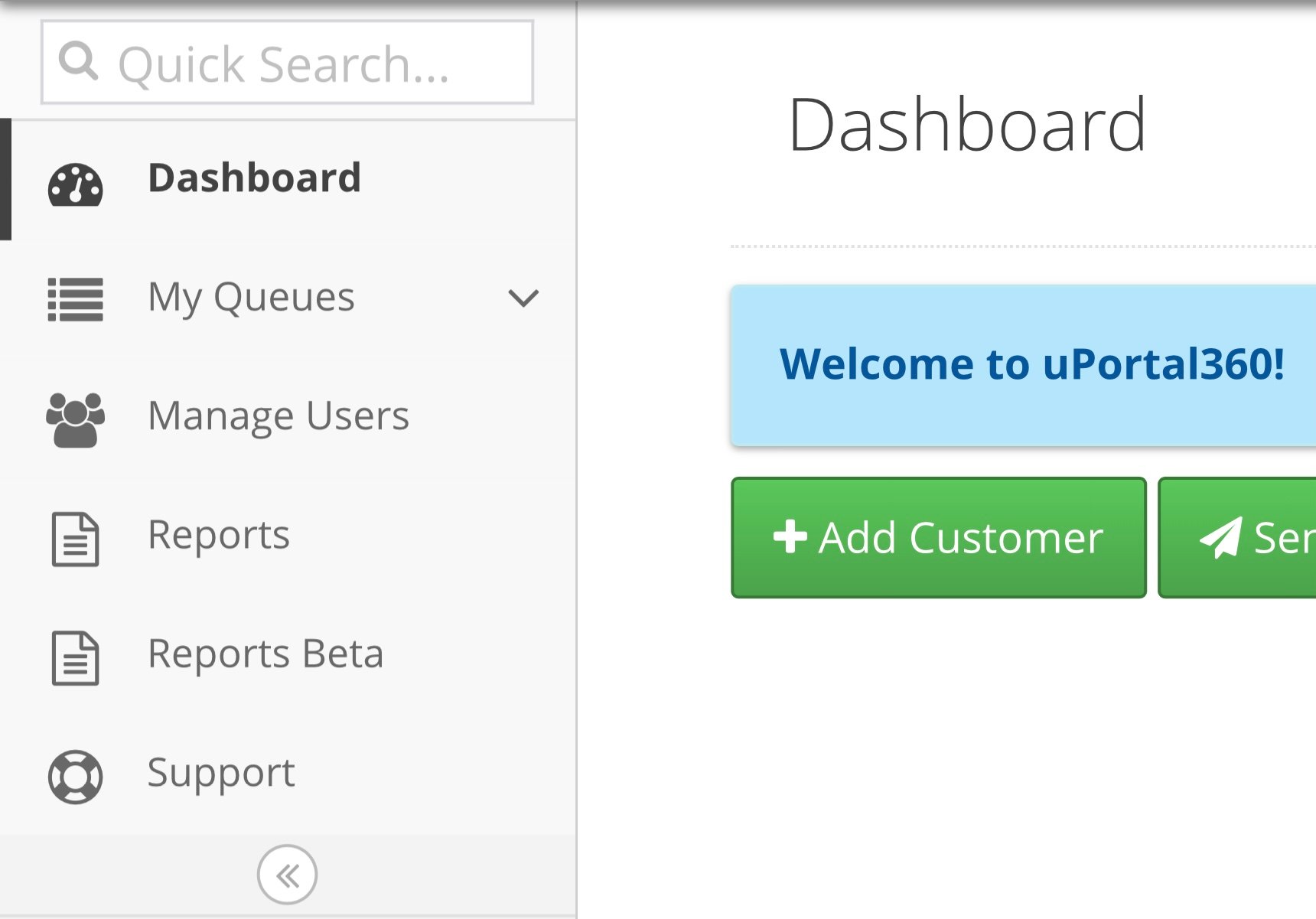
| Navigation Menu Item | Description |
|---|---|
| Dashboard | This Links you back to the home screen. |
My Queues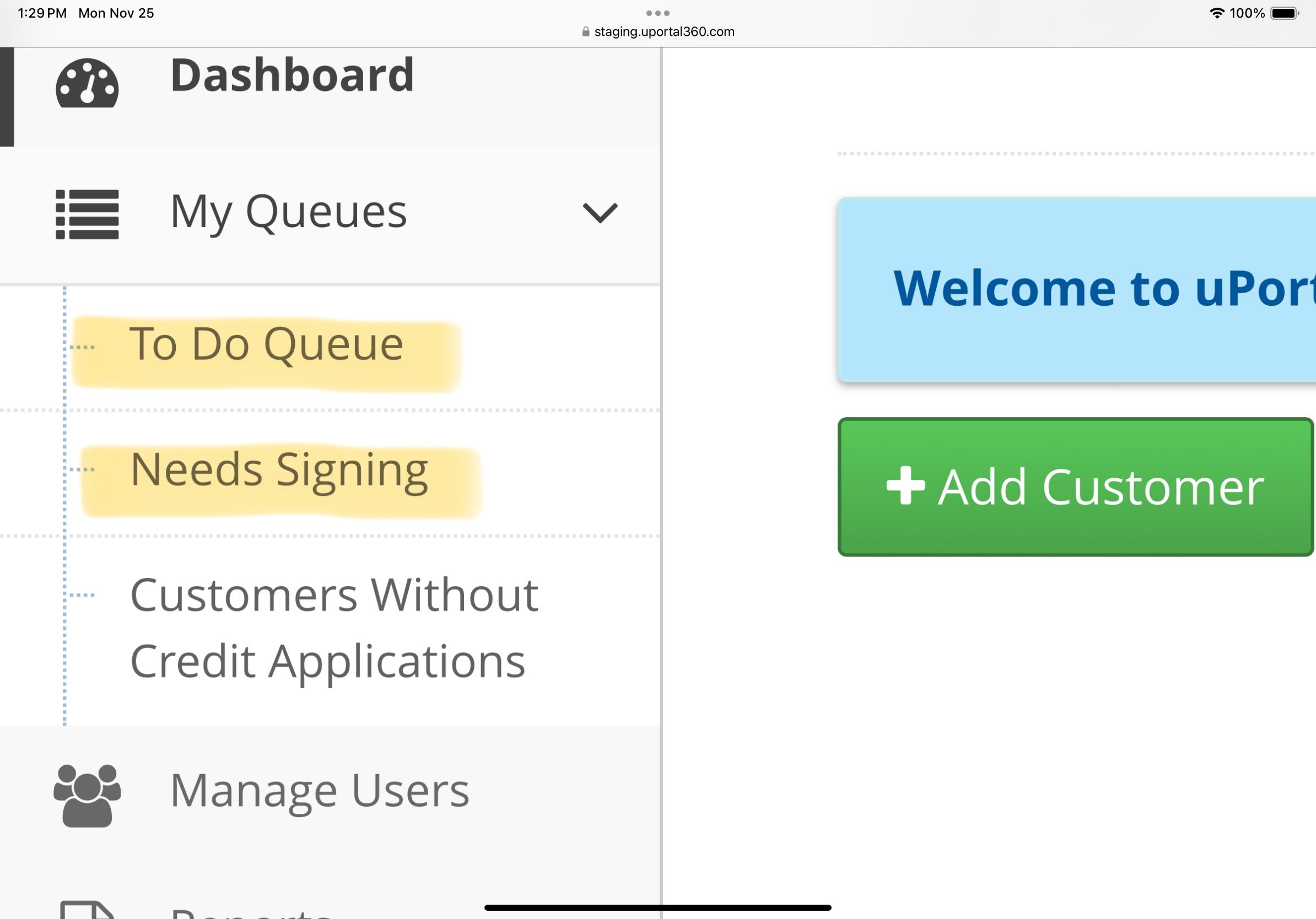 | To Do Queue: Displays applications waiting for final charge amounts or consumer actions to finish. Needs Signing: Holds contracts with completed applications that are awaiting consumer signatures. Customers Without Credit Application: This queue holds a record of all customer applications that were not completed; this occurs if someone completes the Add Customer page but does not complete the credit application. |
| Reports | Reports are generated based on the permissions granted by your admin (User Management permission is needed). Our reports will allow you to access consumer accounts by clicking on the “Acct #” in the report results. |
| Reports Beta | Reports Beta offers the same reports as the Reports menu option, but utilizes API endpoints for faster processing and the ability to handle large data volumes. |
| Support | This is where you will find the same phone number you found on the home screen. There will also be an option to email the merchant performance team. If you have any questions, you can also search the FAQ (Frequently Asked Questions). |
Accessing a Consumer Account
To access a consumer account, either search for the consumer or use the hyperlinks in reports. You can search by the consumer’s contract number, phone number, email, or name.As a Merchant, the uPortal interface allows you to view the consumer’s account and servicing history, but it does not grant access to process payments or view payment card or ACH details. Consumers should be directed to log in themselves to manage their accounts or contact the UAS Consumer Support Number.
Consumer Home Screen (As a Merchant)
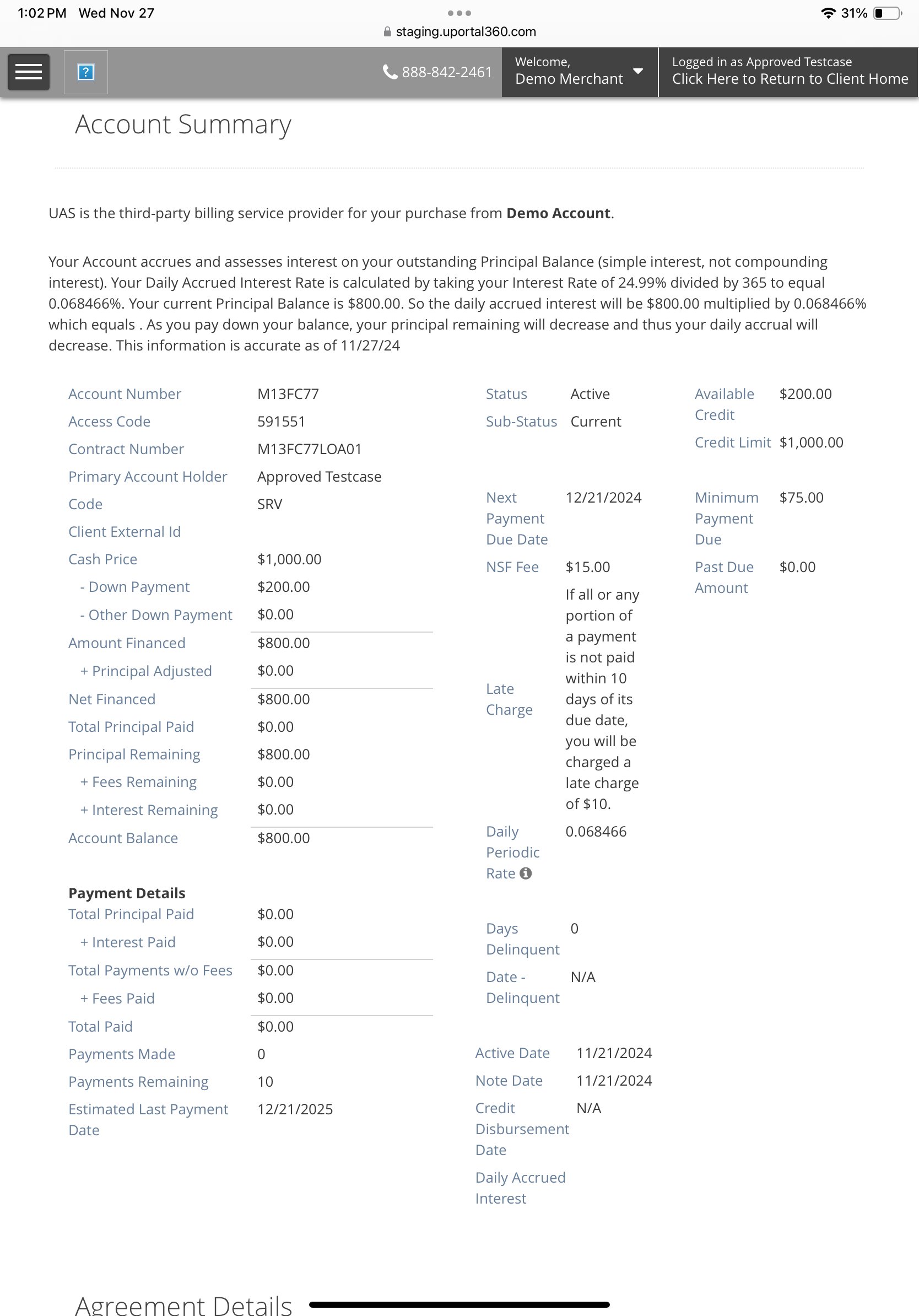
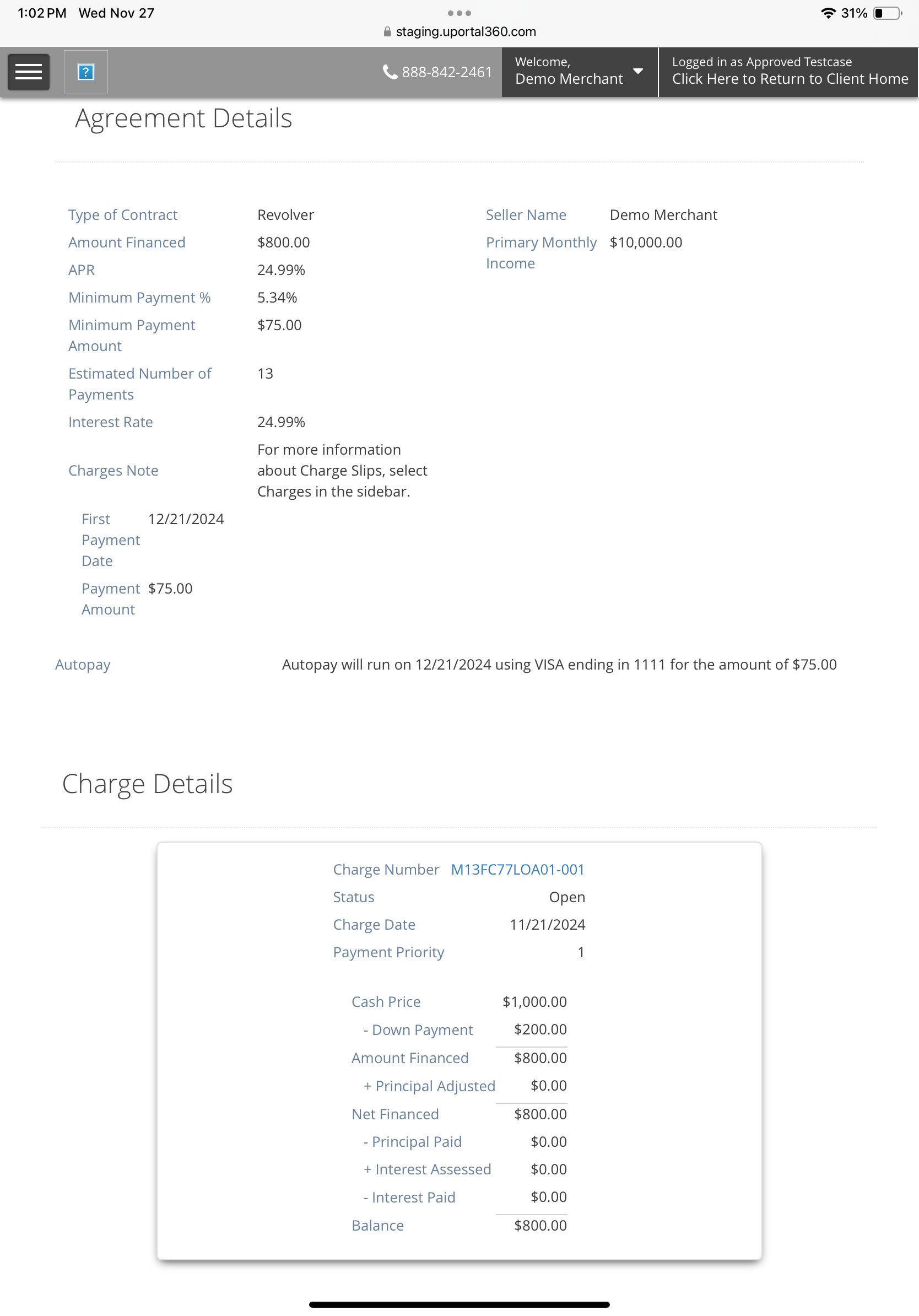
Once you access the consumer account, you will see a consumer account as a merchant. This is similar to logging in as the consumer. However, there are items you will be restricted from doing (like payment processing). There are also Client Actions that allow you to submit requests to UAS for processing. When you are done reviewing a consumer account, you will need to click the “Click Here to Return to Client Home” to exit the consumer account and move back to the Merchant portal interface.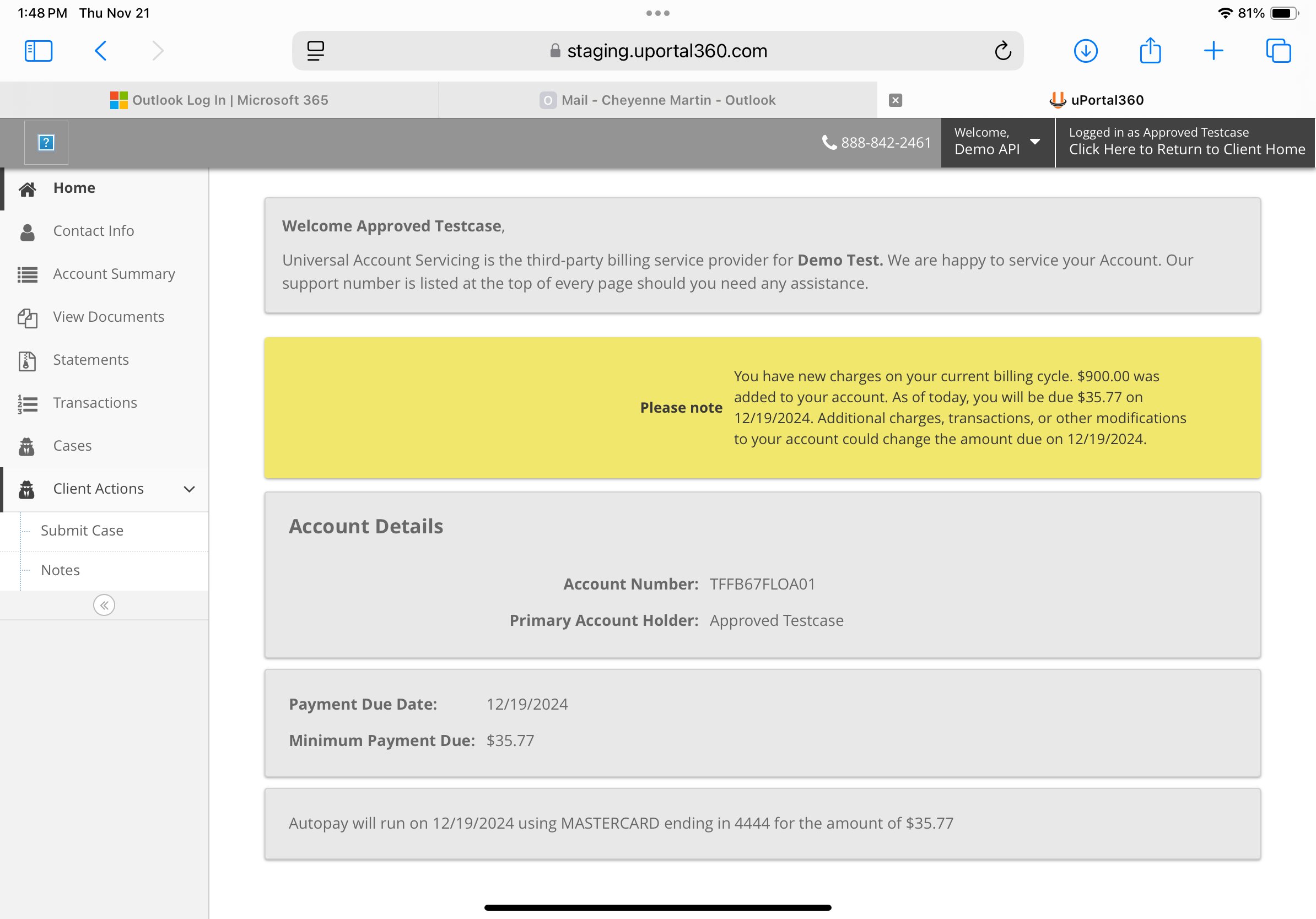
How Do I Help a Consumer Who Wants to Make a Payment or Needs an Answer to a Billing Question?
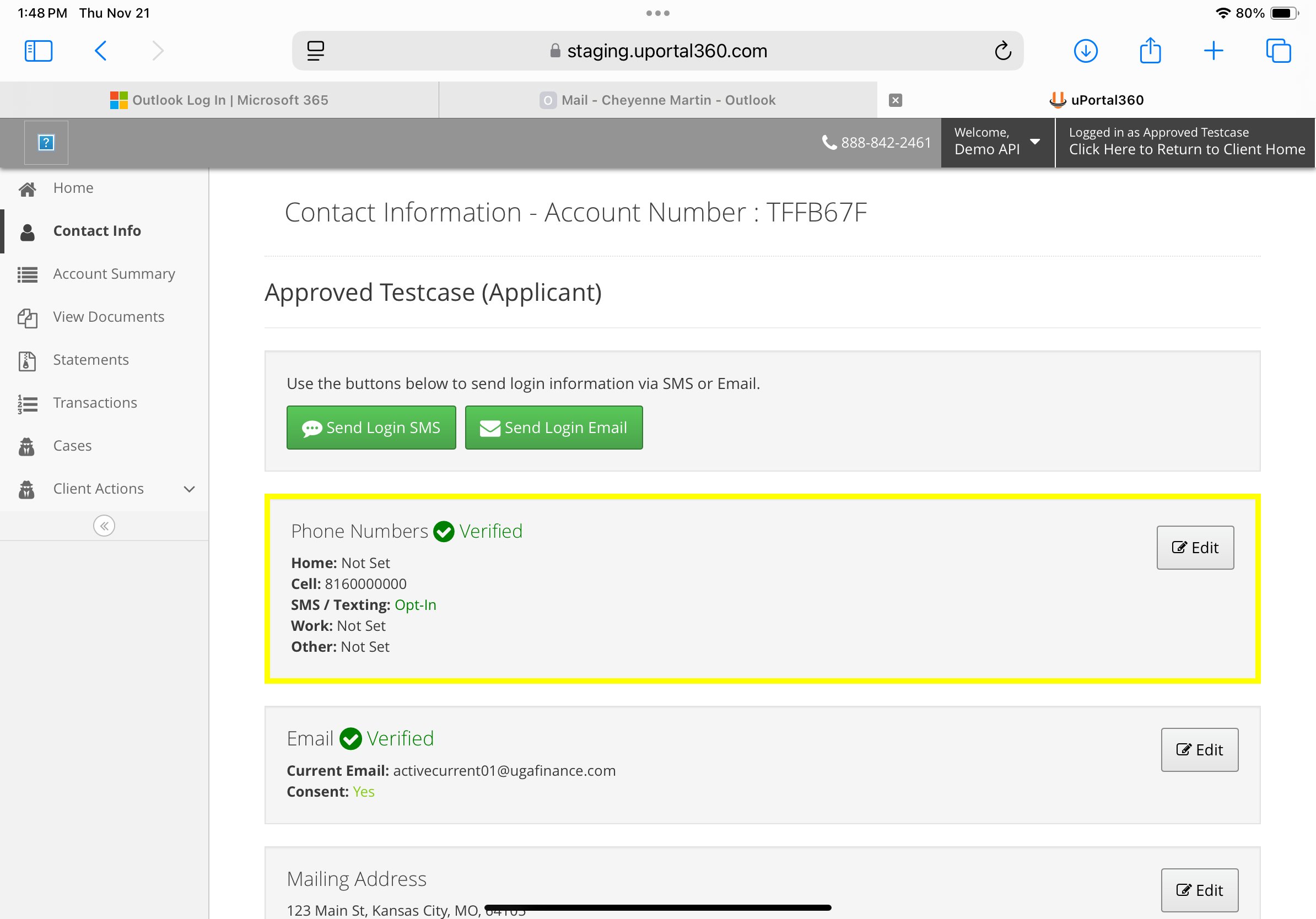
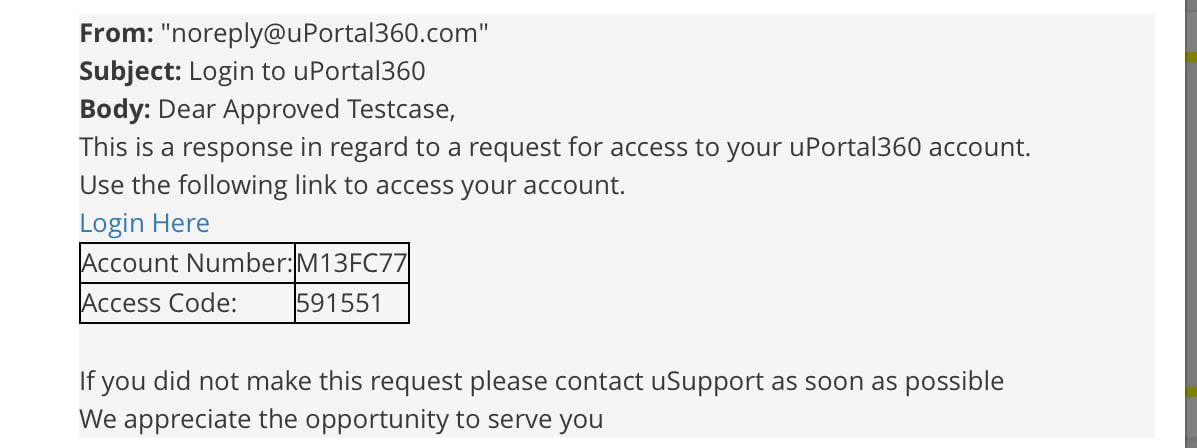
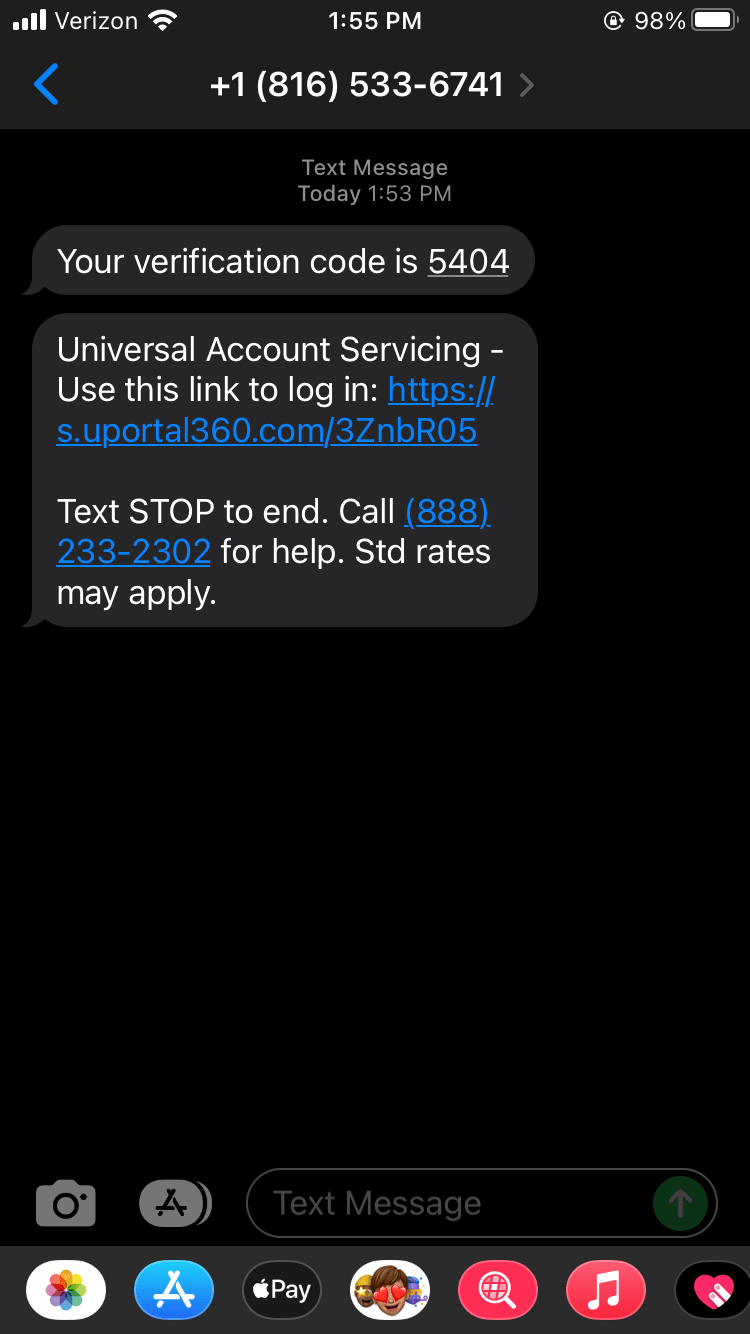
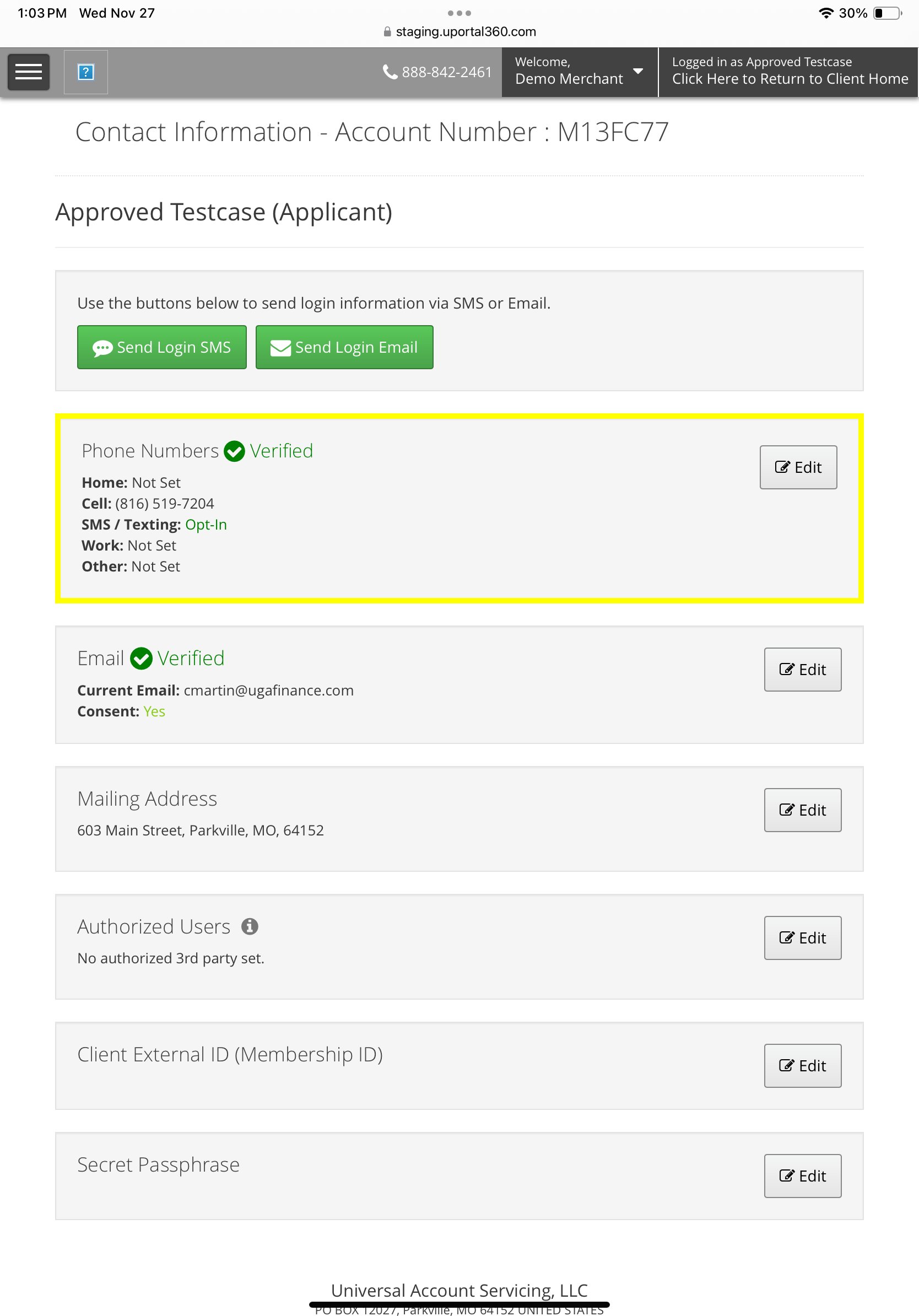
First, open the consumer’s account (Search for them on the Merchant Home Screen, or find them in a portal report). Once in the account, use the menu optionContact Information. This will display the consumer’s contact information (Email, Phone Number, etc.). There are two buttons that are available to send a login link.
Verify Contact Information Please verbally confirm the email or phone number on the screen is accurate before sending messages.
| 1. Contact Information | 2. Email | 3. SMS/Text |
|---|---|---|
 |  |  |
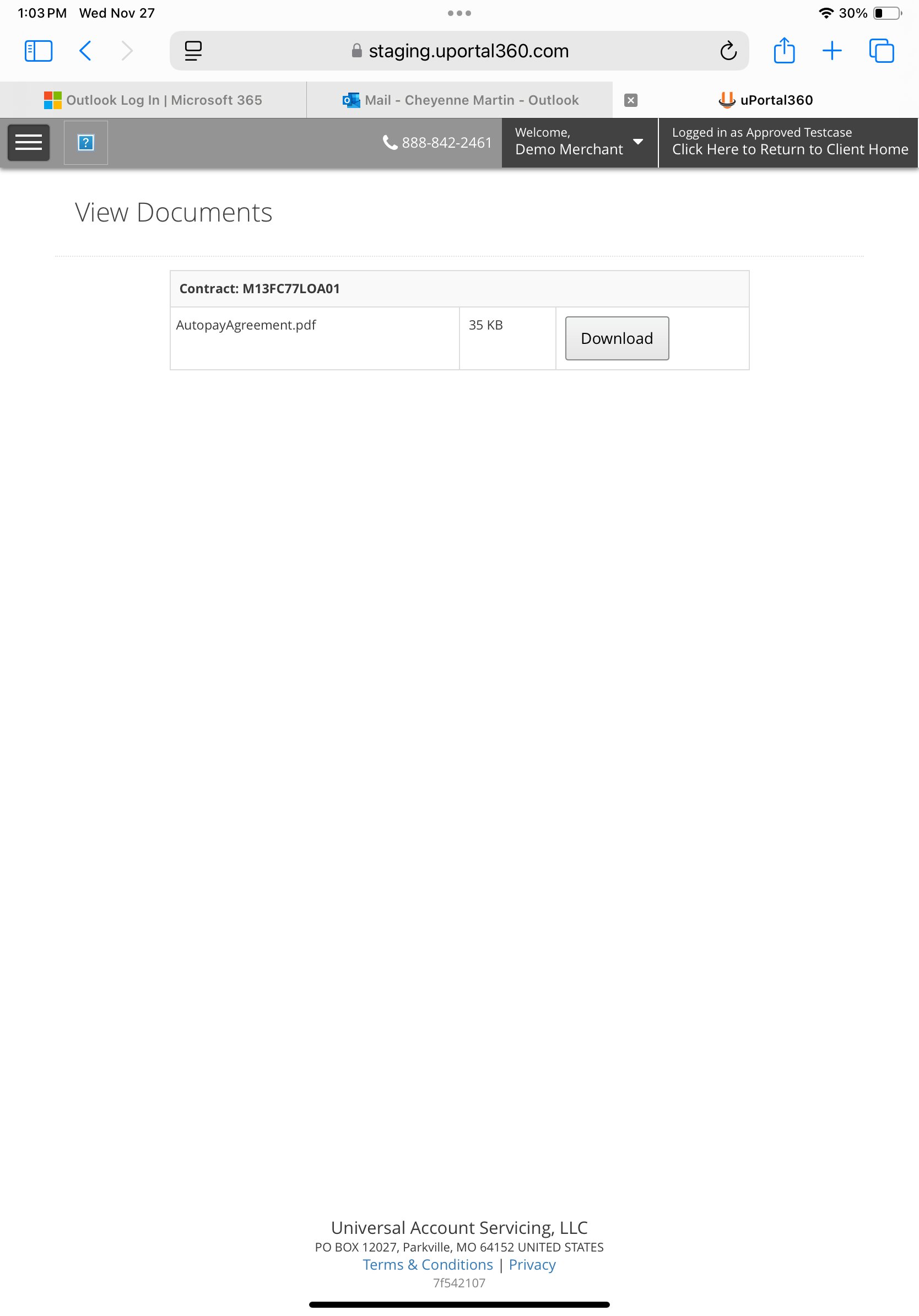
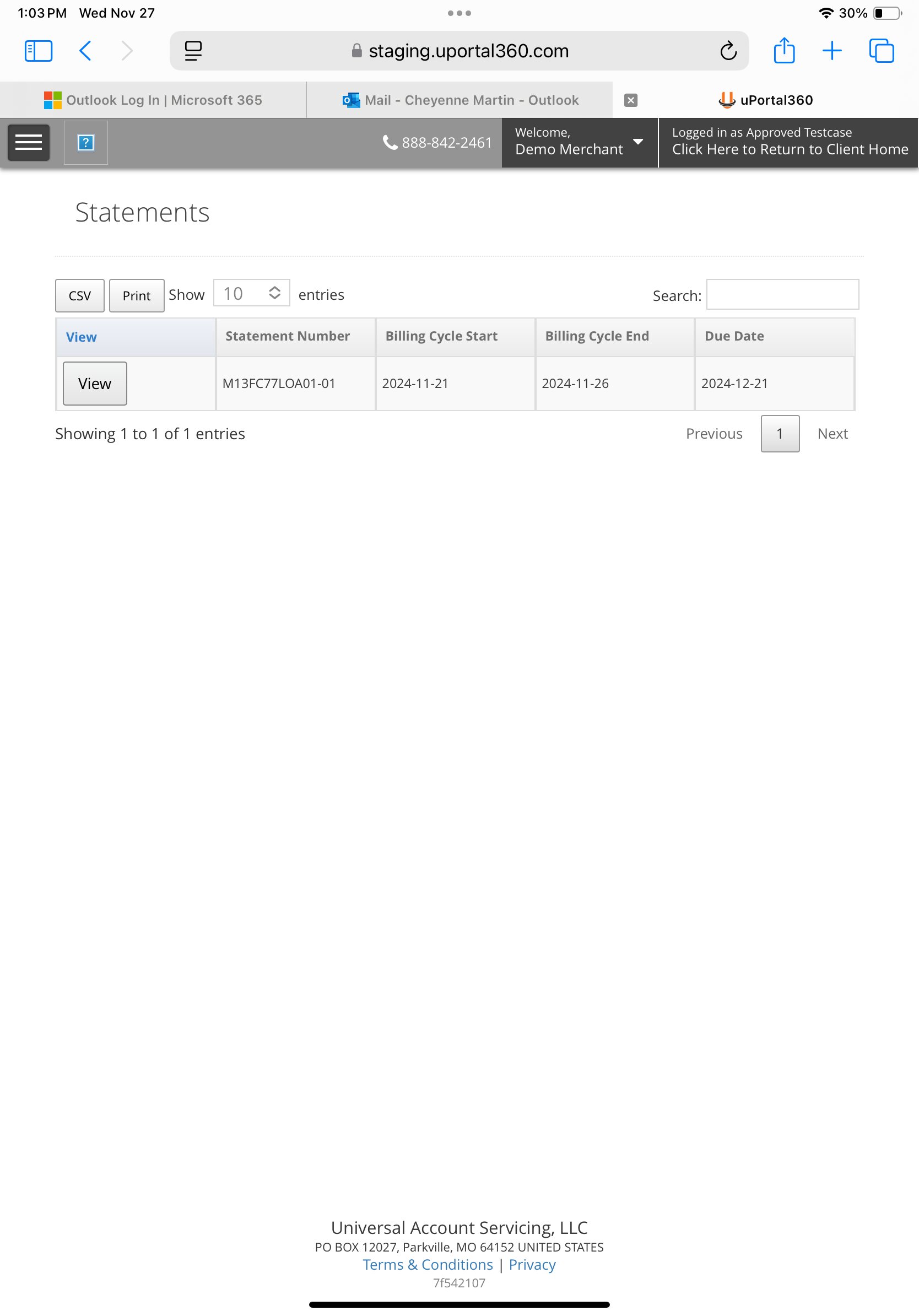
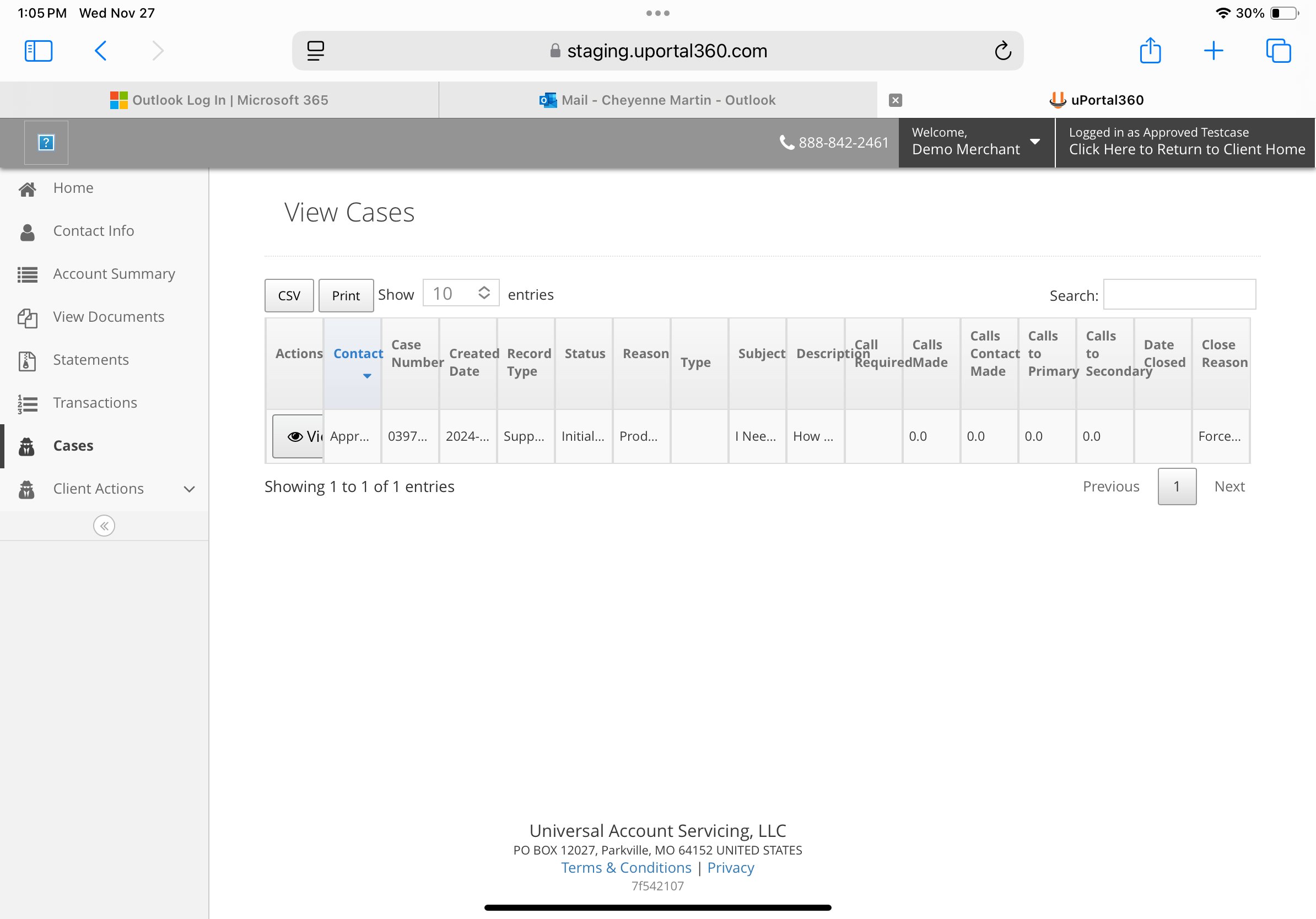
Consumer Navigation Menu
| Step 1 | Step 2 | Step 3 |
|---|---|---|
 |  |  |
| Step 4 | Step 5 | Step 6 |
|---|---|---|
 |  |  |