

Consumer Application Experience Guide
The following guide covers the Consumer Application experience. This interface is designed for mobile, tablet, or desktop devices of any size. The screenshots in this guide highlight the mobile experience to show how easy this is for your customers to complete right from their phone.Send An Application
| 1. Send Application | 2. Select Finance Program | 3. Enter Details (Optional) |
|---|---|---|
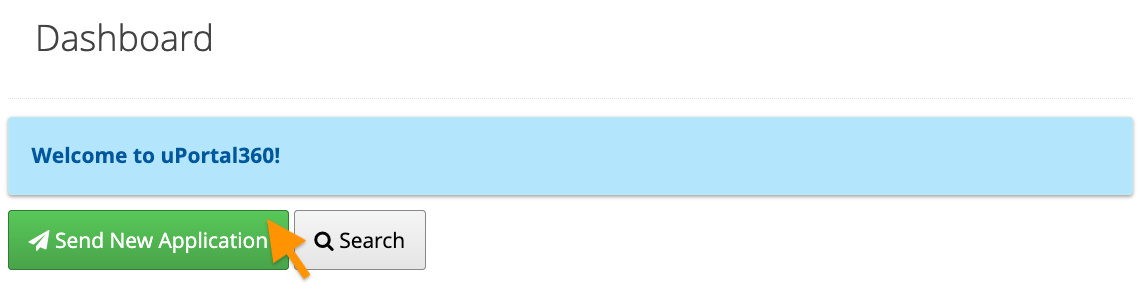 | 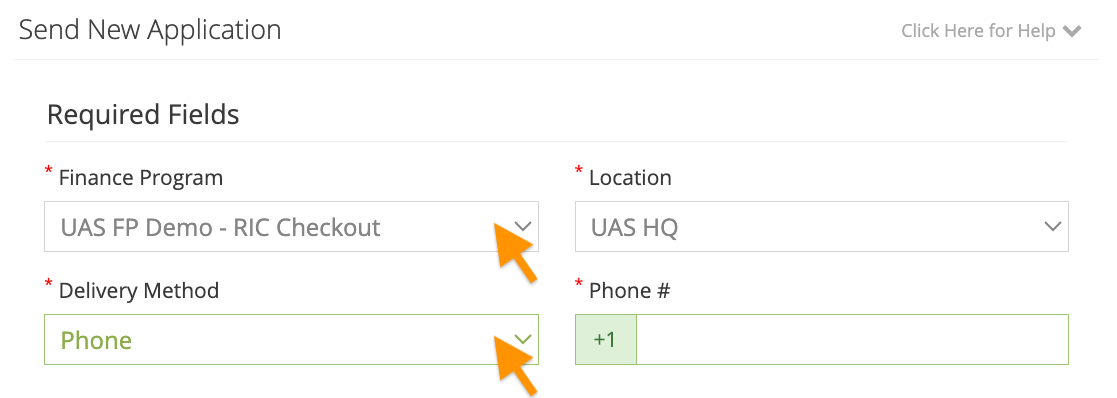 | 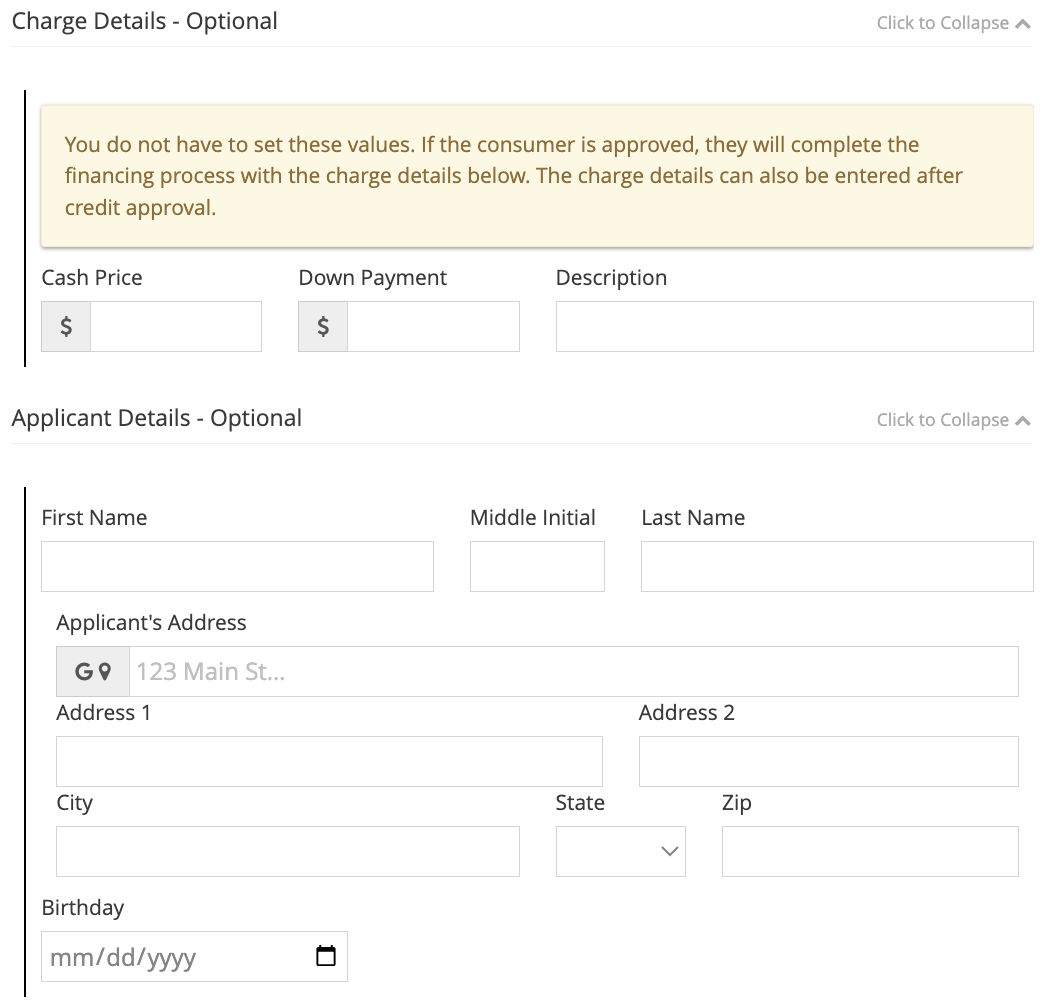 |
| 4. Communication Consent | 5. Application Link Text | |
|---|---|---|
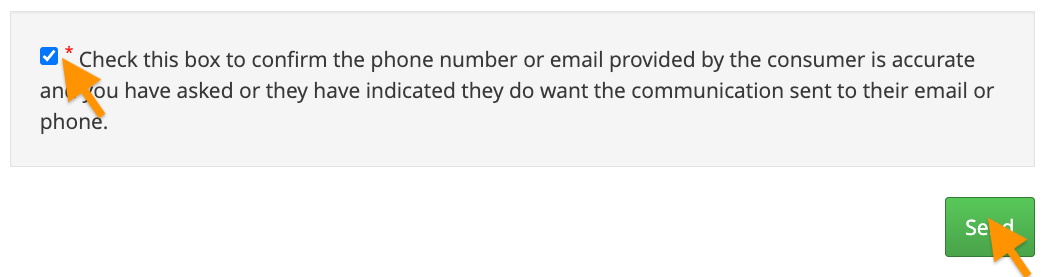 | 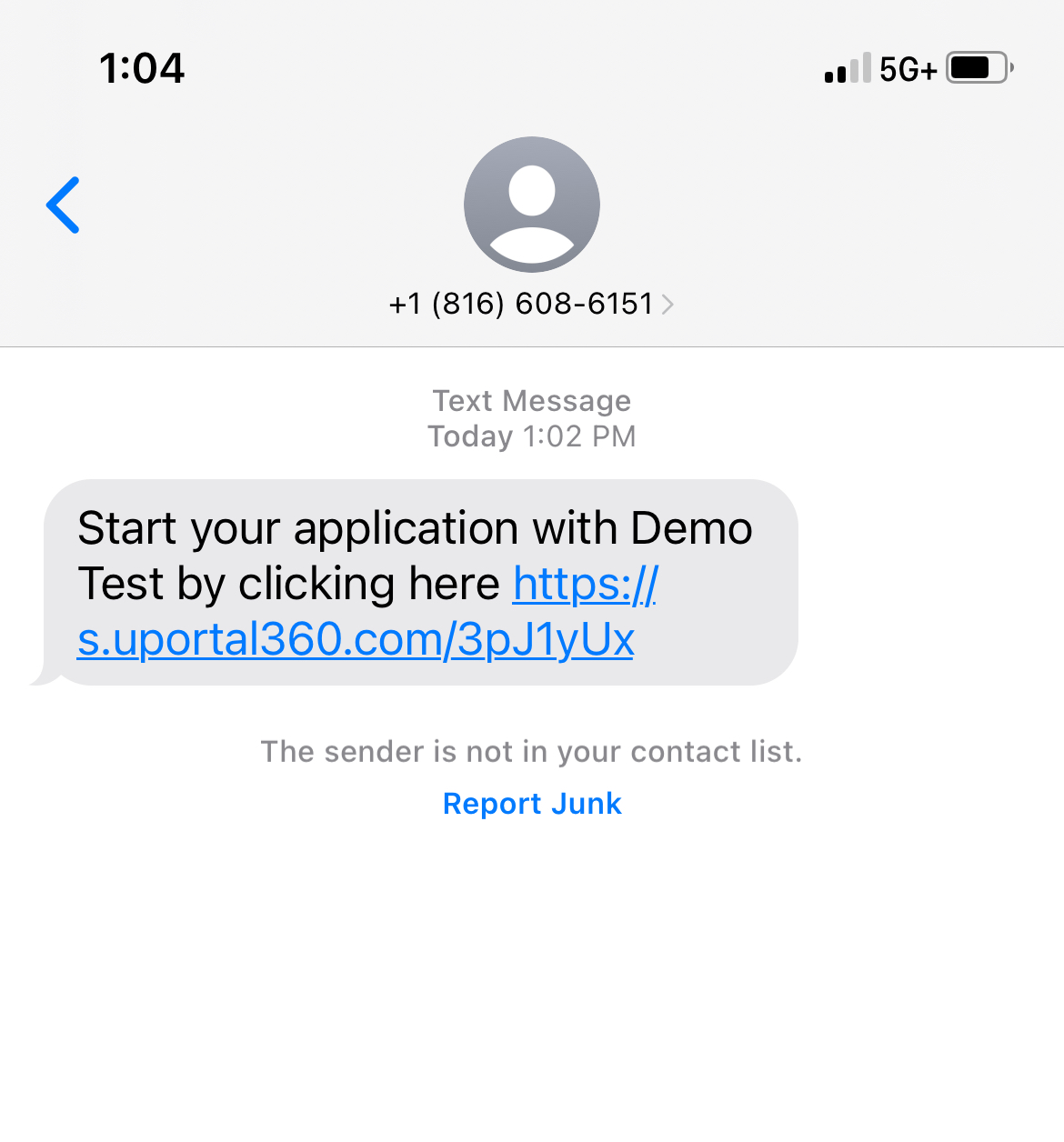 |
What your customer sees, screen by screen
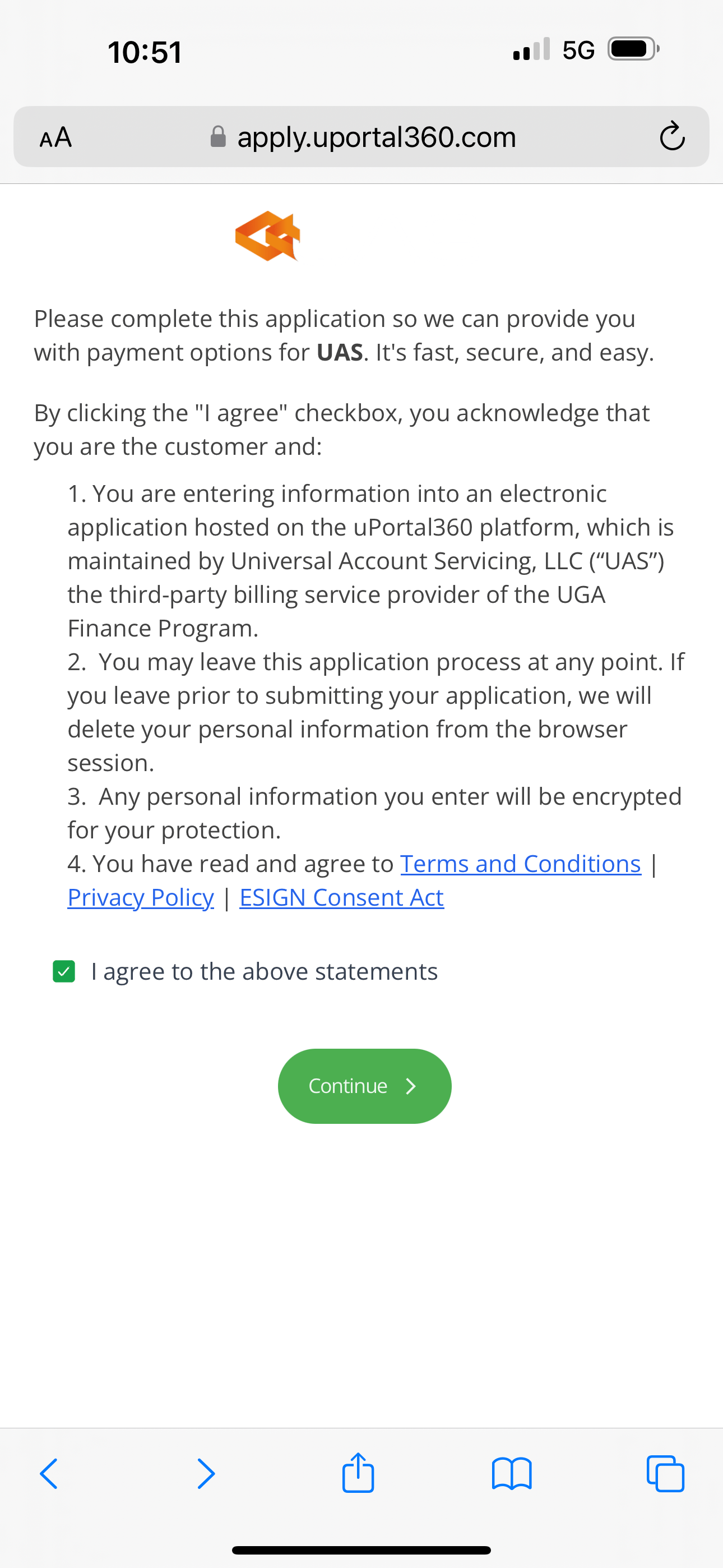
1. Financing Options Disclosure
This is the landing page for a Consumer Application. We disclose terms and conditions and make sure the consumer agrees that they are applying for credit upfront, which keeps your business compliant with Dodd-Frank and GLBA (Gramm-Leach-Bliley Act). Your logo is displayed at the top of the disclosure so that your customers will know that they are applying for financing with your business. Consumers agree to the following:- Terms & Conditions: They will be reading this on their behalf
- Privacy Policy: UAS does not share their information, & only uses it for credit purposes
- ESIGN Consent Act: They must consent to the use of Electronic Communication
- Consent to Electronic Records, Signatures, Disclosures, and Communications
- This consent allows UAS to send required notices electronically, which is a lot more cost-effective (and more convenient for the consumer)
2. Application
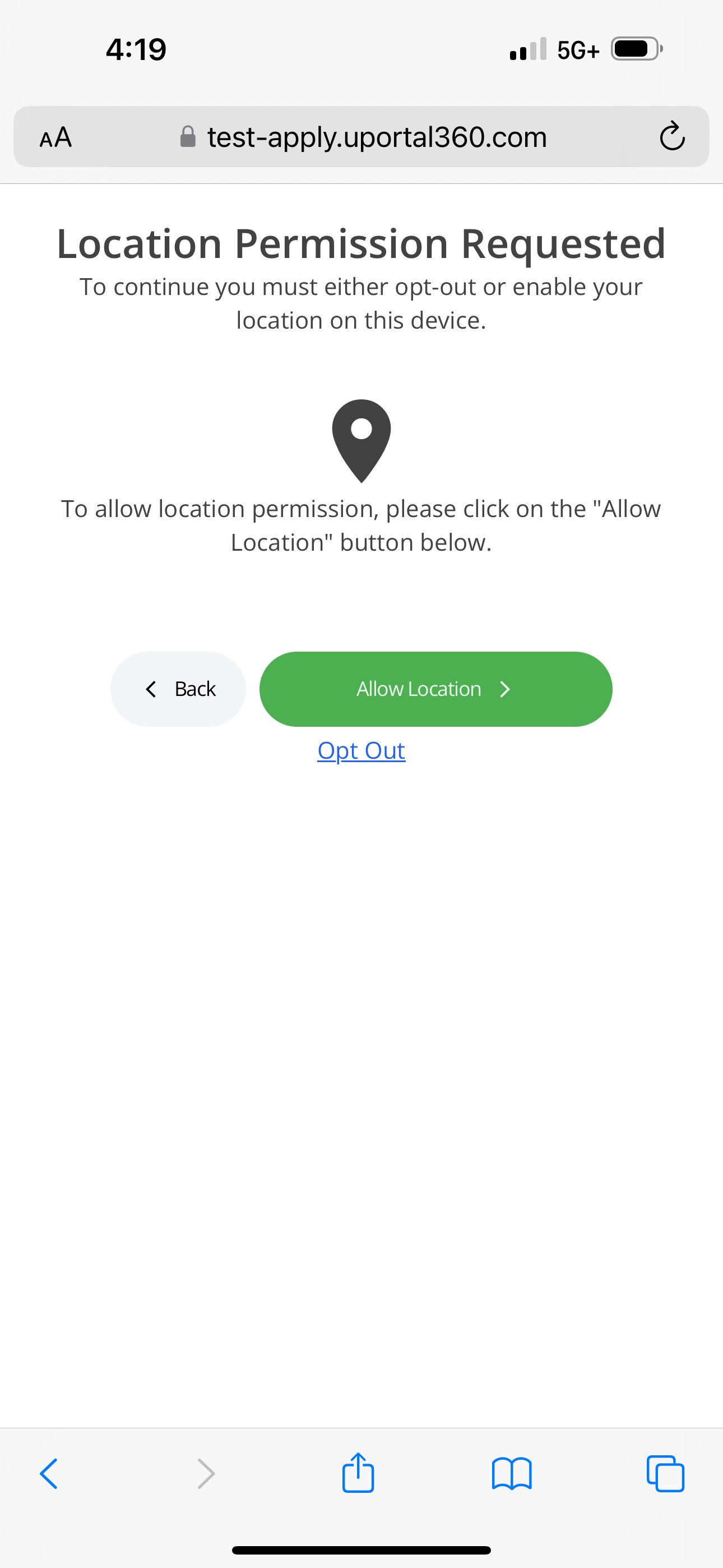
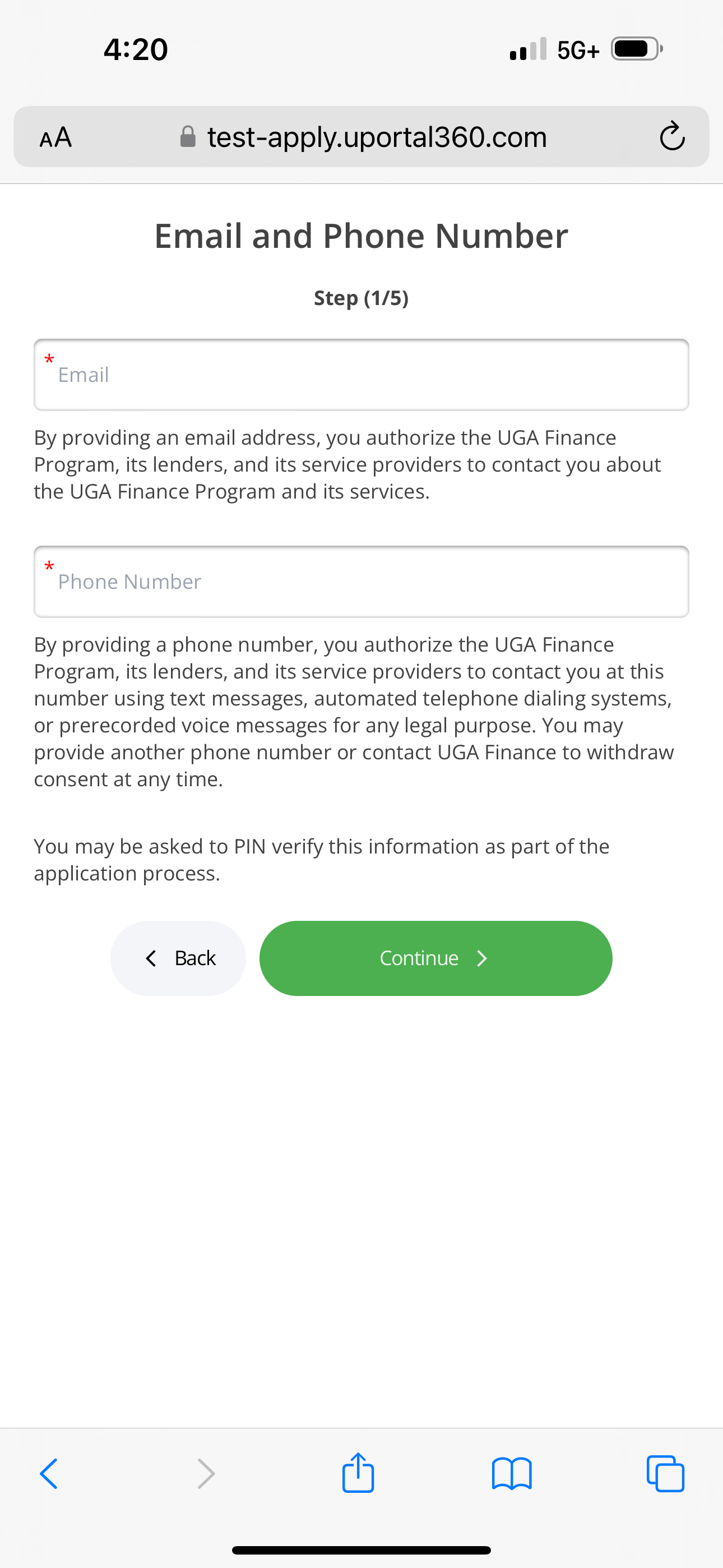
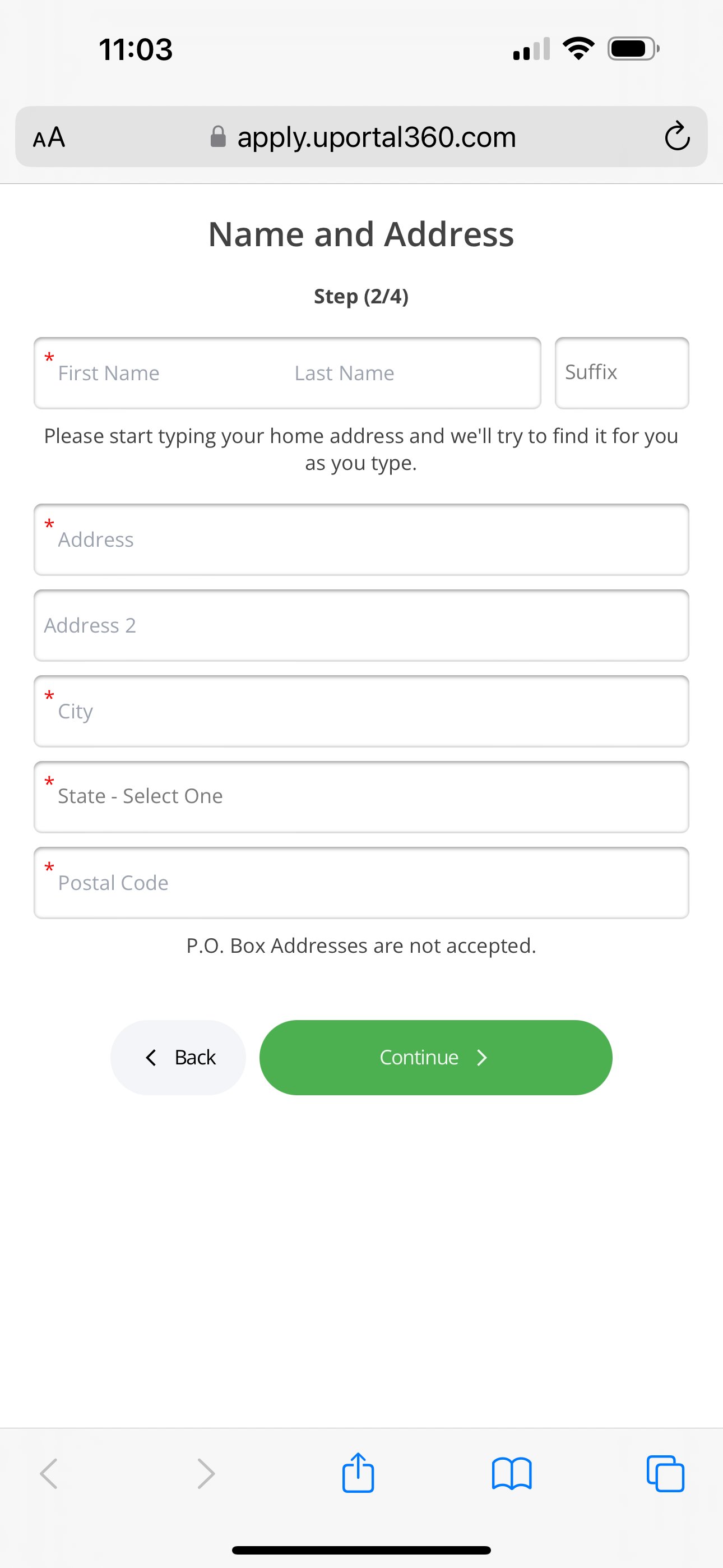
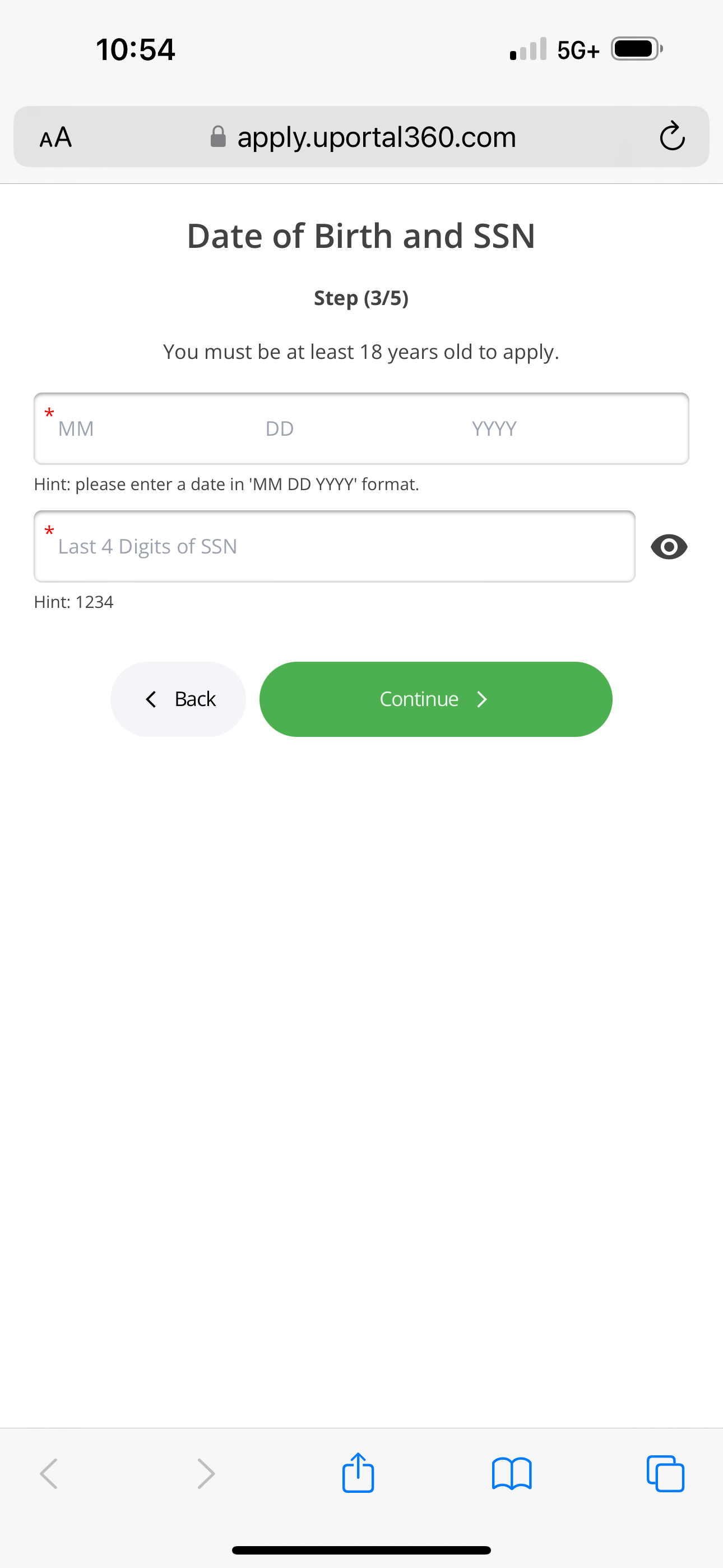
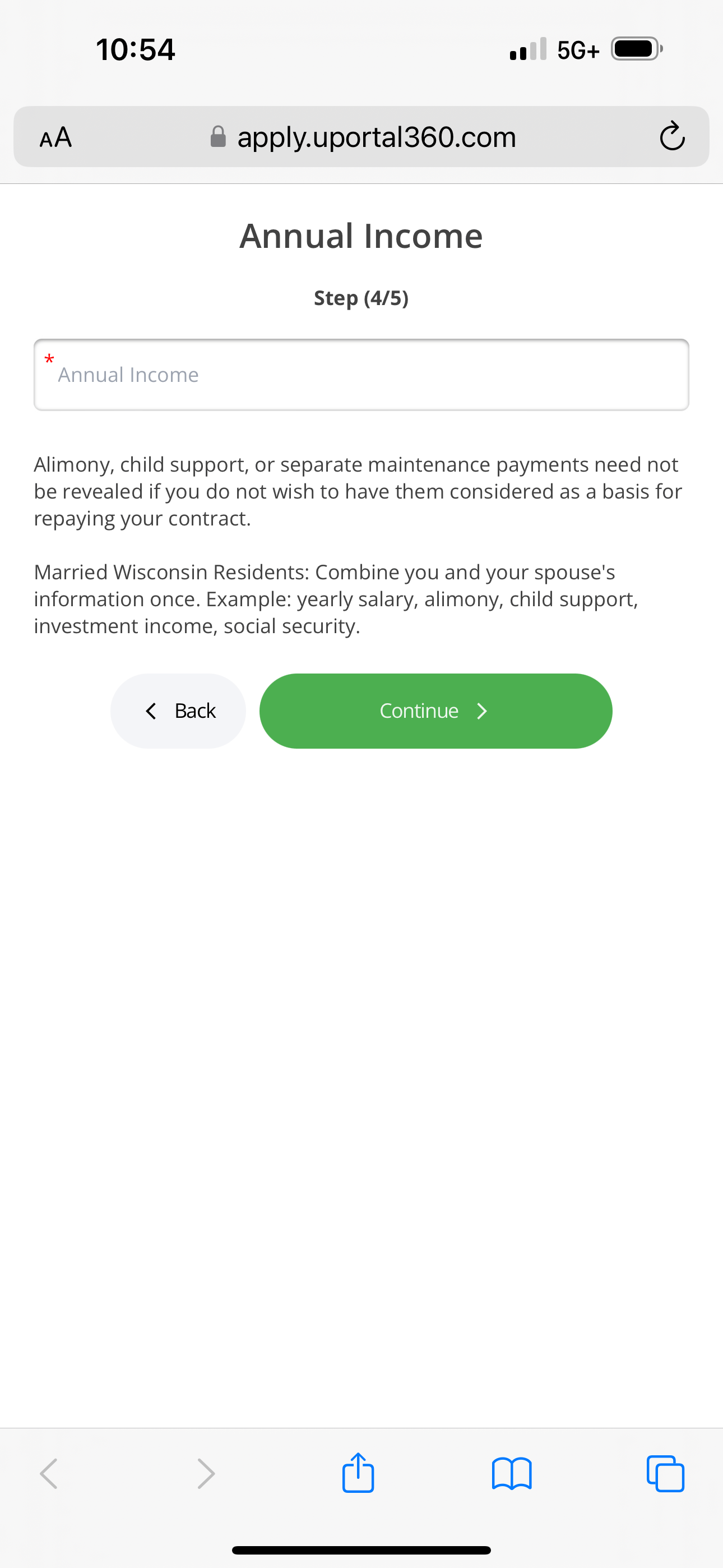
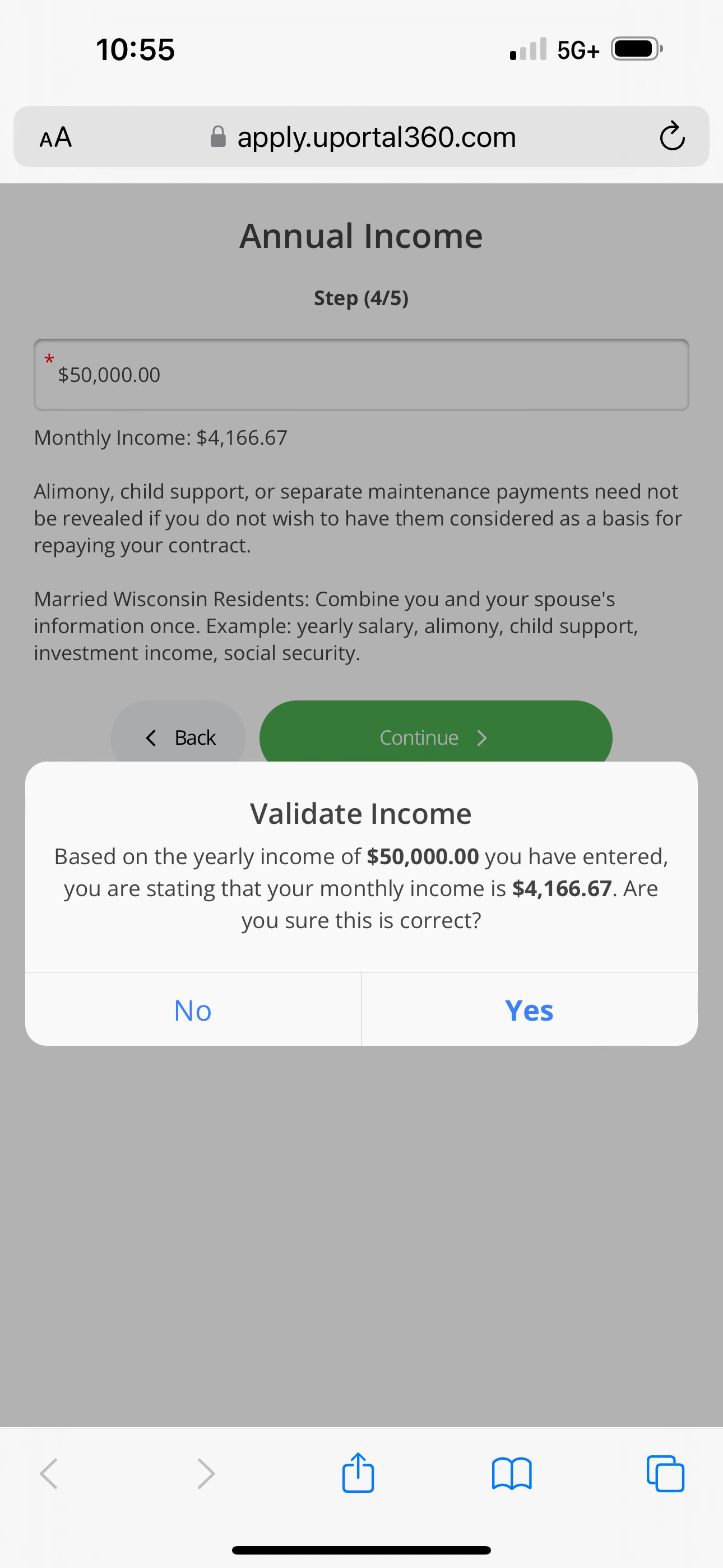
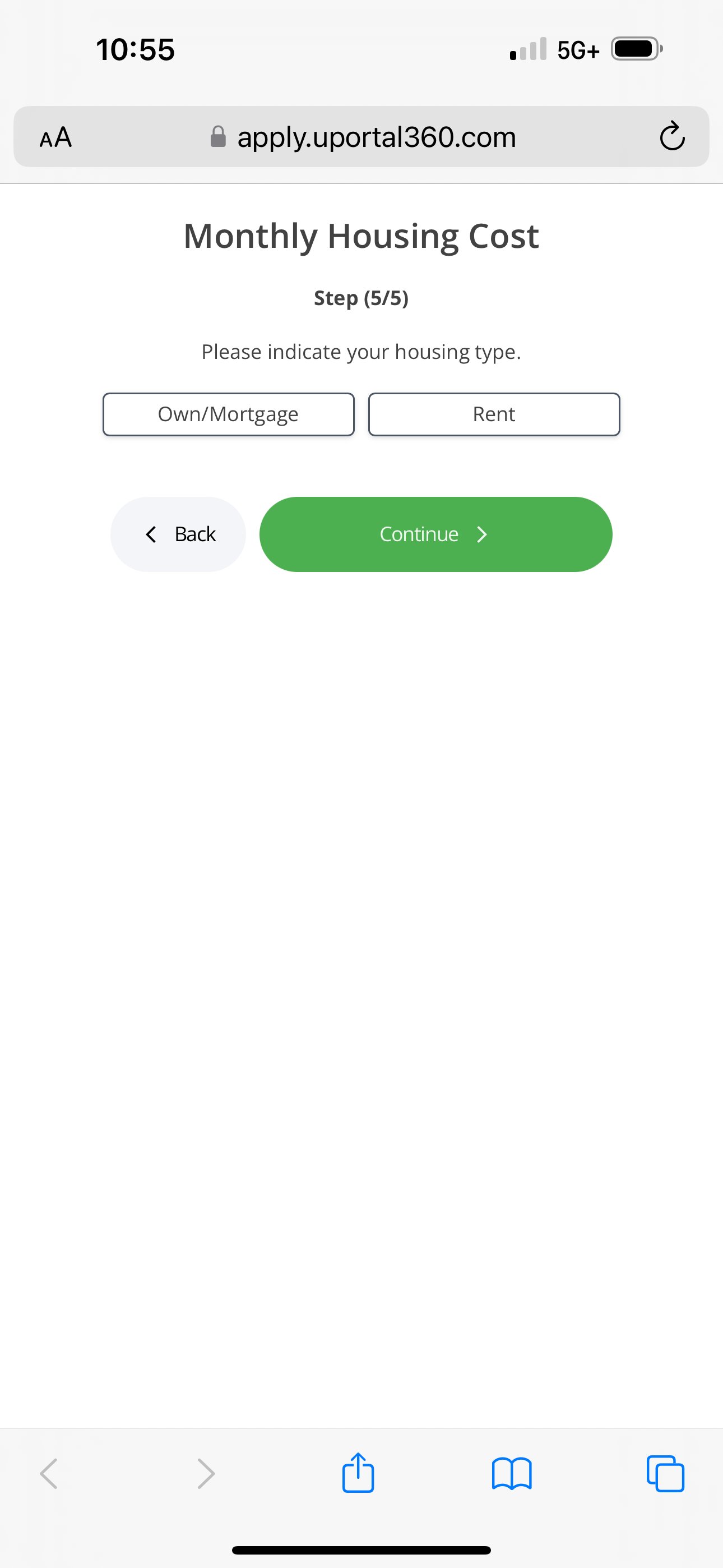
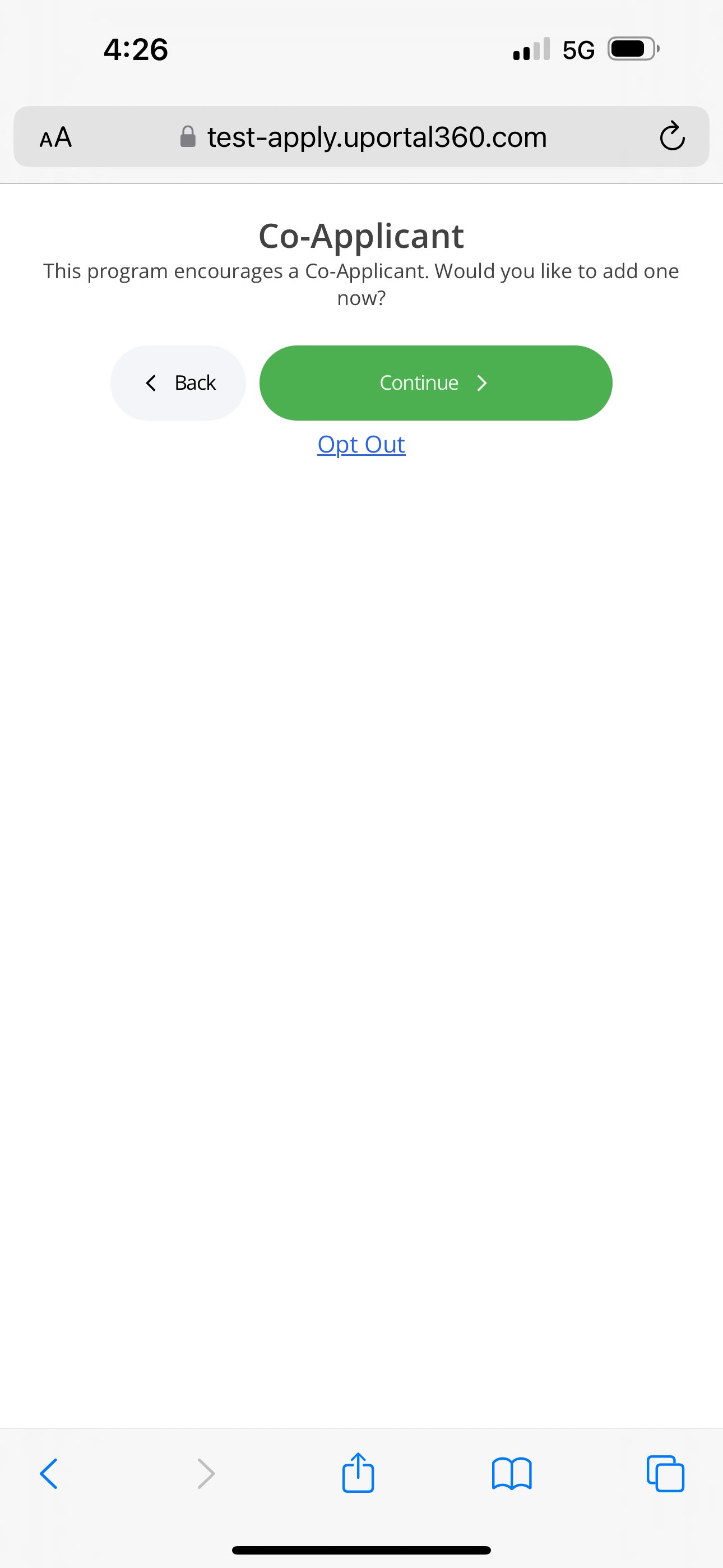
The following application screens collect information one piece at a time, making it simple and smooth to collect information on mobile devices. Kindly be aware that the method employed for receiving the application, whether it is via phone or email, shall remain unchanged once the application process commences without the assistance of our support team.| 1. Location Permission | 2. Phone & Email |
|---|---|
 |  |
| 3. Name & Address | 4. DOB & SSN |
|---|---|
 |  |
| 1. Annual Income | 2. Validate Income |
|---|---|
 |  |
| 3. Housing Expense | 4. Co-Applicant |
|---|---|
 |  |
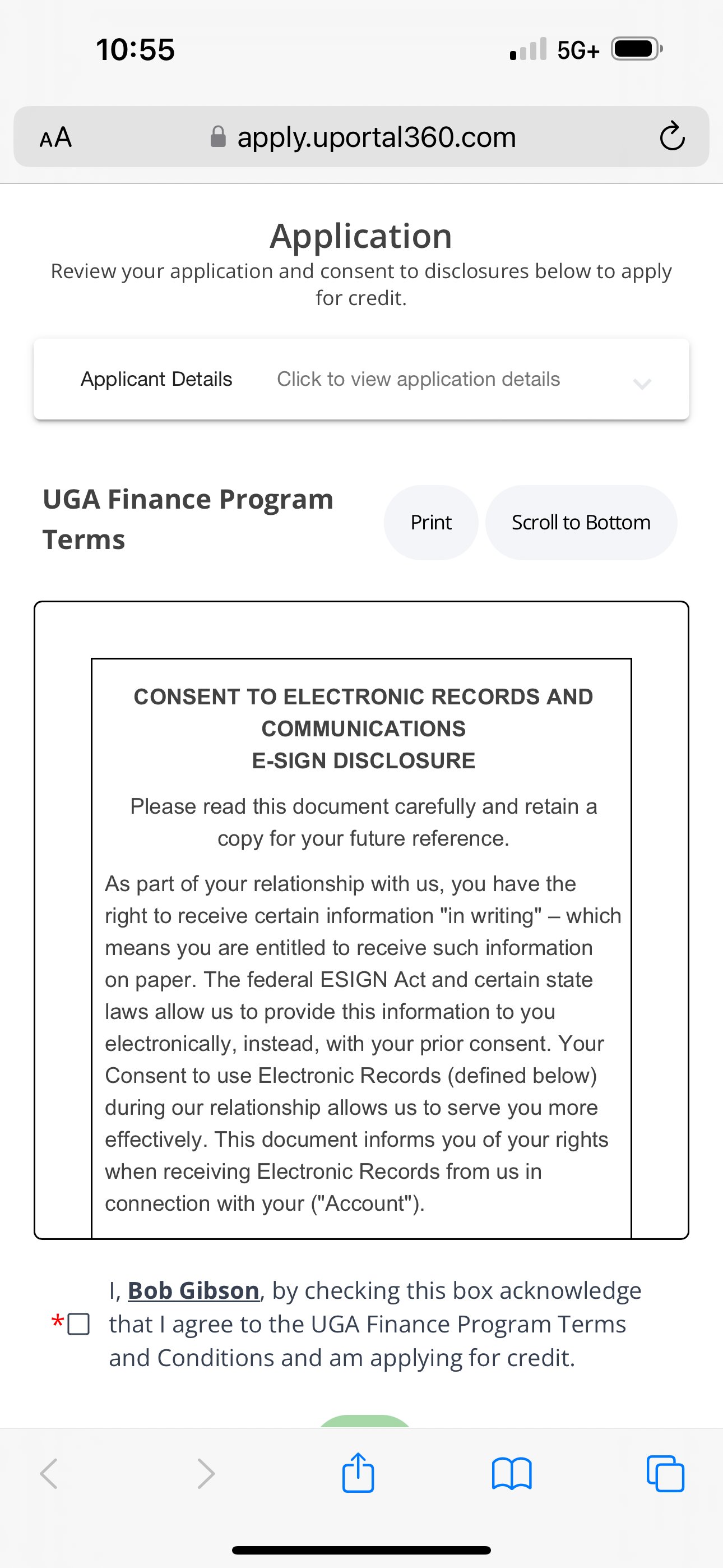
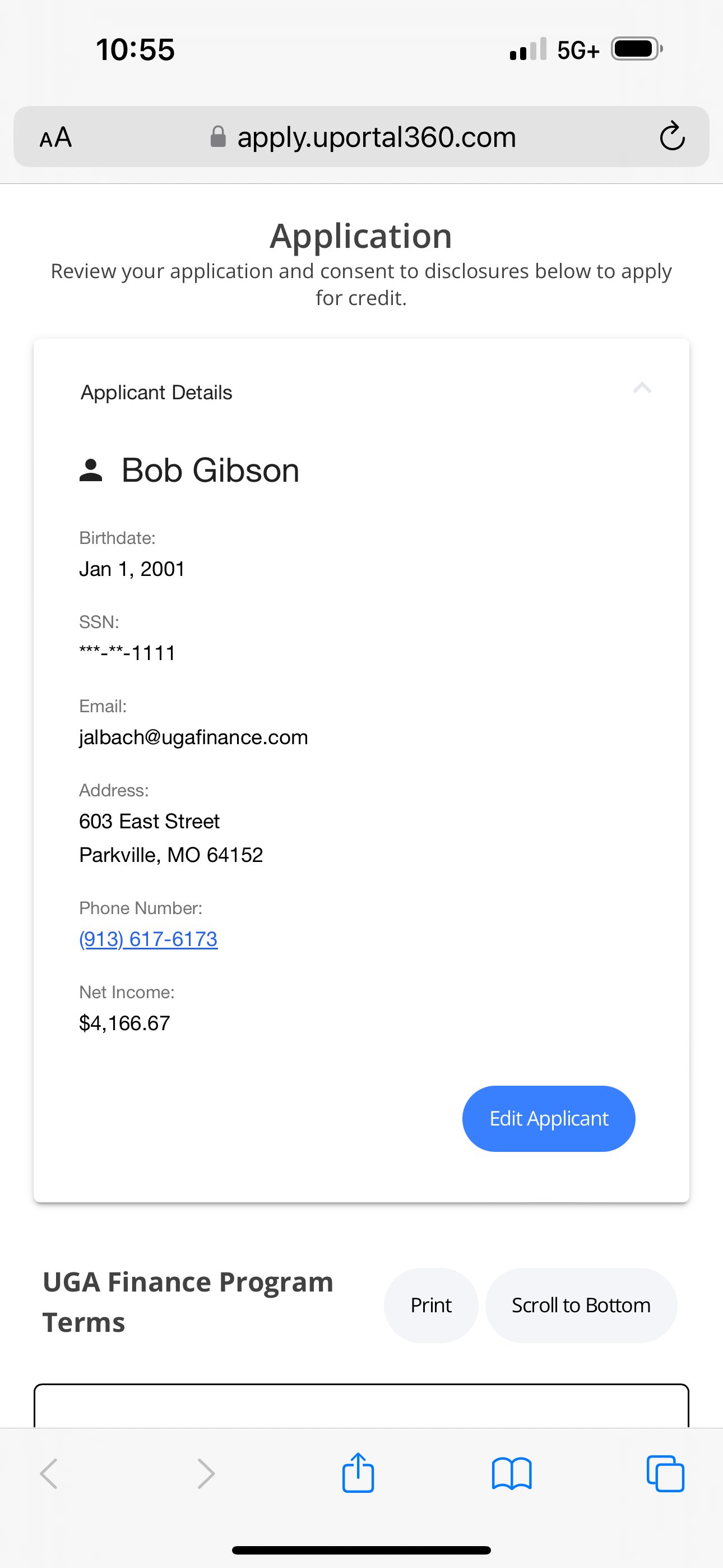
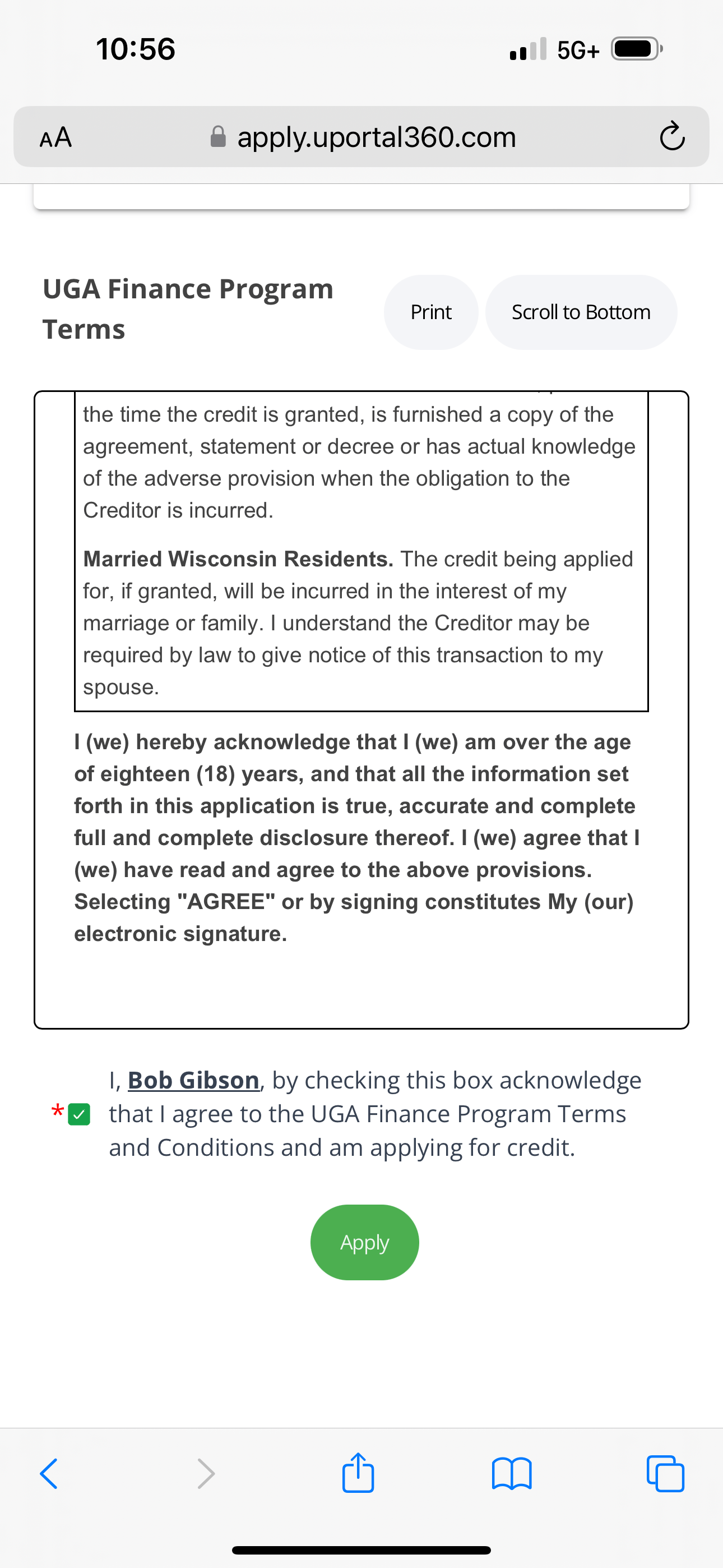
3. Application Summary
| 1. Application - Terms & Conditions | 2. Application - Applicant Details |
|---|---|
 |  |
| 3. Application - Terms & Conditions (Agree) | 4. Approved |
|---|---|
 | 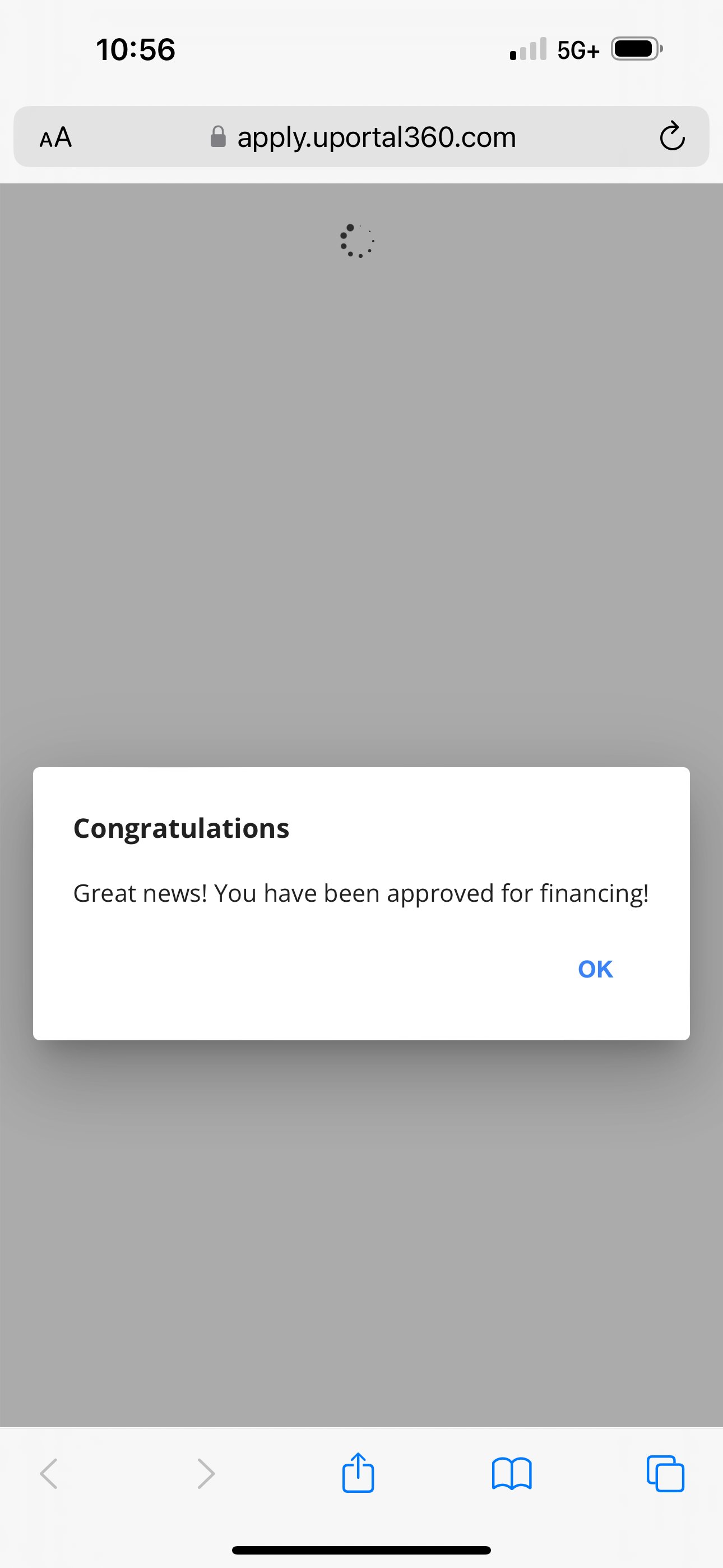 |
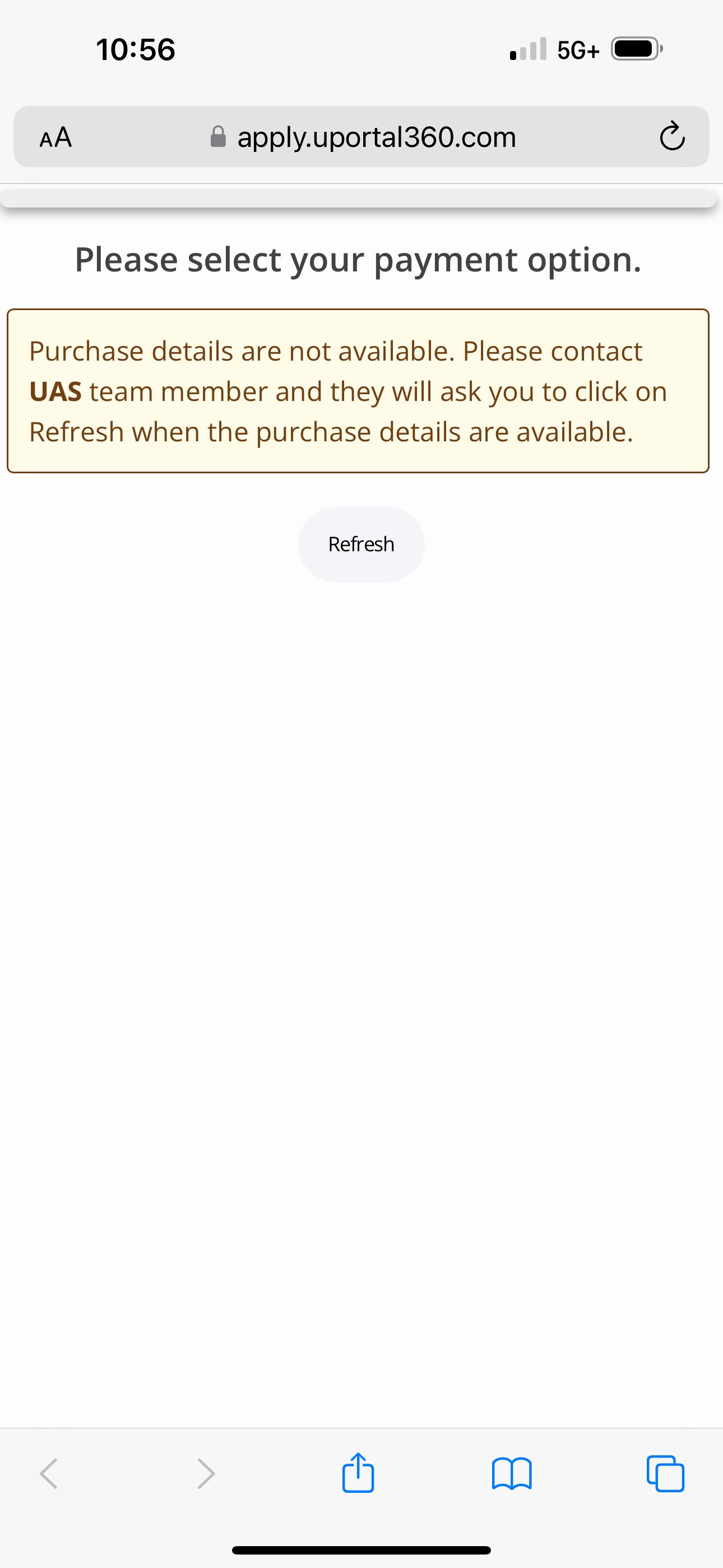
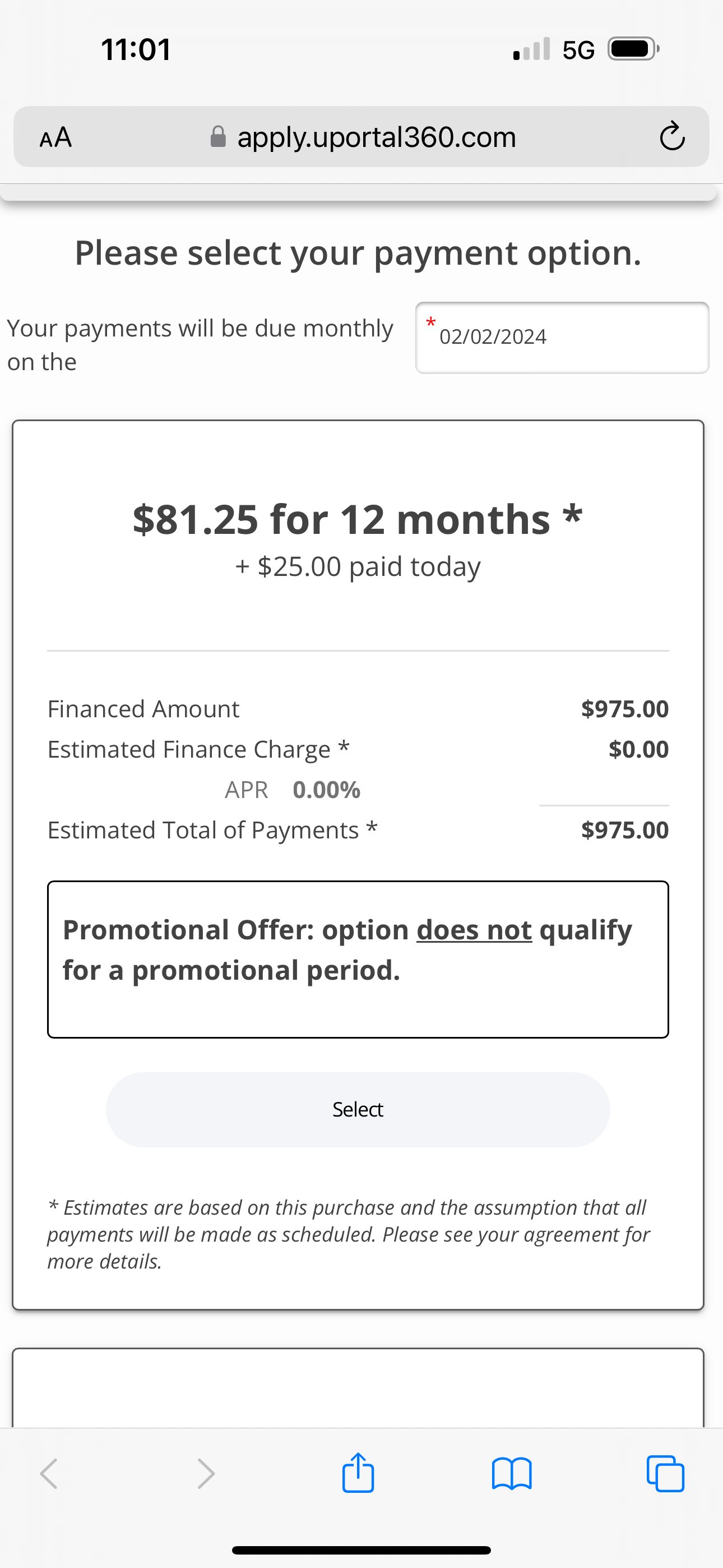
4. Application Approval + 1st Payment Date + Payment Options
After the consumer applies, they can see their application approval, select their 1st payment date, choose their payment option, and options for electronic statements/alerts.| 1. Pending Result (If applicable) | 2. Select Payment Option |
|---|---|
 |  |
| 3. Select Term | 4. Select Term_*with Deferred Interest_ |
|---|---|
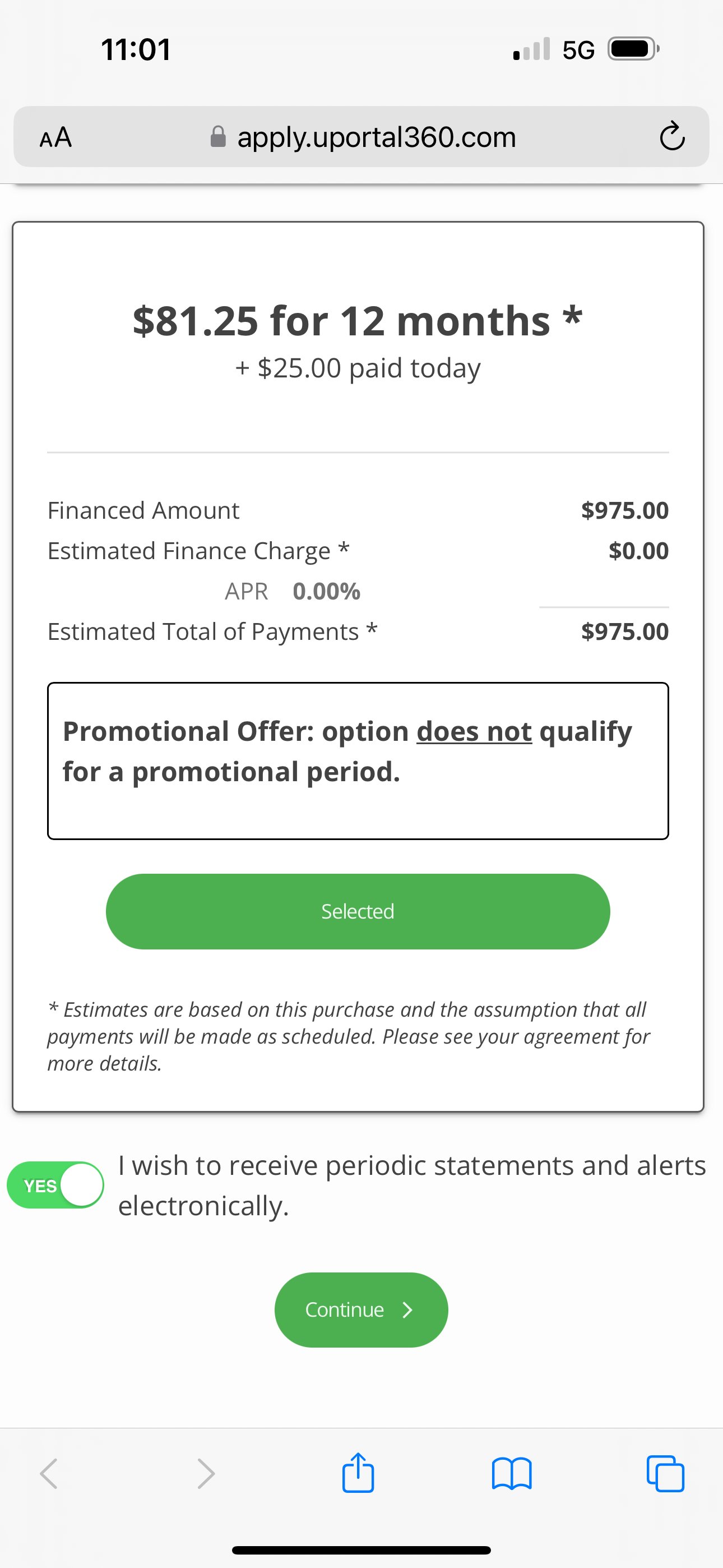 | 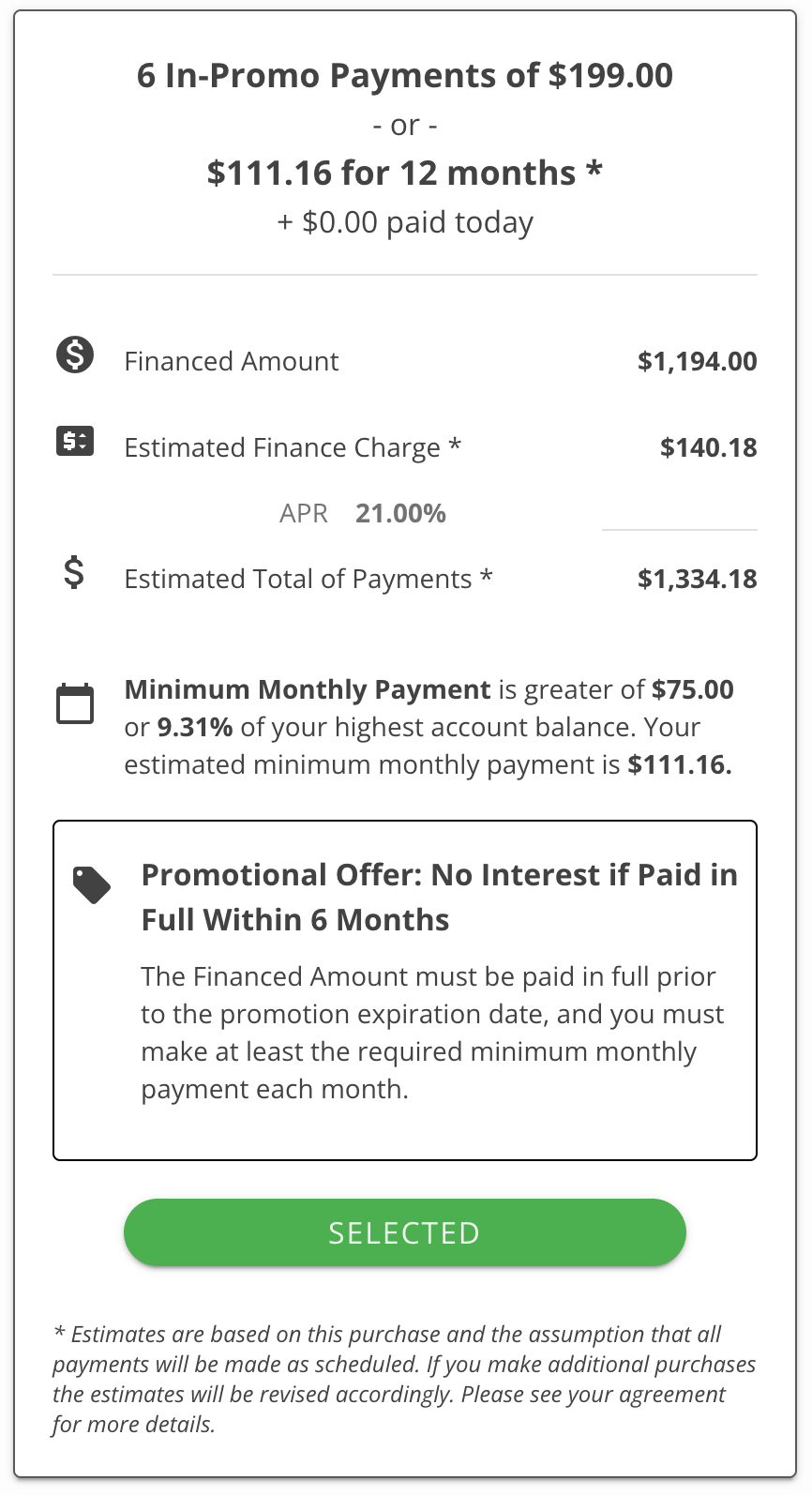 |
5. AutoPay Enrollment
If your program or this application requires AutoPay, AutoPay info will be collected directly from the application. If AutoPay is not required, you will see a skip-for-now link.| 1. AutoPay Enroll (ACH) | 2. AutoPay Enroll (Credit Card) | 3. AutoPay Continue |
|---|---|---|
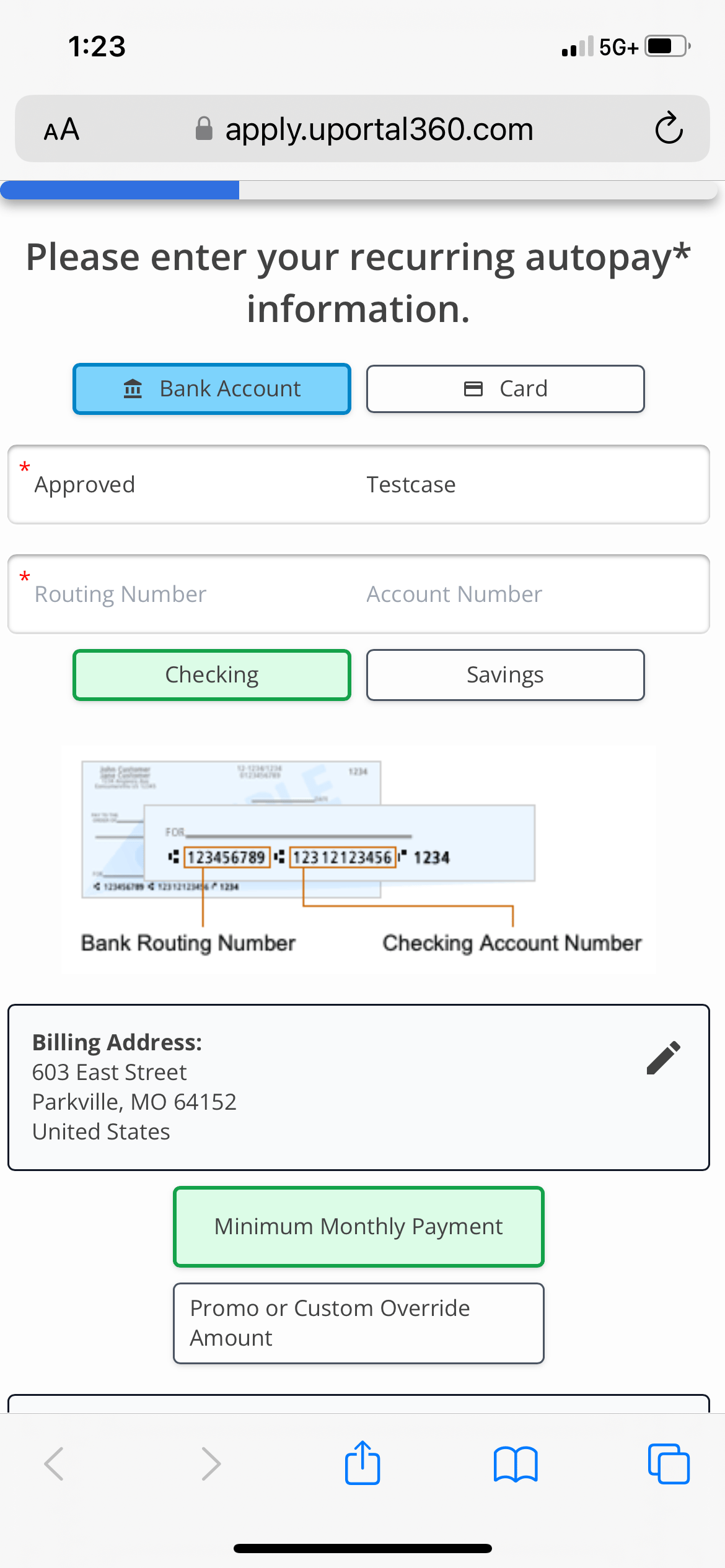 | 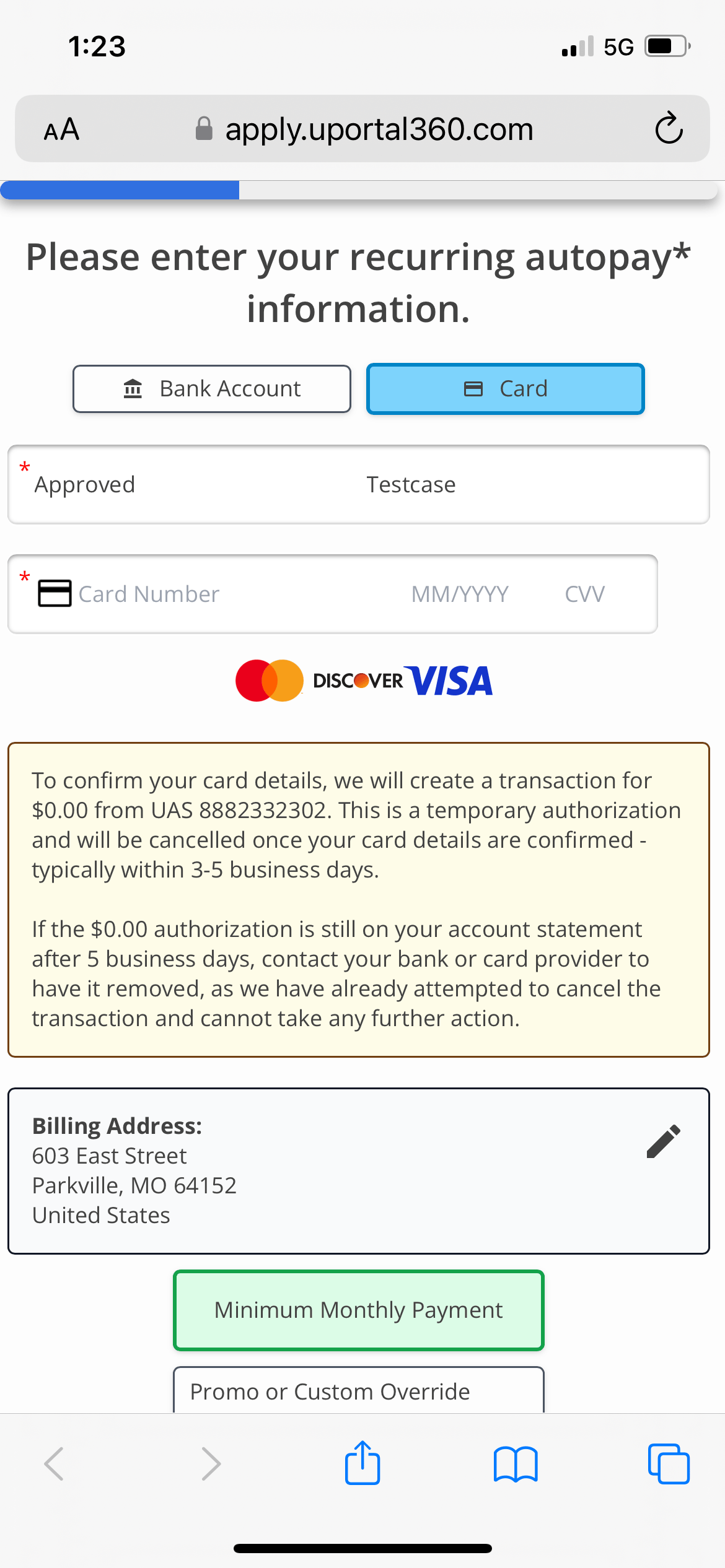 | 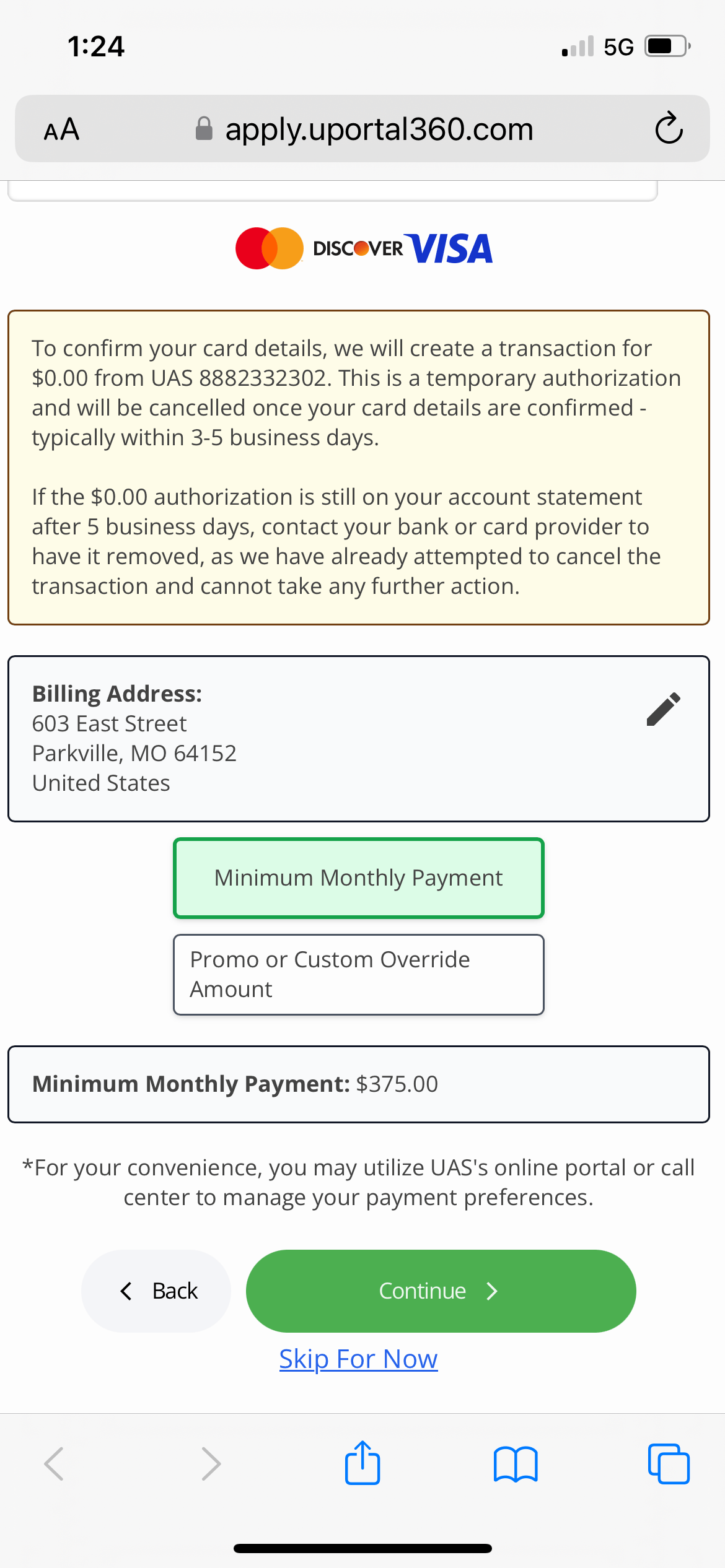 |
6. Sign Agreements + Success
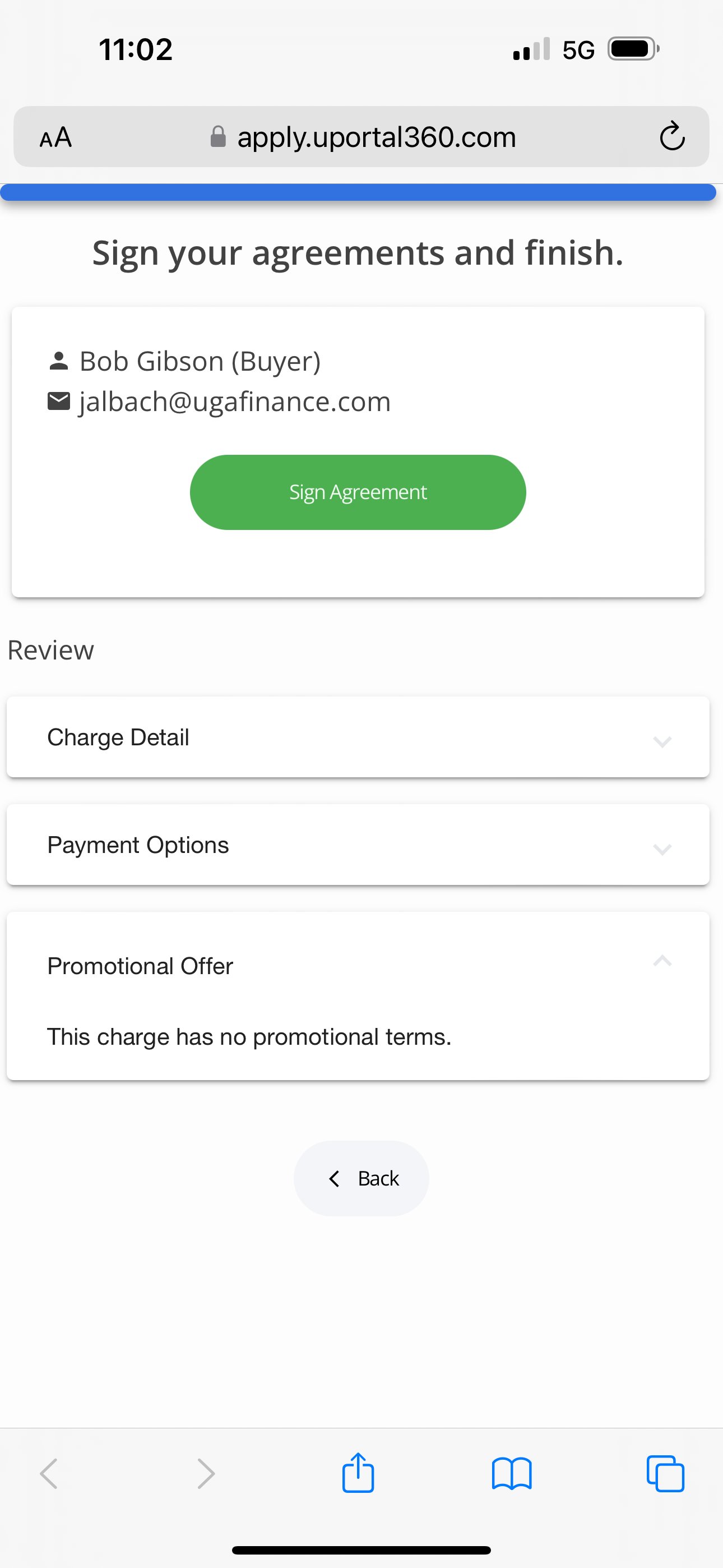
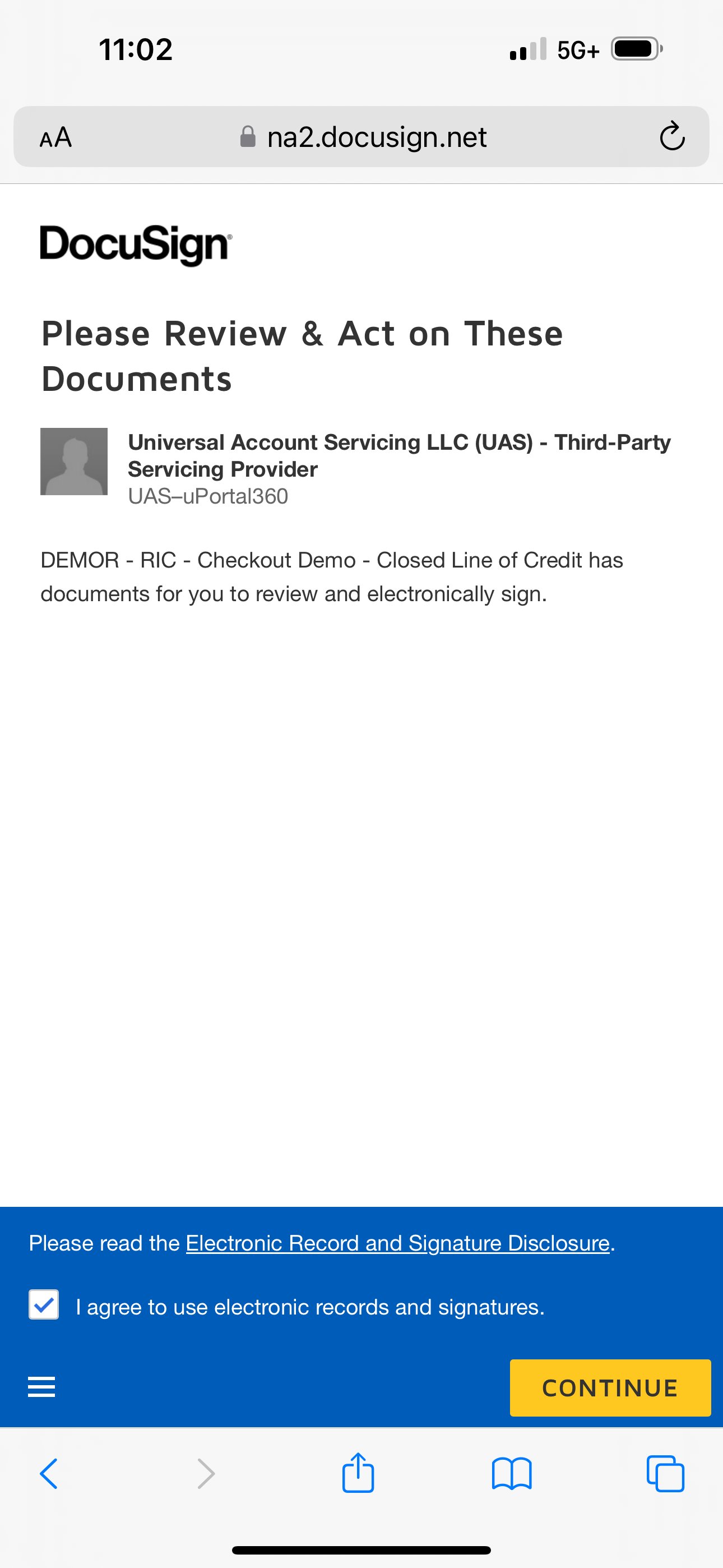
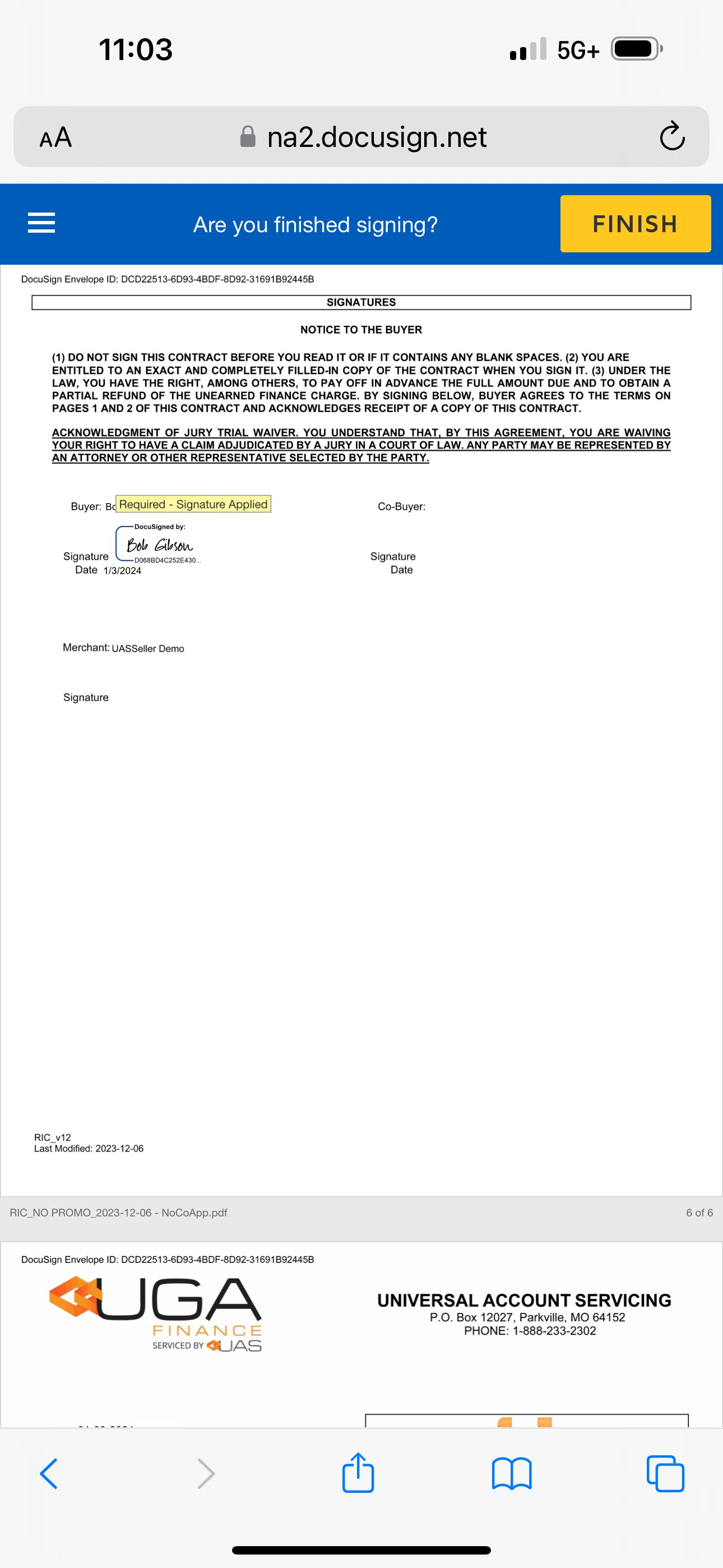
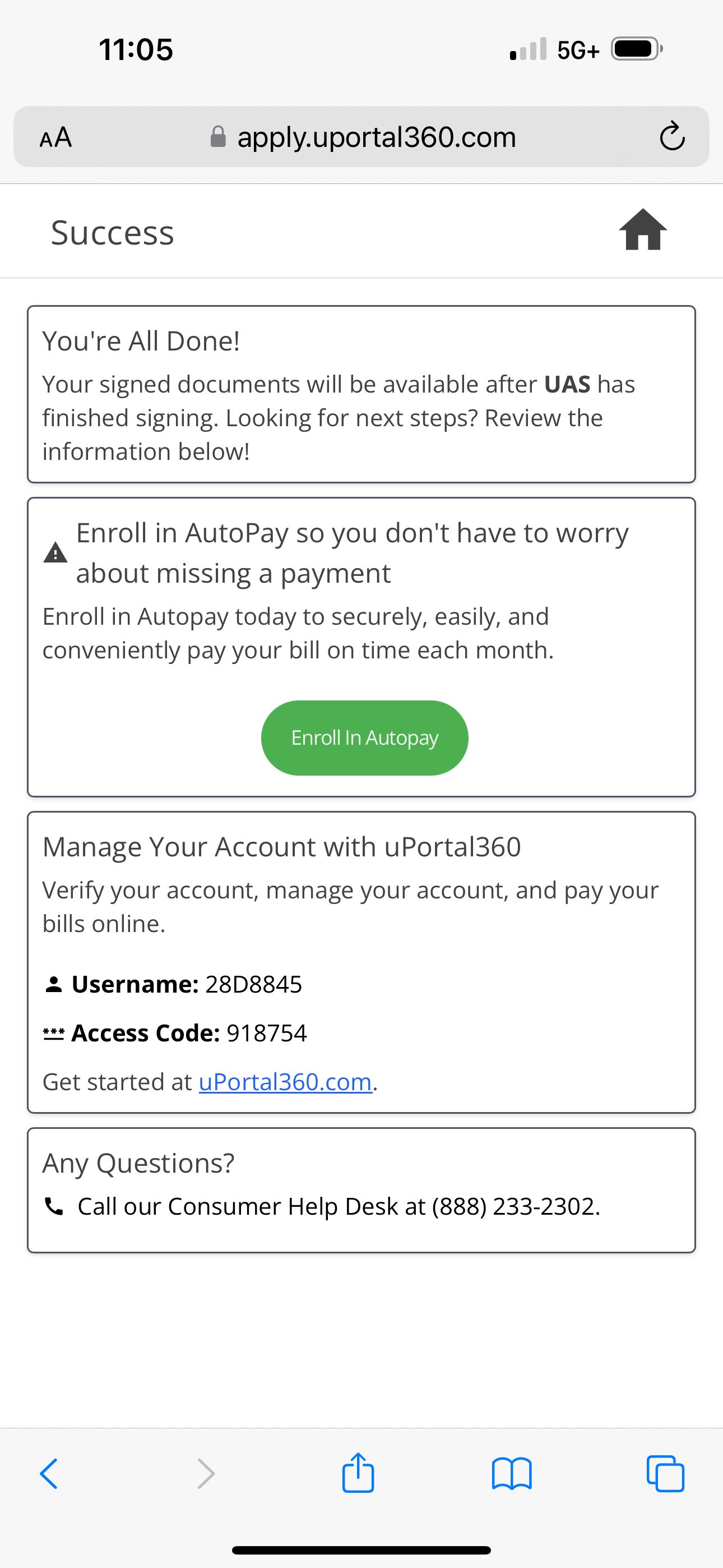
Lastly, all your customer has to do is sign their agreement. The Consumer Application will redirect right to DocuSign inside the application. After signing, their contract will go active, and the Consumer Application will be present with their access credentials to log in to uPortal360 to manage their account with UAS. DocuSign- They have already consented to ESIGN – receive documents, communicate, & provide sign electronically.’
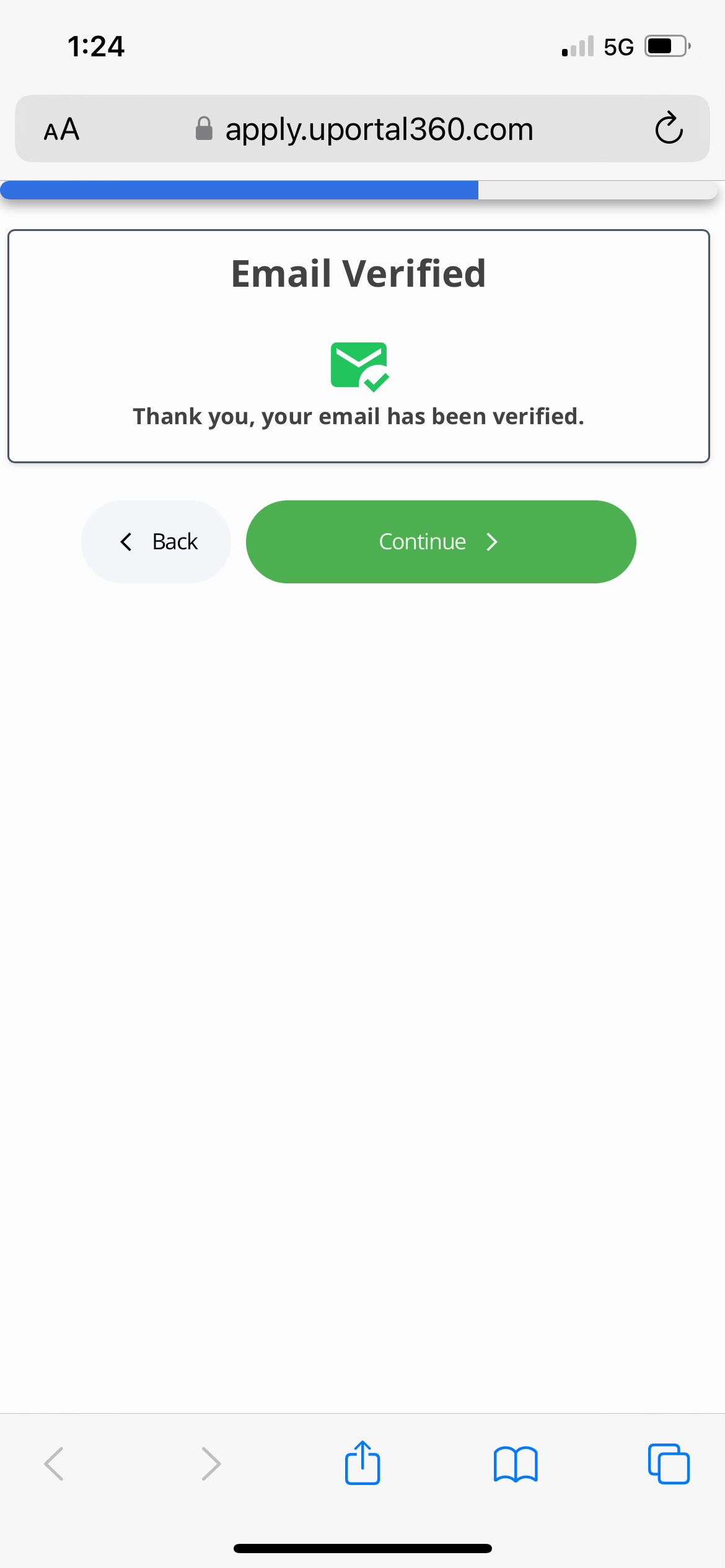
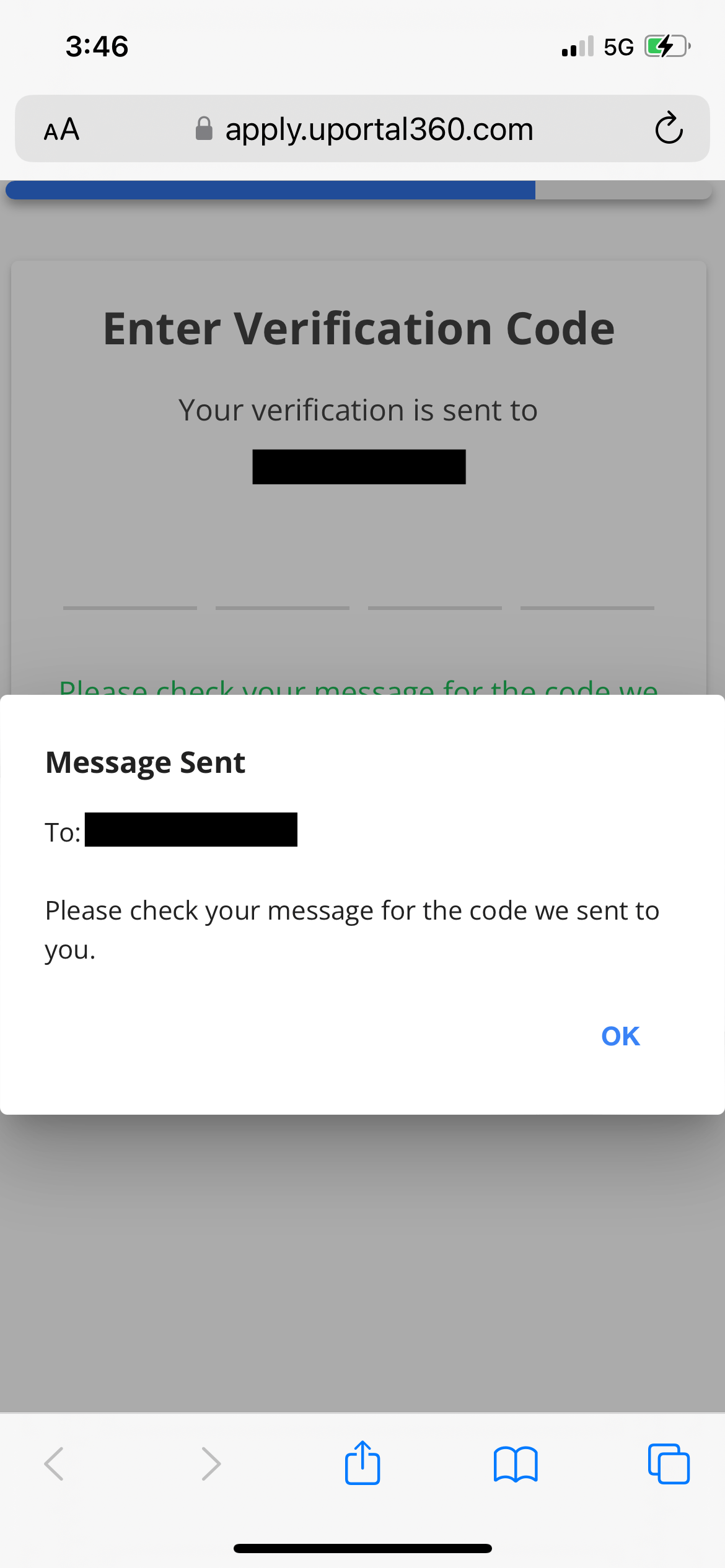
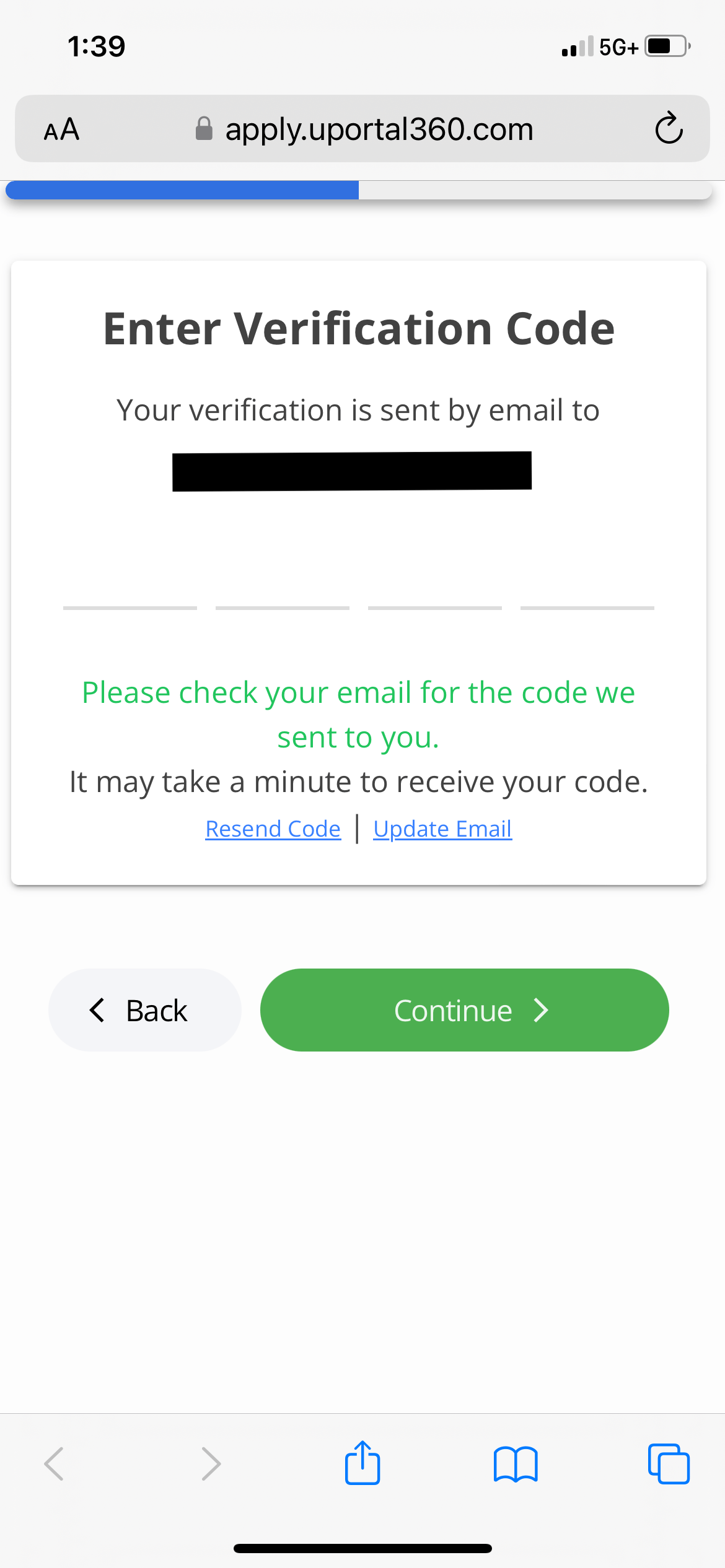
- Depending on the method they choose to complete the application, they will receive a verification code via email or text message.
| 1. Confirmation (phone or email) | 2. Verification Code Sent | 3. Enter Code |
|---|---|---|
 |  |  |
| 4. Sign Agreements | 5. DocuSign - Terms & Conditions | |
|---|---|---|
 |  |
| 6. Sign & Finish | 7. Success | |
|---|---|---|
 |  |
Merchant Control Panel
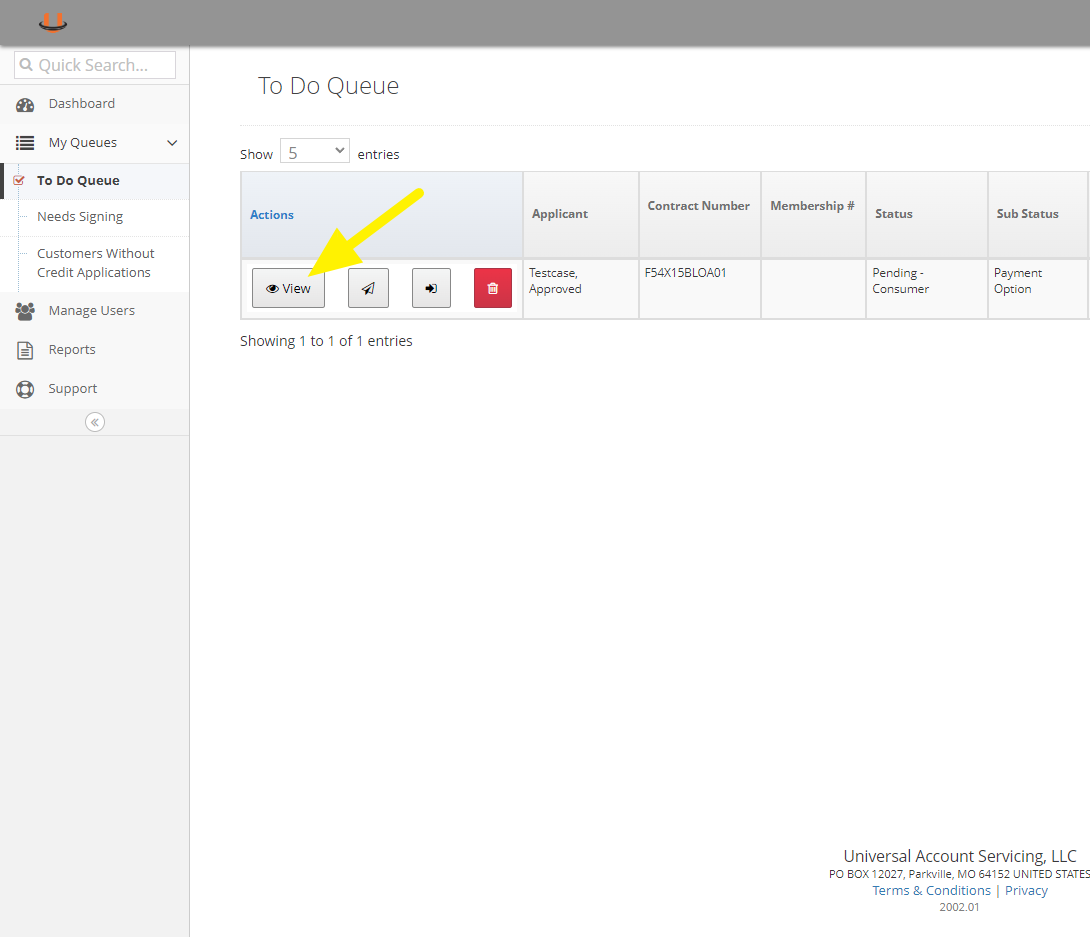
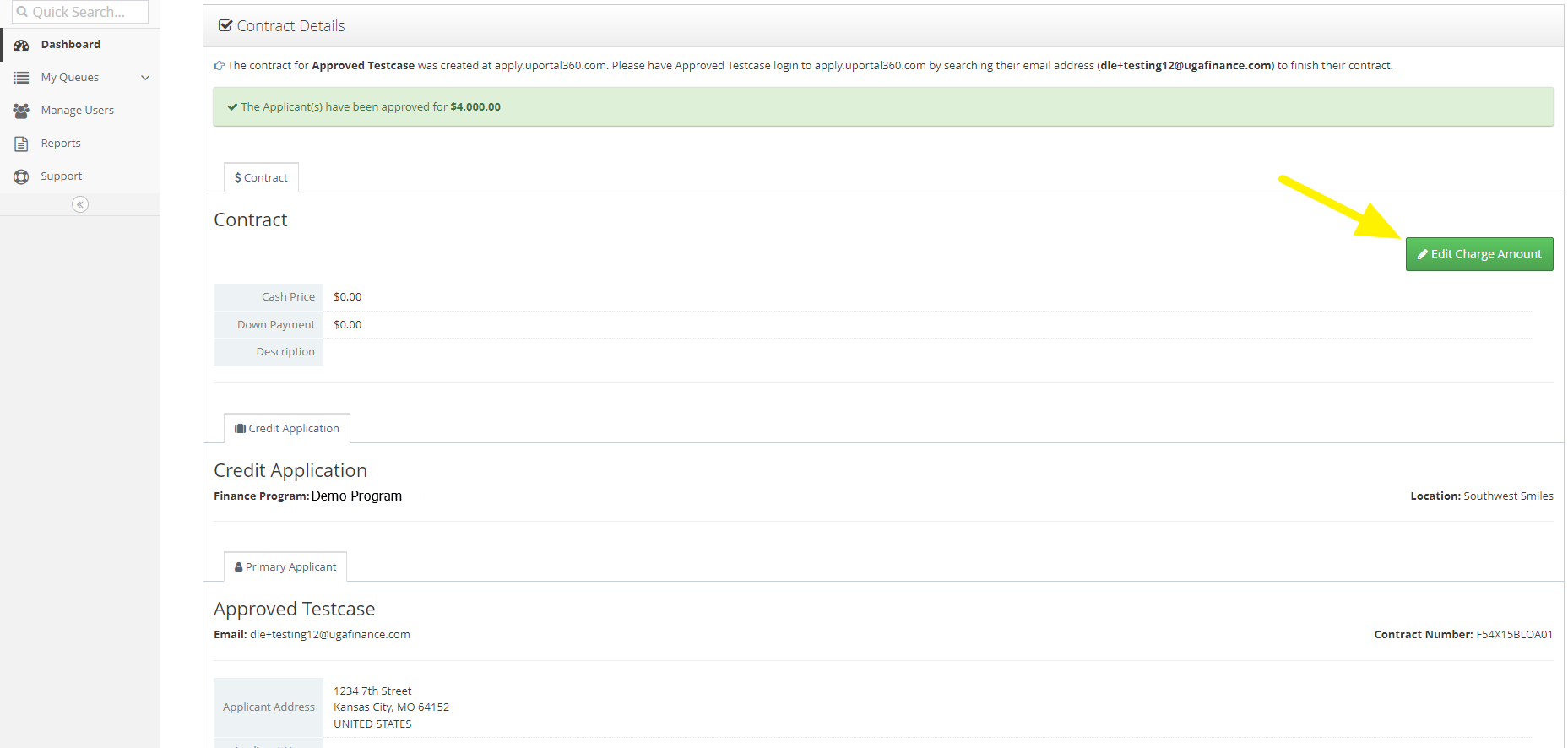
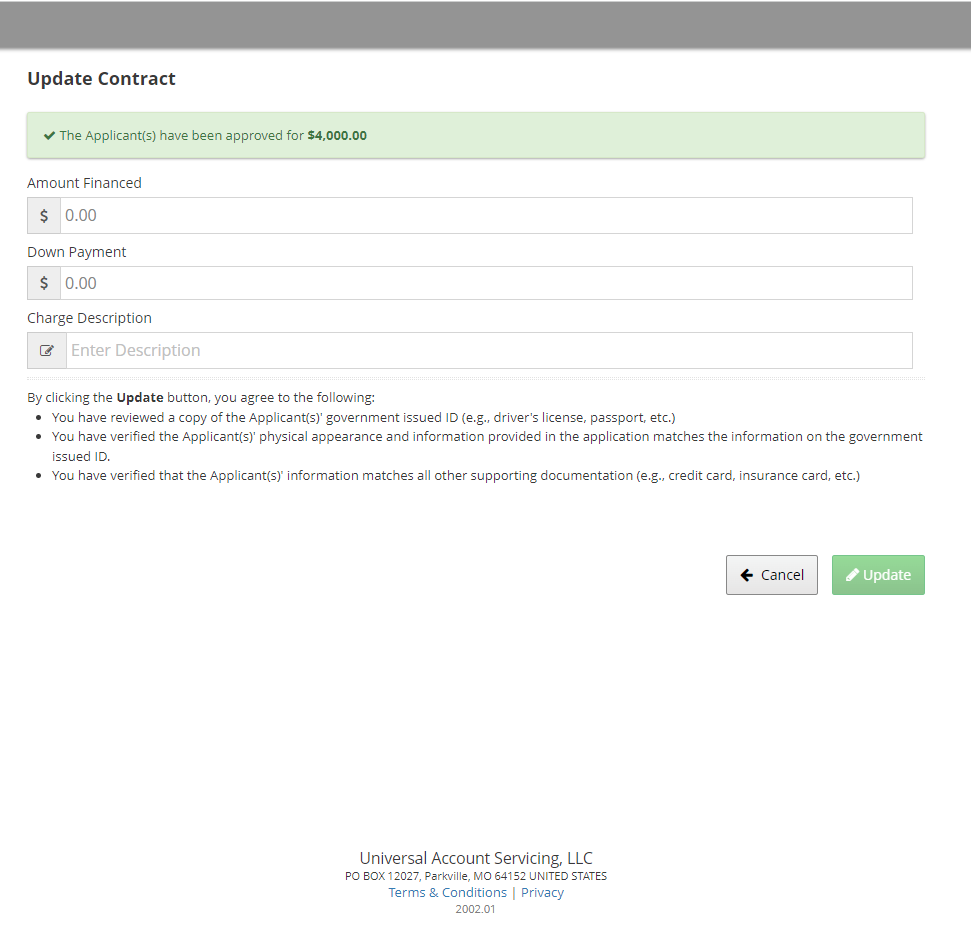
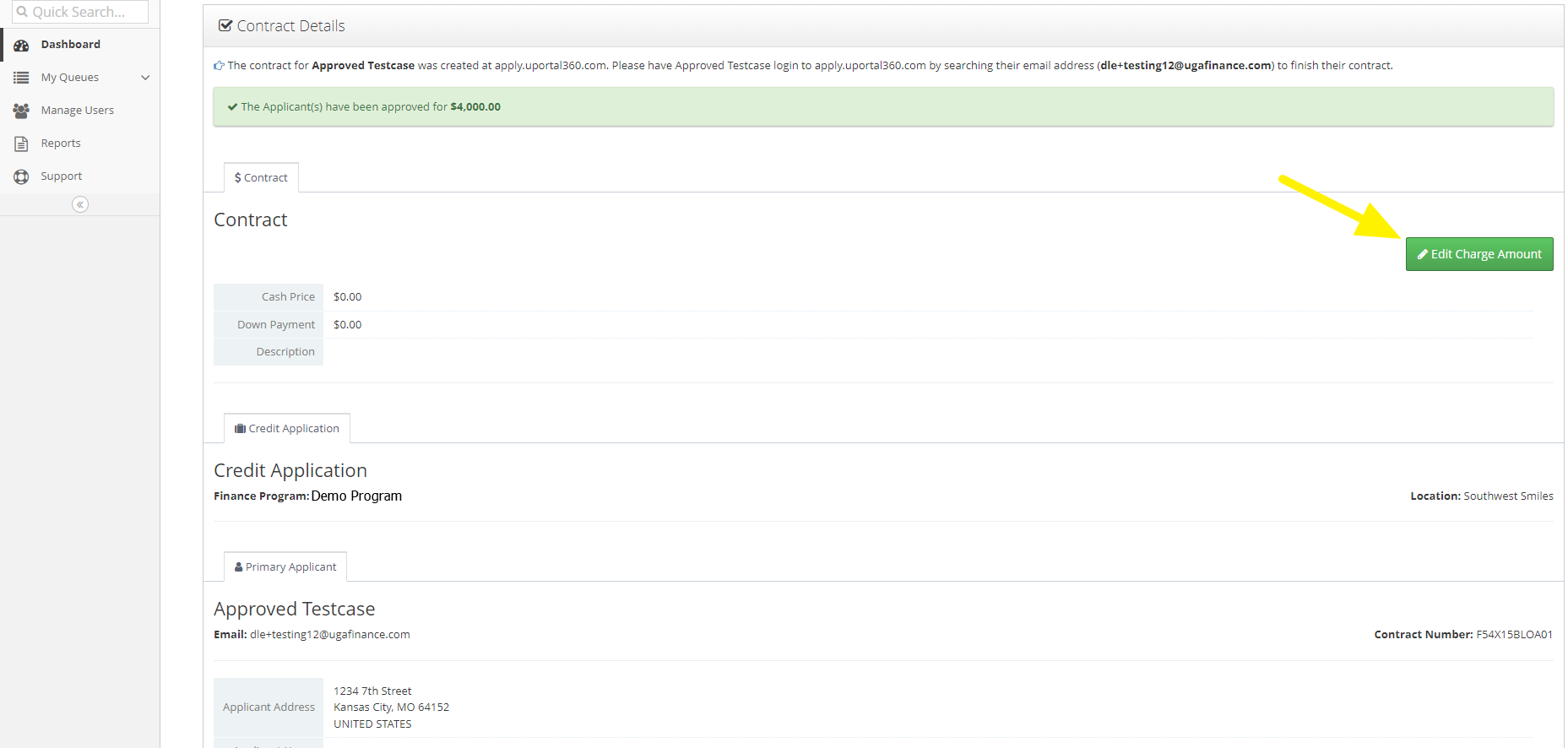
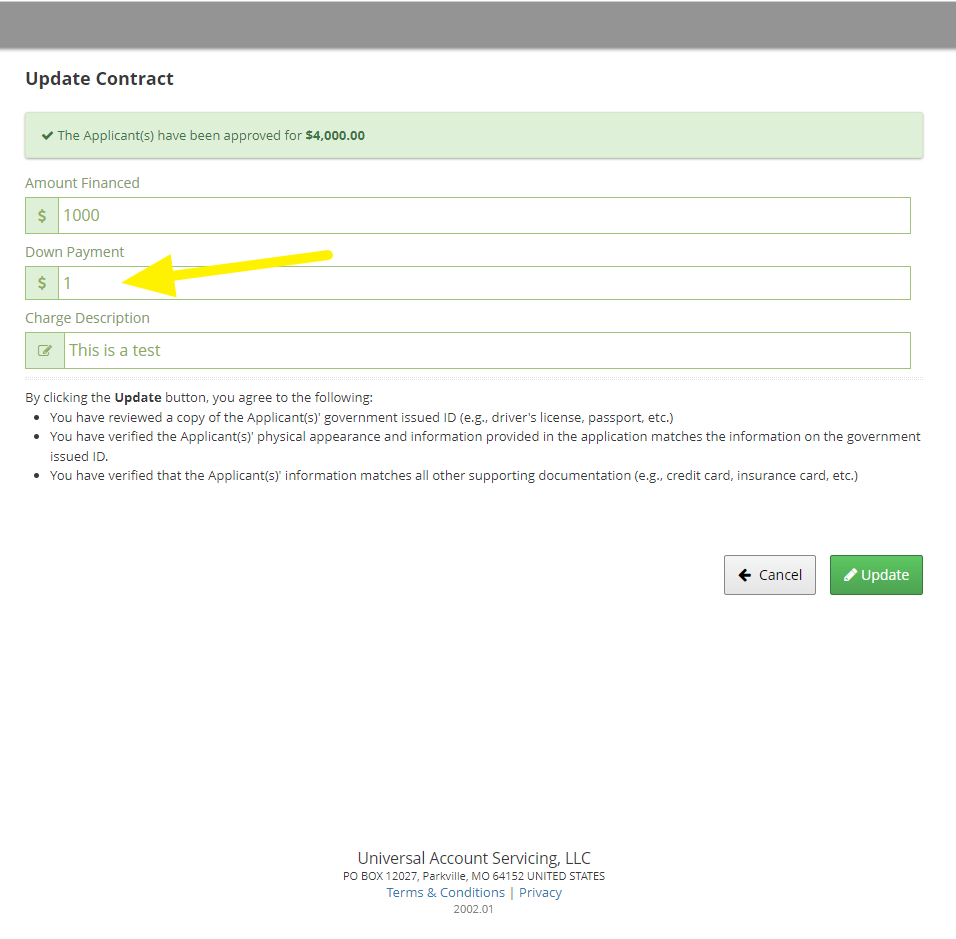
If price negotiations or changes are essential to your businesses sales processes, you can easily update the amount of the financing charge in uPortal360 at any time before contract agreements are signed. Locate the application in uPortal360 and click the “Edit Charge Amount” button from the Contract Control Panel.| 1. View Contract | 2. Edit Charge | 3. Update Contract |
|---|---|---|
 |  |  |
Collect a Down Payment
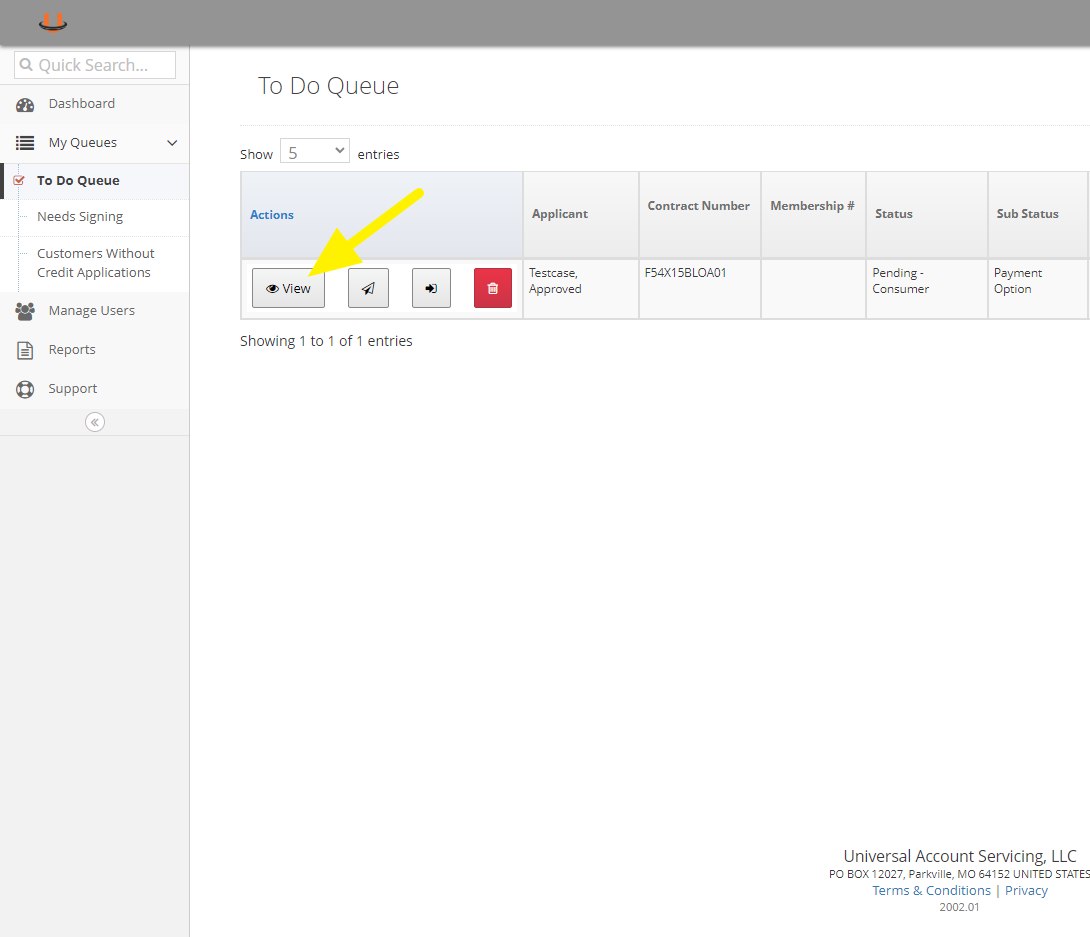
If a down payment is required, you can enter the amount collected in the charge details. Once you click the update button, your consumer will be able to complete the process by either refreshing their application screen or clicking on the application link you sent to start the application.| 1. View Contract | 2. Edit Charge | 3. Update Contract - Enter Down Payment |
|---|---|---|
 |  |  |
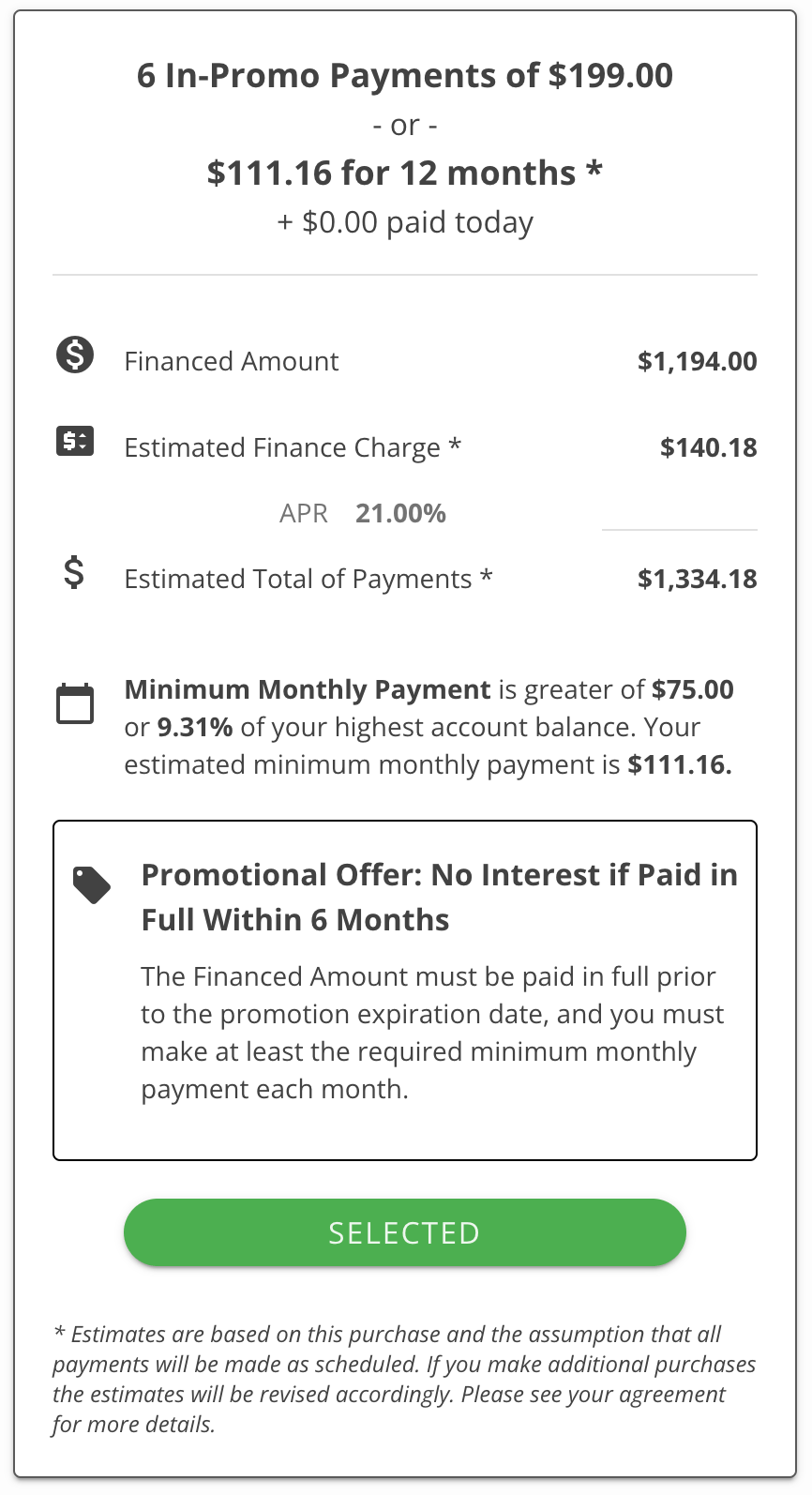
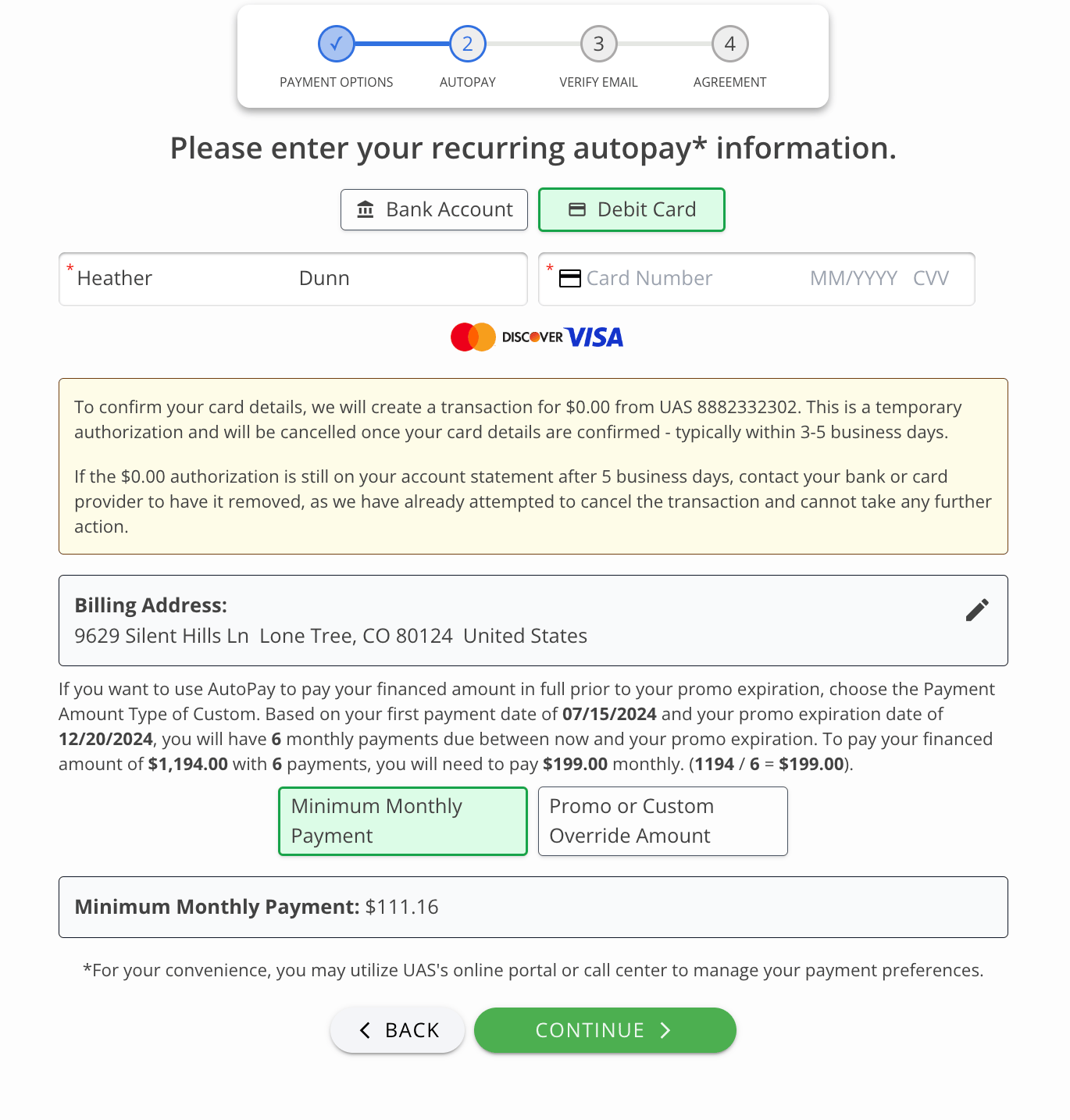
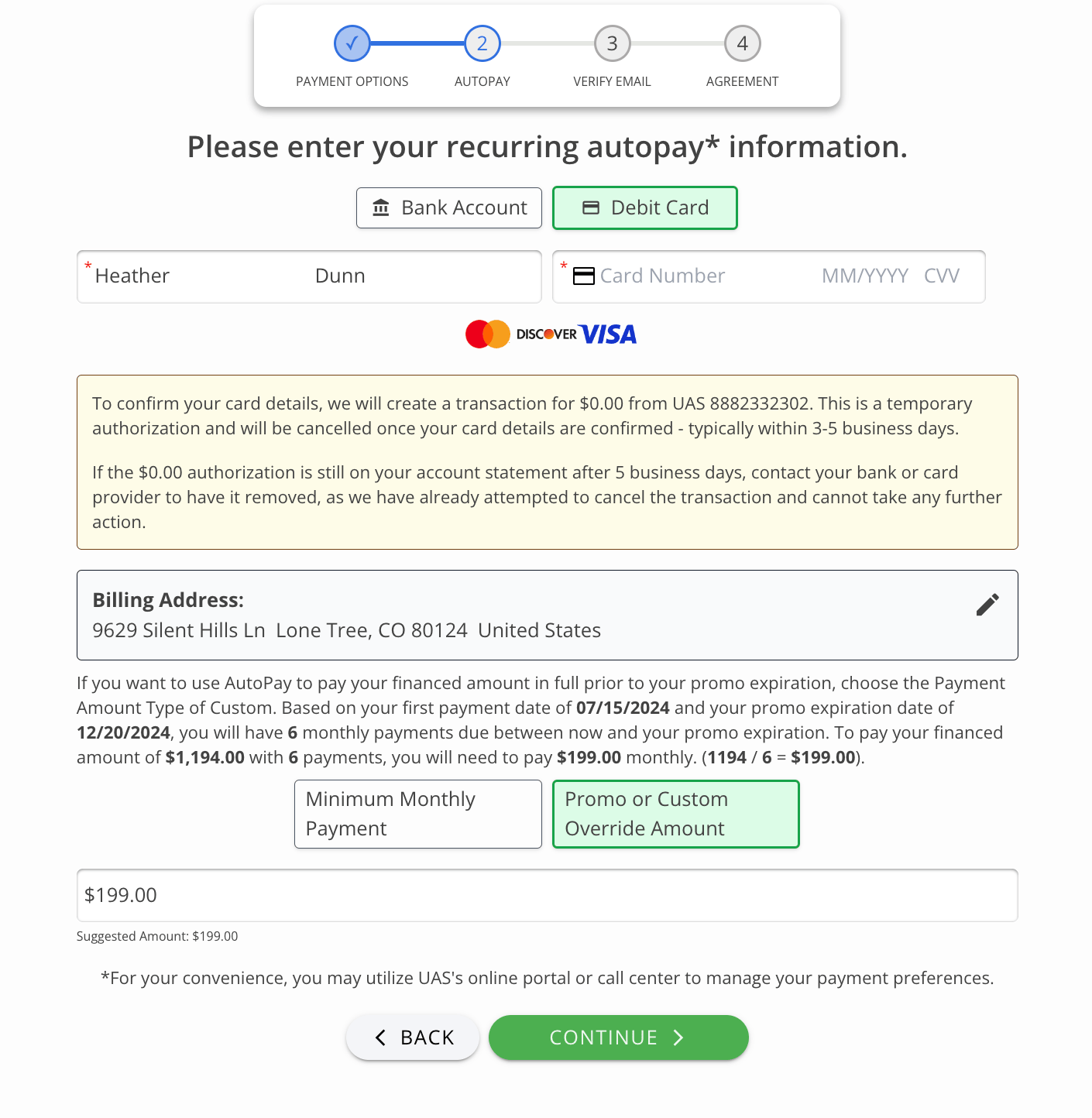
Deferred Interest Promotion - Payment Option and AutoPay
The screens below are specific to Deferred Interest Promotion, shown with a description of “No Interest if Paid in Full.”| 1. Promotion Payment Option | 2. AutoPay Default | 3. AutoPay Override |
|---|---|---|
 |  |  |