

Do I have access to the Merchant Control Panel?The Merchant Control Panel is only available to Finance Programs with the uPortal360 Consumer Application Experience enabled.If you have questions on the status of your program, or would like to enable this feature on your Finance Program, contact our Merchant Performance team at merchantperformance@ugafinance.com or give us a call at (888) 842-2461.
Consumer Application + Merchant Charge Entry
If your business is leveraging the uPortal360 Consumer Application Experience, and the financed amounts were not entered when sending out the customer’s application link, the Consumer Application will stop the consumer when they receive their approval and require finance amount entry through the Merchant Control Panel. Consumer Application View of Approved Application (apply.uportal360.com):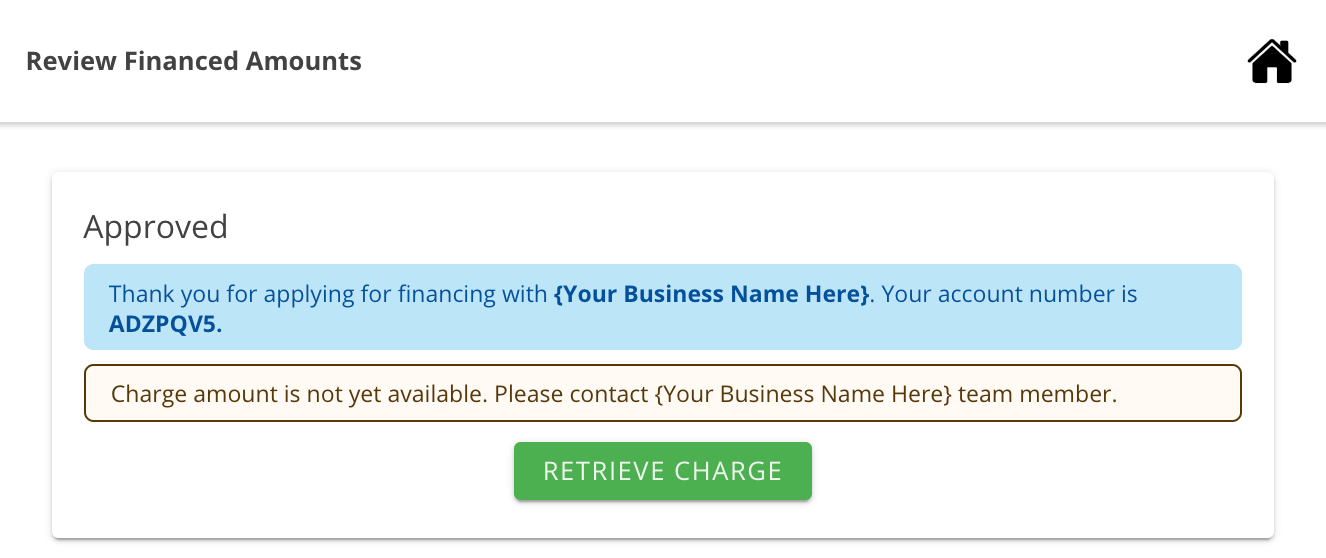
How to Navigate to Merchant Control Panel
When your business representative is ready to proceed with the customer’s approved credit application and originate a full financing account from it, navigate to the Merchant Control Panel by either searching the customer’s name or account number and clicking “View” on their account in the To Do Queue, or simply use the Quick Search feature to search the customer’s information and click “View”. This will pull up the Merchant Control Panel for that customer’s credit application. Merchant View of Approved Application (client.uportal360.com):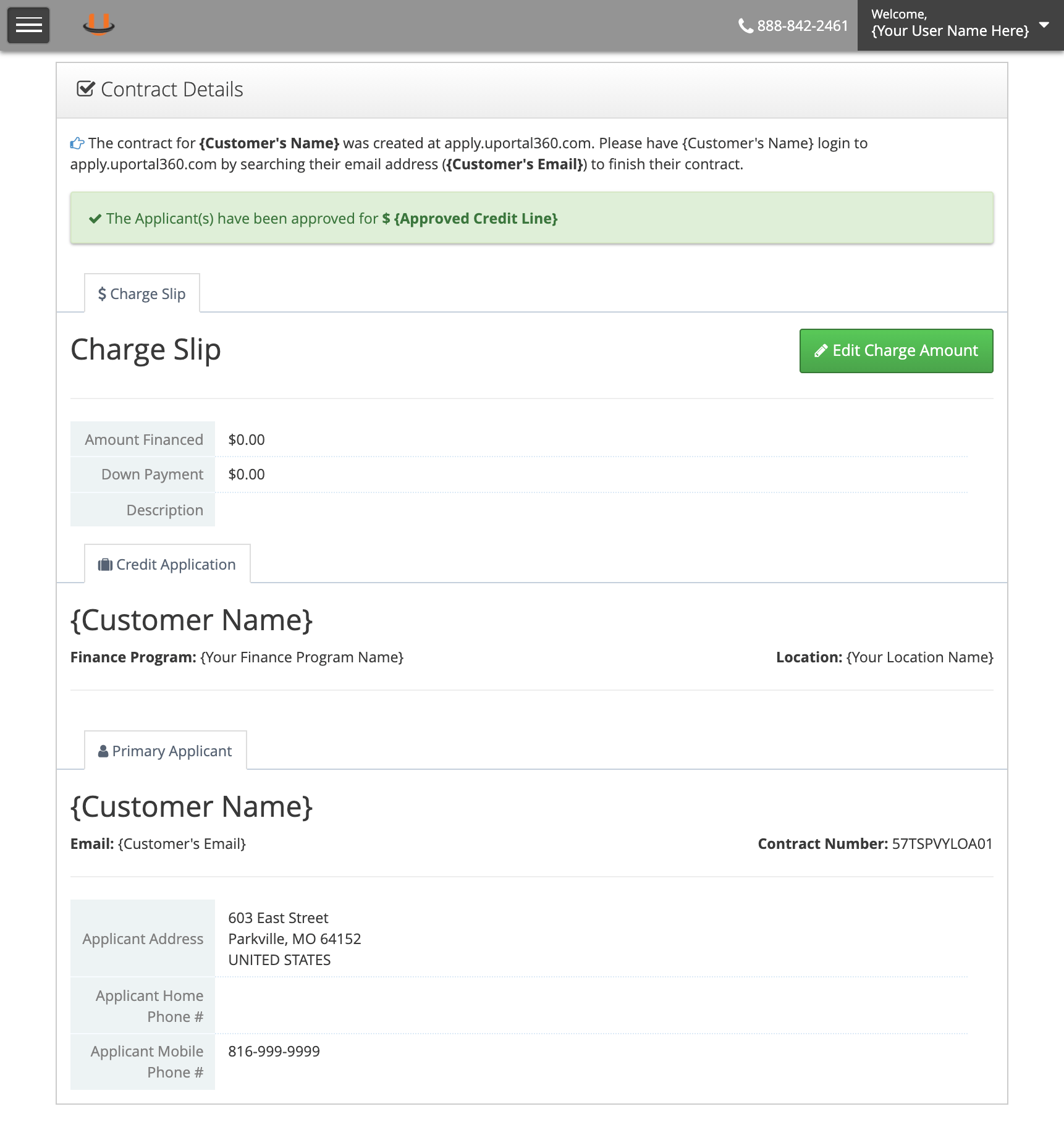
Tip: Follow the green buttons!From here, follow the green buttons presented on each page. For more info, the next section will explain how the Merchant Control Panel green buttons will guide you through entering the application price and additional data.
How to Use the Merchant Control Panel
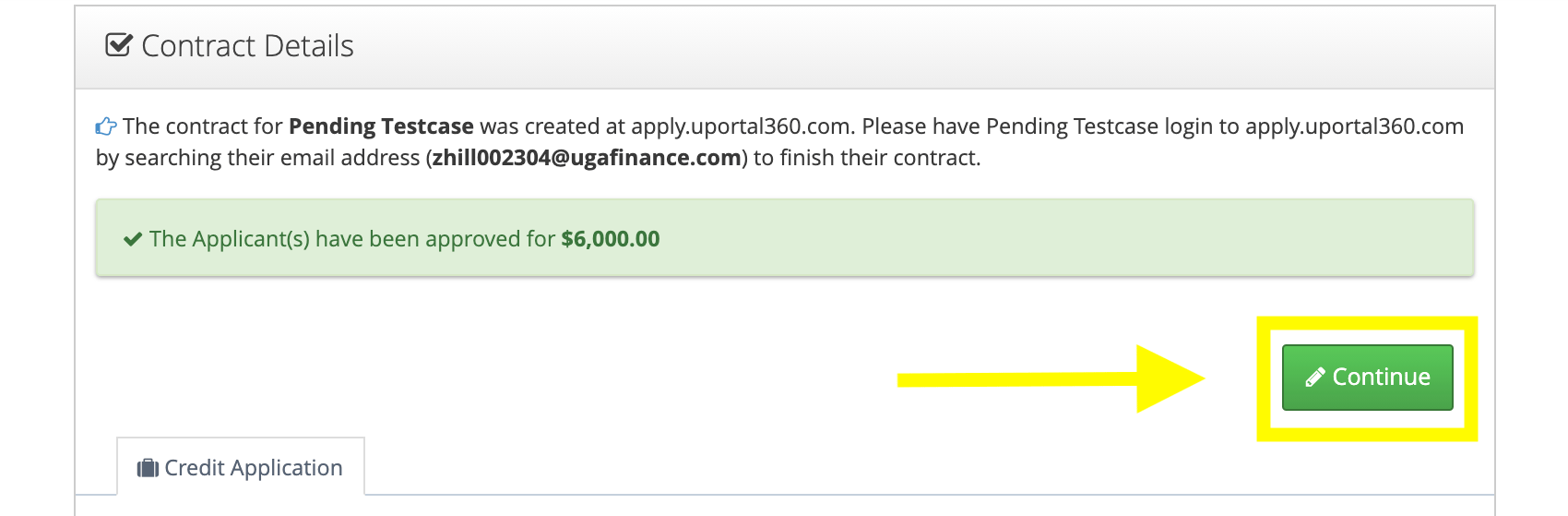
Once you’ve navigated to the Merchant Control Panel for your customer’s credit application, simply follow the large green buttons in focus.1. Continue / Edit Charge Amounts / Edit Additional Information Button
Depending on your configuration, this green button may have different labels but will always take you to the next page to at least enter the Cash Price, Down Payment, and Charge Description, with different variations for different finance program configurations (Standard, Future Delivery, Merchant Discount Approval, etc.).| Green Button (Labeled “Continue”) | Green Button (Labeled “Edit Charge Amount”) | Green Button (Labeled “Edit Additional Information”) |
|---|---|---|
 | ||
| Again, regardless of the label, this button will always lead to a variation of the Charge Entry page! |
2. Merchant Charge Entry
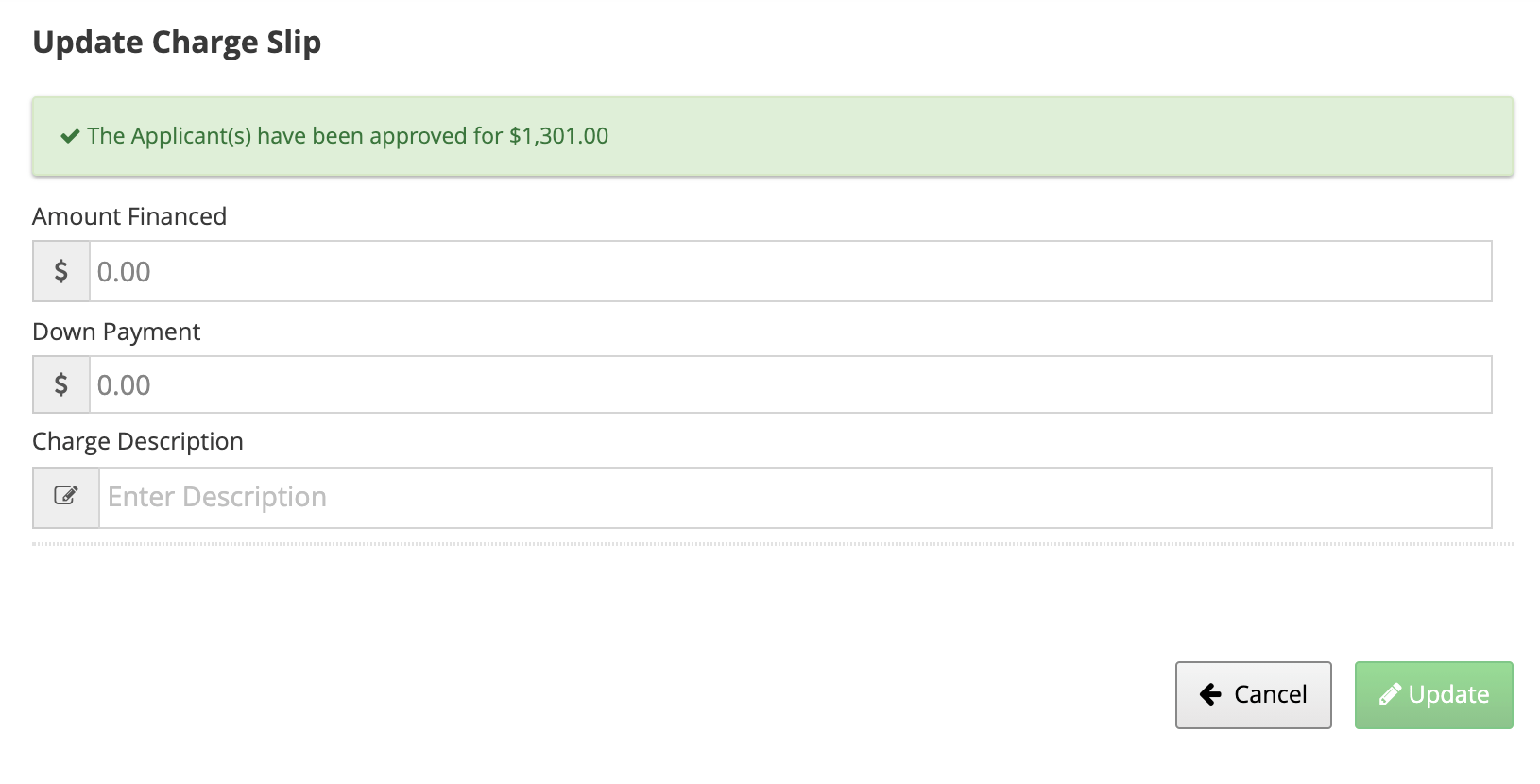
At it’s simplest, the charge entry screen will simply contain the Cash Price, Down Payment, and Charge Description fields. For Future Delivery programs, the Estimated Goods or Service Delivery Date can be required as well. For Merchant Discount programs, all of the above and Consumer Identity and Merchant Discount attestations will be present as well. Enter this information and follow the green buttons (“Update”, “Submit”) to save the information you’ve entered back to the credit application, which will make that available to the customer and allow them to proceed with their credit application!| Charge Entry (Standard) | Charge Entry (Future Delivery Program) | Charge Entry (Merchant Discount Program) |
|---|---|---|
 | |
TIP: Edit Information Before Consumer Agreement has been SignedAt any point before your customer signs their financing agreement (at the end of the application process), you can return to this screen to update prices, descriptions, or delivery dates!
3. Customer Continues with Application
At this point, you as the seller have entered the critical data around your sale and reflected that on the credit application. uPortal360 will redirect you back to the Merchant Control Panel. The updated application information will now be available to your customer in their credit application at apply.uportal360.com.- If the nature of your sale has them in person or completing this process live, and your customer is still on the approval page that instructed them to reach out to your business, they simply need to click the “Retrieve Charge” button, which will pull in the application information you just entered and refresh the page displaying that to them to agree to, with the ability to agree to your price, description, and/or estimated delivery date and continue.
- If the nature of your sale occurs over a longer period of time, and it’s been a few hours or days, or the consumer simply closed out of the application, you’ll want to use the “Send Link” button to resend their link to them to re-enter the application. When they click that link, the consumer application will recognize the information you entered and direct them to the Approval screen with the ability to agree to your price, description, and/or estimated delivery date and continue. Regardless of whether it be the original link they were sent, or a link sent using the “Send Link” button on the Merchant Control Panel, the Consumer Application will always direct them right to where they left off in the process.
| Approval Screen (Charge Entry Pending) | Retrieving Charge… | Approval Screen (Charge Available) |
|---|---|---|
|
- After the consumer agrees to the price, amount financed, description, and delivery date (if applicable), the consumer will proceed with the remaining steps of their credit application: Selecting their monthly payment, Paying Down Payment (if applicable), and Signing their Financing Agreement!