

To Do Queue
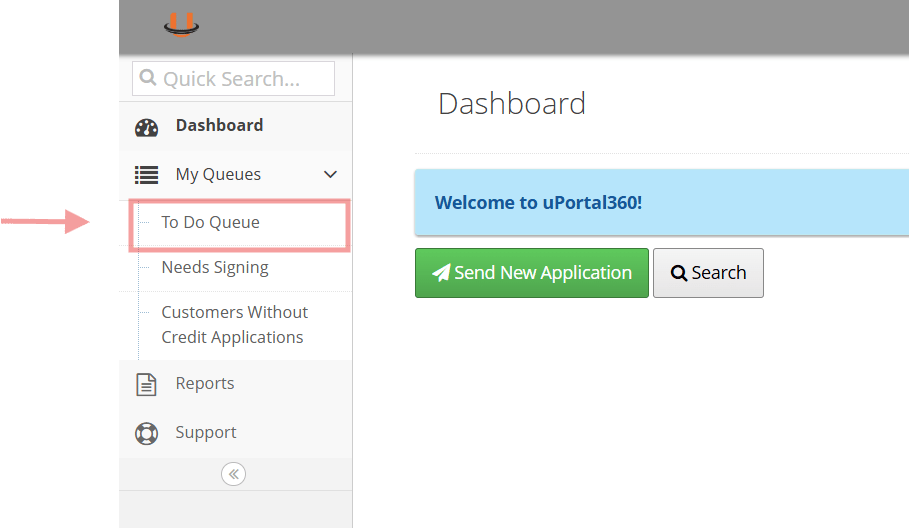
- Login to the Uportal
- Click To Do Queue
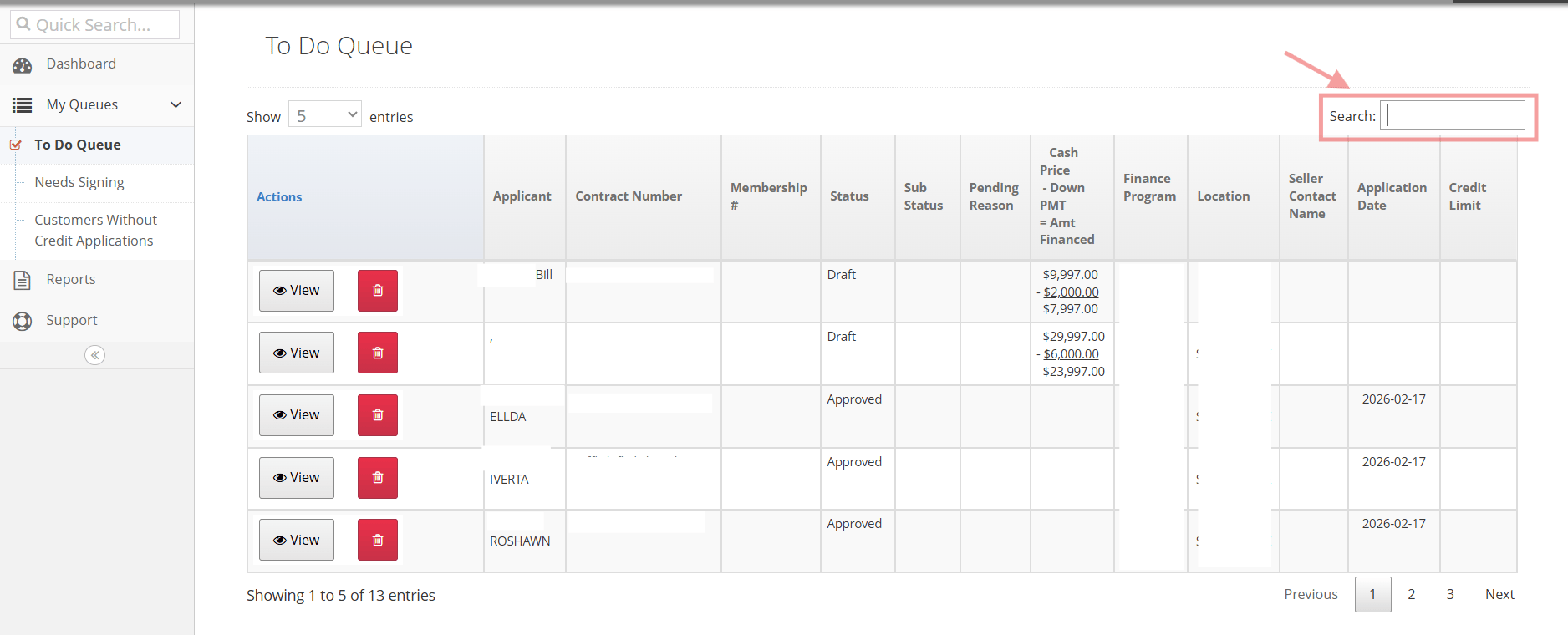
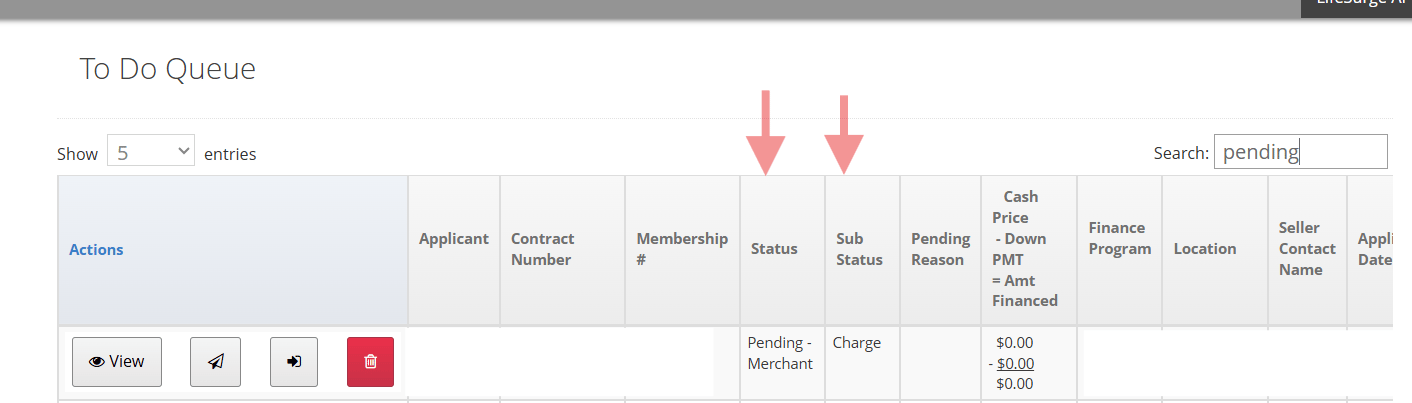
Locate Consumers Account
- Search for the consumers Name/email/application ID
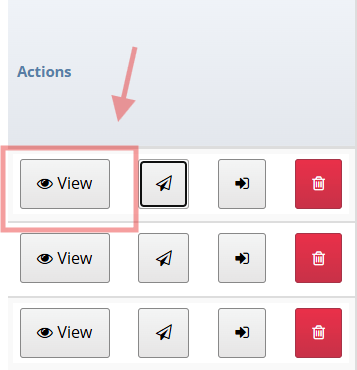
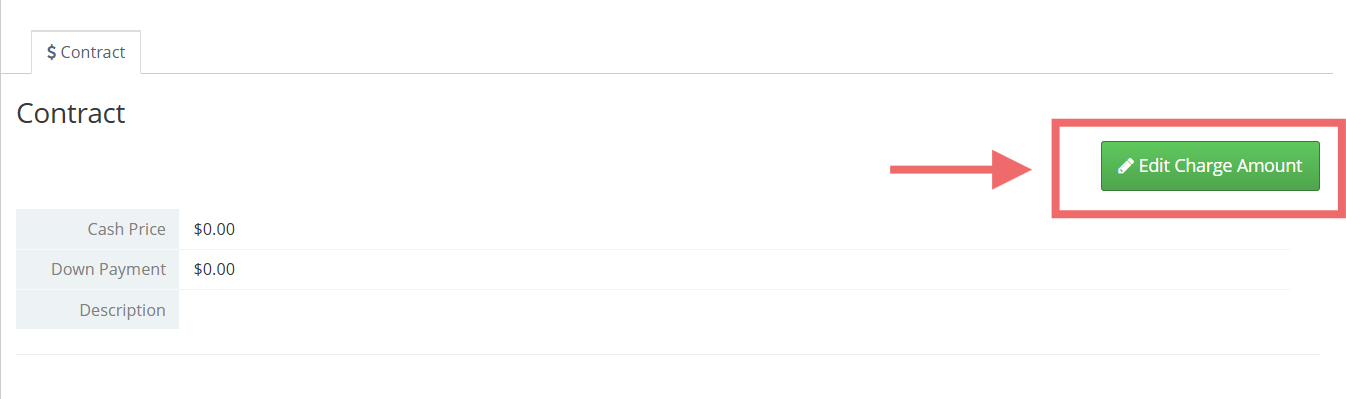
- Click “Edit Charge Amount”
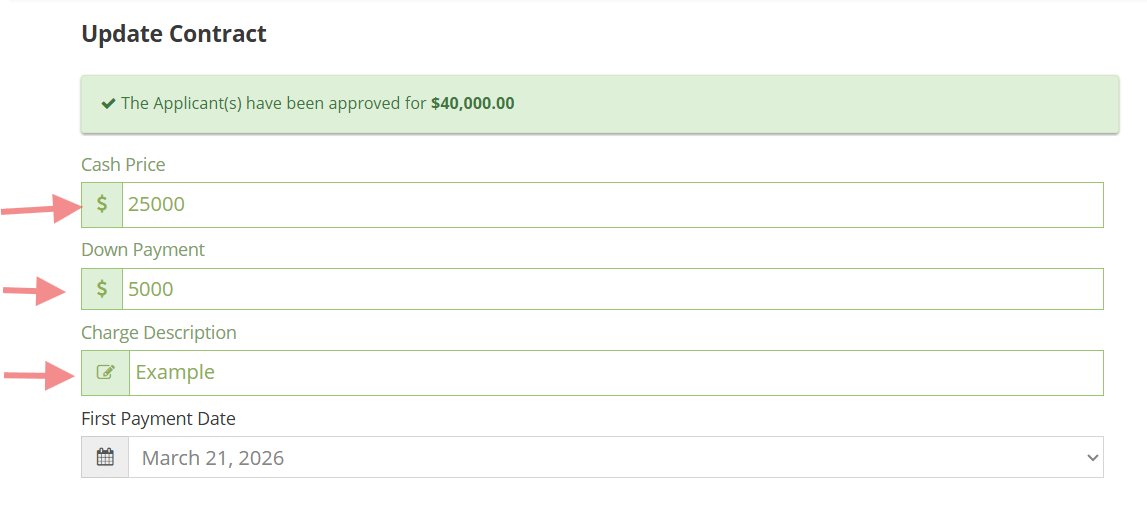
- Enter Cash Price, Down Payment and Charge Description
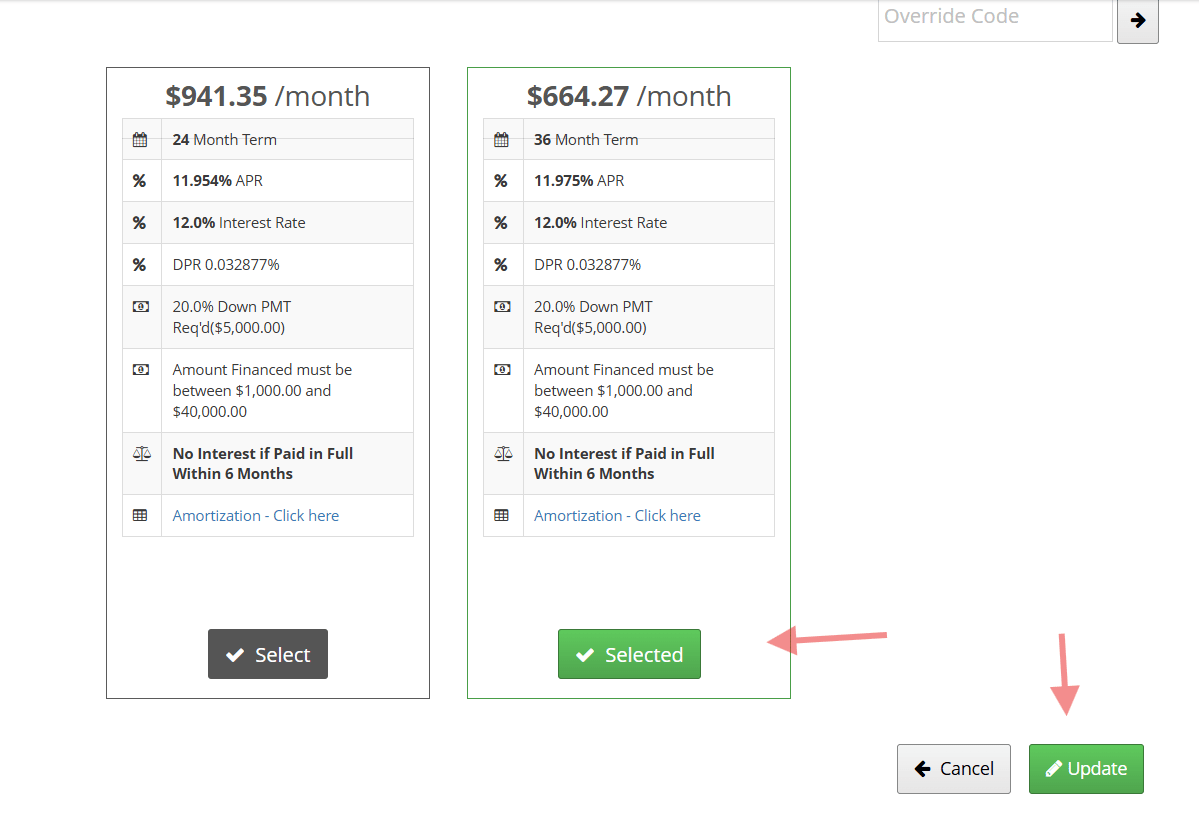
- Select the term that the consumer qualifies for and click the “Update” button to continue. If the consumer qualifies for multiple terms, all options will appear for the consumer. The chosen term will be pre-selected.
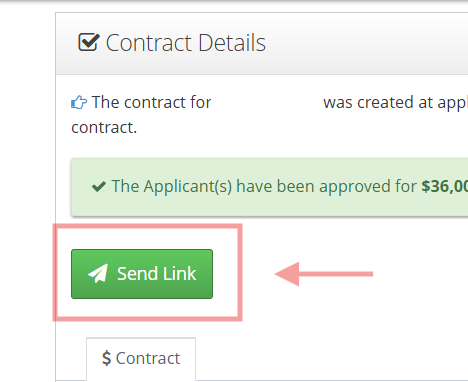
- After the financing details have been entered, you can click the “Send Link” button to the consumer to finish the application. The “Edit Charge Amount” button is now grey, but the charge amount can still be updated it needed.
Screenshots
| 1–2. Open the To Do Queue | 3. Search for the consumer | 3. Status: Pending Merchant Charge |
|---|---|---|
 |  |  |
| 4. Click View | 5. Click Edit Charge Amount | 6. Enter charge details |
|---|---|---|
 |  |  |
| 7. Select the term | 8. Send Link | |
|---|---|---|
 |  |