

Omega Invoice
Omega delivers a detailed collection invoice every month for clients that have accounts in collection servicing. Invoices will be available on the 7th business day of the month. Deposits will be made within 24-48 hours after invoicing is complete. Once the process is complete the invoices are made available via the Omega portal.Accessing Omega Invoices
To view invoices and run detailed invoicing reports you will need theOmega Reports report set. Permissions and report sets can be assigned by a user with the User Management permission. Please contact this user to assign the permissions and reports needed.
How to Read Omega Invoices
We created an invoice example, How to Read your Omega Invoice (below).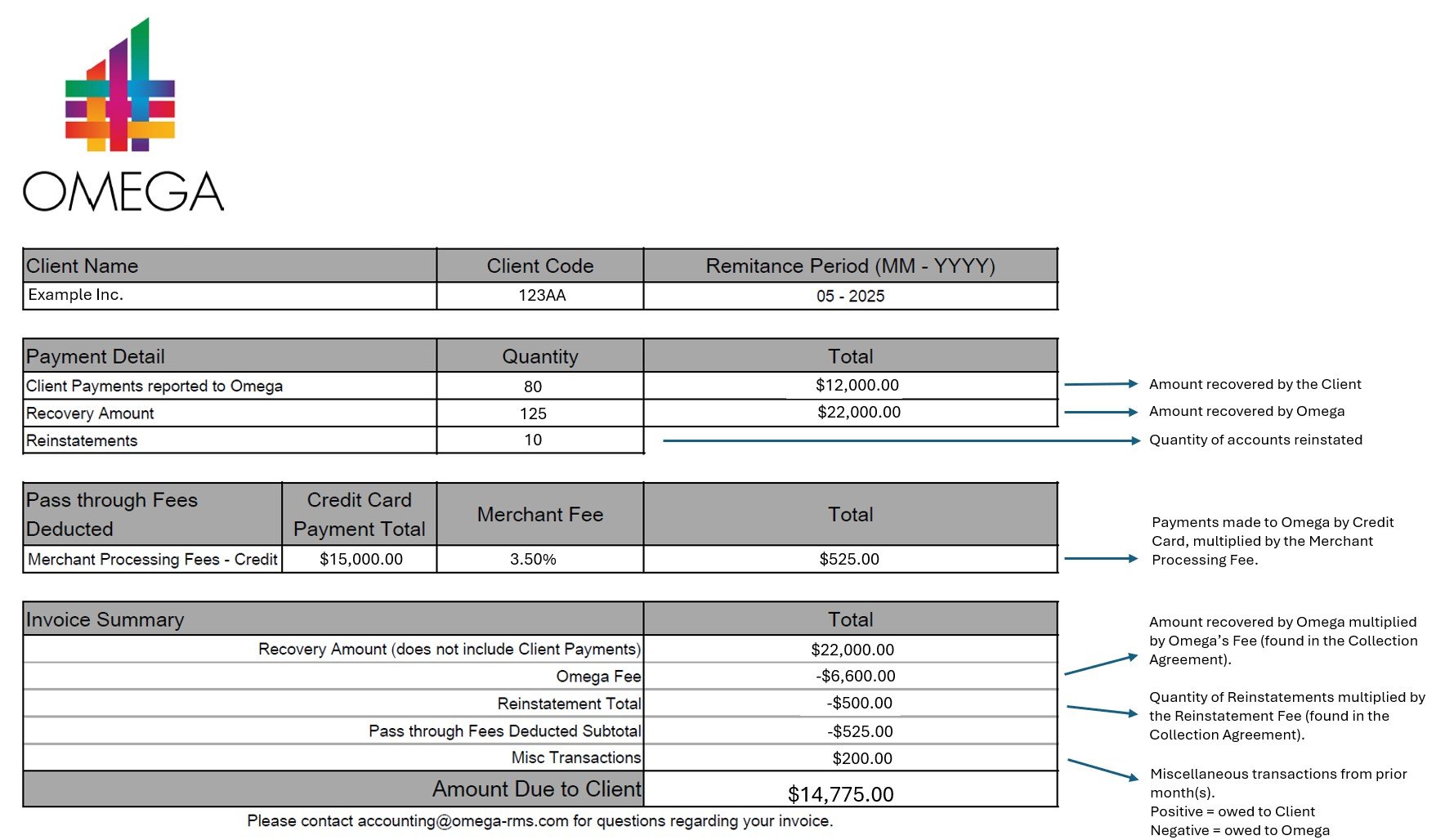
Omega Invoice Reports
To run detailed Omega collection reports, you will need theOmega Reports report set. When you log in to the Omega portal, you will see a list of reports that start with “Omega - (Report Name).”
Report Use Guide
Scroll down to “Using Reports to Substantiate Your Omega Invoice” for a complete guide on using and configuring your invoice reports.
Omega - Invoicing - Summary
This report shows a summary of all the information on the invoice. There may be multiple invoices on this report depending on the number of collection programs you have. Each row summarizes one invoice. Field DefinitionsOmega - Invoicing - Transactions
This report shows collection accounts based on date closed. Field DefinitionsOmega - Invoicing - Misc Transactions
This report shows all miscellaneous transactions related to the invoice billing period, including prior months’ balance. Field DefinitionsUsing Reports to Substantiate Your Omega Invoice
Access Invoice PDF and Reports
To balance fields on Omega Invoices and to ensure all charges and amounts are correct, you must first access your invoice. Finding any of the fields below will start the same way:- Navigate to the Omega uPortal and select “Invoices” and download the Omega invoice that matches the invoice you are searching for with the invoice under the “Name” column.
- Still within uPortal, in the reports tab, navigate to “Reports”
- Omega - Invoicing - Summary
- Omega - Invoicing - Transactions
- Omega - Invoicing - Misc Transactions
- Select the drop-down menu for the remittance period you are verifying.
Verify Omega Payment Details, Fees, and Summary Details
You will need the Omega - Invoicing - Transactions report for these validations to the Invoice.Note: If there are multiple Collection Programs or multiple invoices for the client, you will need to Filter or Sort by Collection Program.
You will need the Omega - Invoicing - Misc Transactions report for these validations to the invoice. Miscellaneous transactions include balances (positive and/or negative) that have been carried over from a prior remittance period. Use the type and description of Misc Transaction to substantiate the report.
You will need the Omega - Invoice Summary and Omega - Summary Transactions reportfor these validations to the invoice.
Excel Tips & Tricks
To verify your invoices, it’s helpful to know a few tools in Excel. These features will be a reference in the verification details. Apply Data Filter to Sheet - An easy way to sort data is to apply a data filter to the entire sheet. Use “ctrl + a” or click on the arrow between Column A and Row 1 to select the entire sheet. Then go to the Data tab and select Filter. Now every column in the sheet will have a drop-down arrow that will allow you to sort by that column or apply quick filters.Summarize Data
- If you filter a row, as you apply a filter it will count the rows.
- If you highlight an entire column (click on “A” as an example) excel will count rows and if the field is numeric it will summarize the values. This is an easy way to see totals without having to add a summary formula.
- Please note, this will provide a total count for any cell with a value entered, including the header. For example, if you are attempting to confirm the total number or quantity of transactions, the count will include the header of the column into the total count provided.
- Pivot Tables - a bit more advanced, but provides an easy way to summarize data by group and subgroups.