

Purpose
The purpose of this article is to provide our clients information on how to address their most common questions when first setting up their account with uPortal360.Tip 1 - Link to the login page
uPortal LoginBookmark important uPortal360 links
It is recommended to bookmark the login page and all other links to help your experience with uPortal360. We have provided useful articles for how to bookmark links through Chrome, Internet Explorer, Microsoft Edge, and how to save a link directly to a desktop on iOS devices as an app.Saving the link in Google chrome
Instructions from GoogleSaving the link in Internet Explorer or Microsoft Edge
Instructions from MicrosoftSaving the link to the Desktop on iOS devices
WikihowTip 2 - Set up your Users
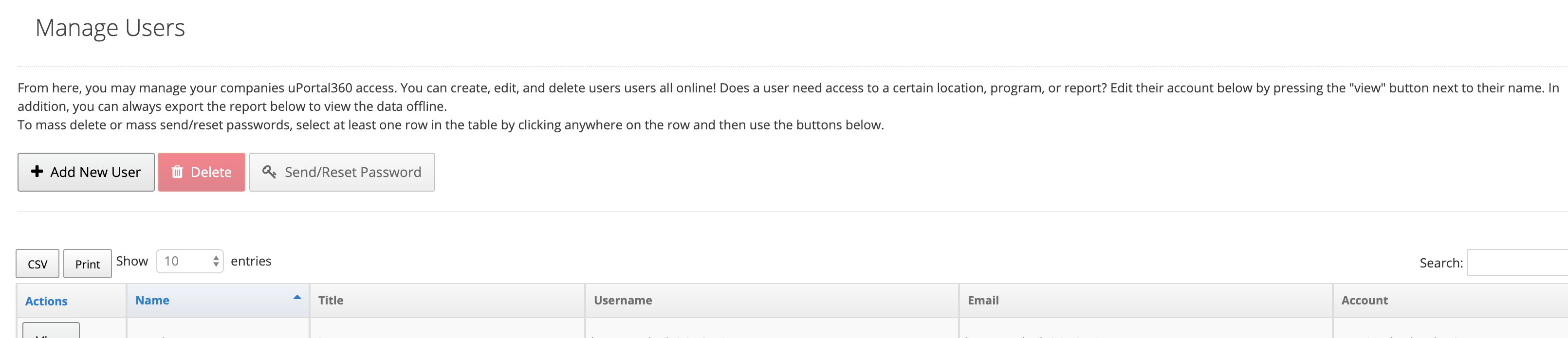
Creating a New User
- Open the Manage Users tab
- Click the + Add New User button at the top
- Populate all fields with a red asterisk
- After you click + Add you will be directed to that user’s profile a) Some permissions and reports will come standard with whichever role you selected b) You can edit that information in Advanced Configuration section after clicking Edit User
- Once the user has been created, you will need to send their password by clicking the Send/Reset Password button at the top
Quick Tip For the purpose of contacting the right person within your office, it is important to keep each user’s title current/updated in uPortal360. We want to make sure all communications go to the correct user and that all users are receiving content relevant to their role.
Updating a User’s Password
- Open the Manage Users tab.
- Click on the View button of the user in need of a password change.
- Check that the Email/Username field is correct for that user. The username must be unique. a) If the Email or Username is incorrect, see “Changing an Email Address” below.
- The user should receive an email with a temporary passwaord. b) If the email is not received, check the spam folder.
- If the email is not in the spam folder, have the user email uSupport@ugafinance.com or call (888) 842 2461
Changing an Email Address
- Open the Manage Users tab.
- Click on the View button of the user in need of an email change.
- Click Edit User at the top.
- Edit the Portal Pin field.
- Click Save.
Removing a User
- Open the Manage Users tab
- Locate the user and click View.
- Click the red Delete User button at the top of the screen and provide a reason in the popup box that appears.
- When you click Confirm the user will be deleted, and you will be directed back to the Manage Users tab.
Adding and Removing Permissions
- Open the Manage Users tab
- Locate the user and click View.
- Click Edit User
- In the Advanced Configuration section, click on the Permissions tab.
- Use the toggles to add or remove permissions for the user.
- Scroll upwards, and click Save.
Locations and Programs Permissions
- Open the Manage Users tab.
- Locate the user and click View.
- Click Edit User.
- In the Advanced Configuration section, click on the Programs or Locations tab.
- Scroll up and click Save.
Add or Remove Reports
- Open the Manage Users tab.
- Locate the user and click View.
- Click Edit User.
- In the Advanced Configuration section, click of the Reports tab.
- Use the toggles on the right add or remove access to the reports for that specific user.
- Scroll up and click Save.