

Purpose
The needs signing queue consists of all contracts that have yet to be signed. This article provides information on how the Needs Signing Queue works and how the Needs Signing Queue links to other queues that are part of the uPortal360 interface.Defining the Queues Relationships
Pending agreements enter the Needs Signing Queue. From the Application Date, the account will remain in this queue for 5 days. If an agreement is not signed within 5 days, the agreement is voided and put into the To Do queue.Viewing the Queue
After locating an applicant, clicking View will display the consumers agreement. From this view the Applicant Agreement page.
Viewing the Applicant Agreement Page
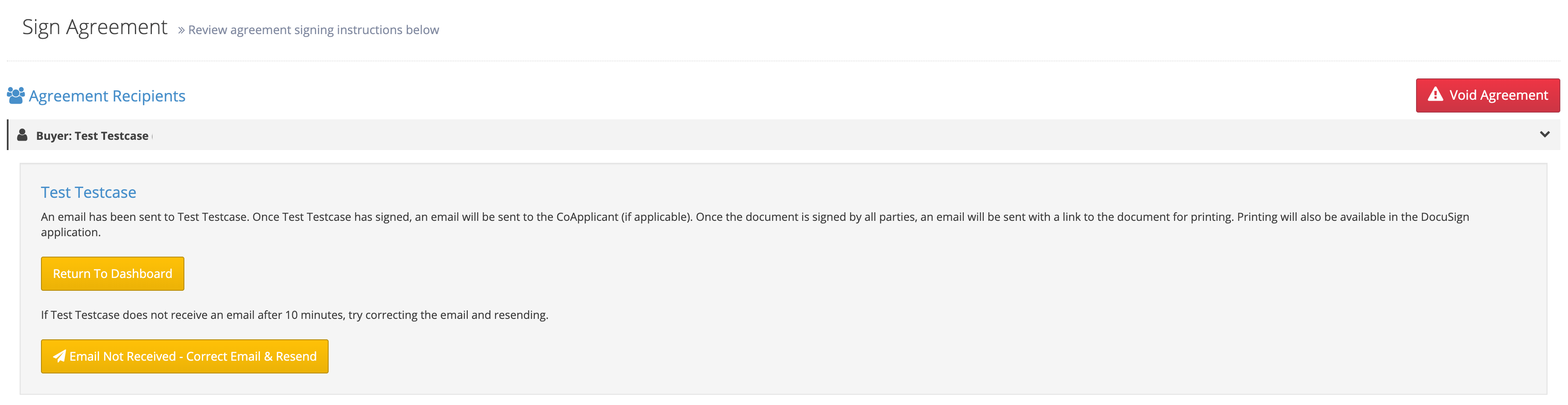
- Sign Agreement - this option navigates to DocuSign so that the agreement can be signed.
- Correct and Resend - this options allows the email address to be update and the agreement to be resent.
- Void Agreement - the option voids this version of the agreement and restarts the origination process so that errors can be corrected. a) When voiding an agreement, enter a Void Reason. To complete voiding the agreement, select Void & Return to Manage Application b) The Void Agreement option does not remove the agreement from the system. In order to fully remove an agreement, return to the Needs Signing Queue and select Delete.
Quick Tip Voided agreements remain in the system for 30 days from the date of origination. After 30 days has passed, the consumer’s credit will be checked again.
Canceling Signed Agreements
A signed agreement cannot be voided. Instead, to cancel an account and request a refund (if applicable) follow these steps.- Located the consumer in uPortal360
- Click View next to their name.
- Select Client Actions and Submit a Case from the toolbar on the left hand side of the display.
- Select a reason for the case.
- Fill out the subject line, and enter a description of why this contract needs to canceled. a) If a refund is being requested, include this in the description.